Putting a dazzling portfolio together is only half the job—you still need a slide deck that preserves every color value and kerning choice. We road-tested 12 leading presentation tools and scanned designer forums to find the ones that respect pixel precision, brand kits, and Figma-to-slide workflows. Below is the ranked short-list; our scoring model weights visual fidelity first, cost last. Ready? Let’s see which platform will make your next portfolio review feel like a standing ovation.
Advertisment
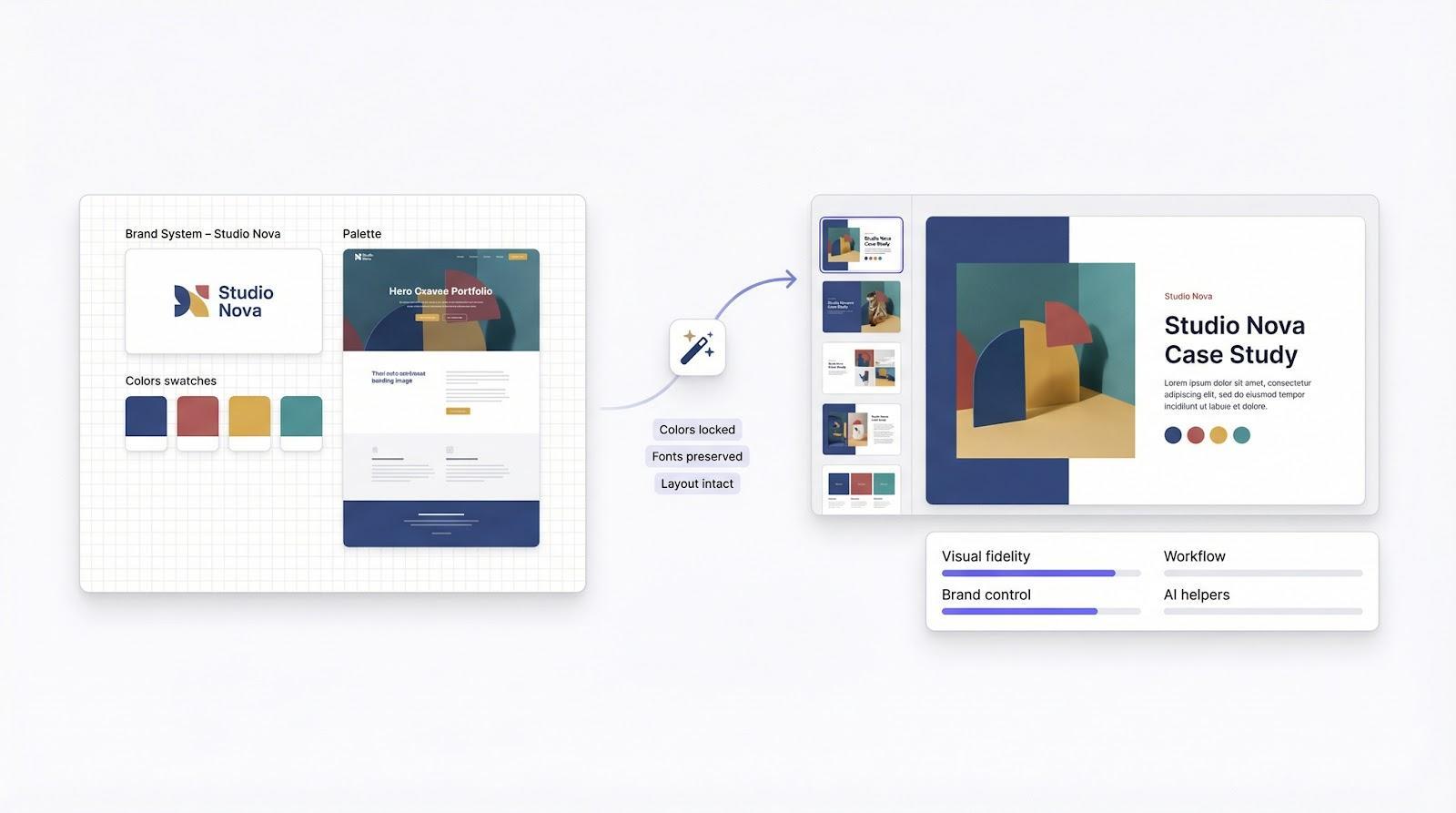
Choosing “the best” without a playbook leads to bland advice, so we built one. We wrote a single question on the studio whiteboard: What does a great portfolio-deck tool help a designer do faster, cleaner, or better than the alternatives? Every test flowed from that prompt.
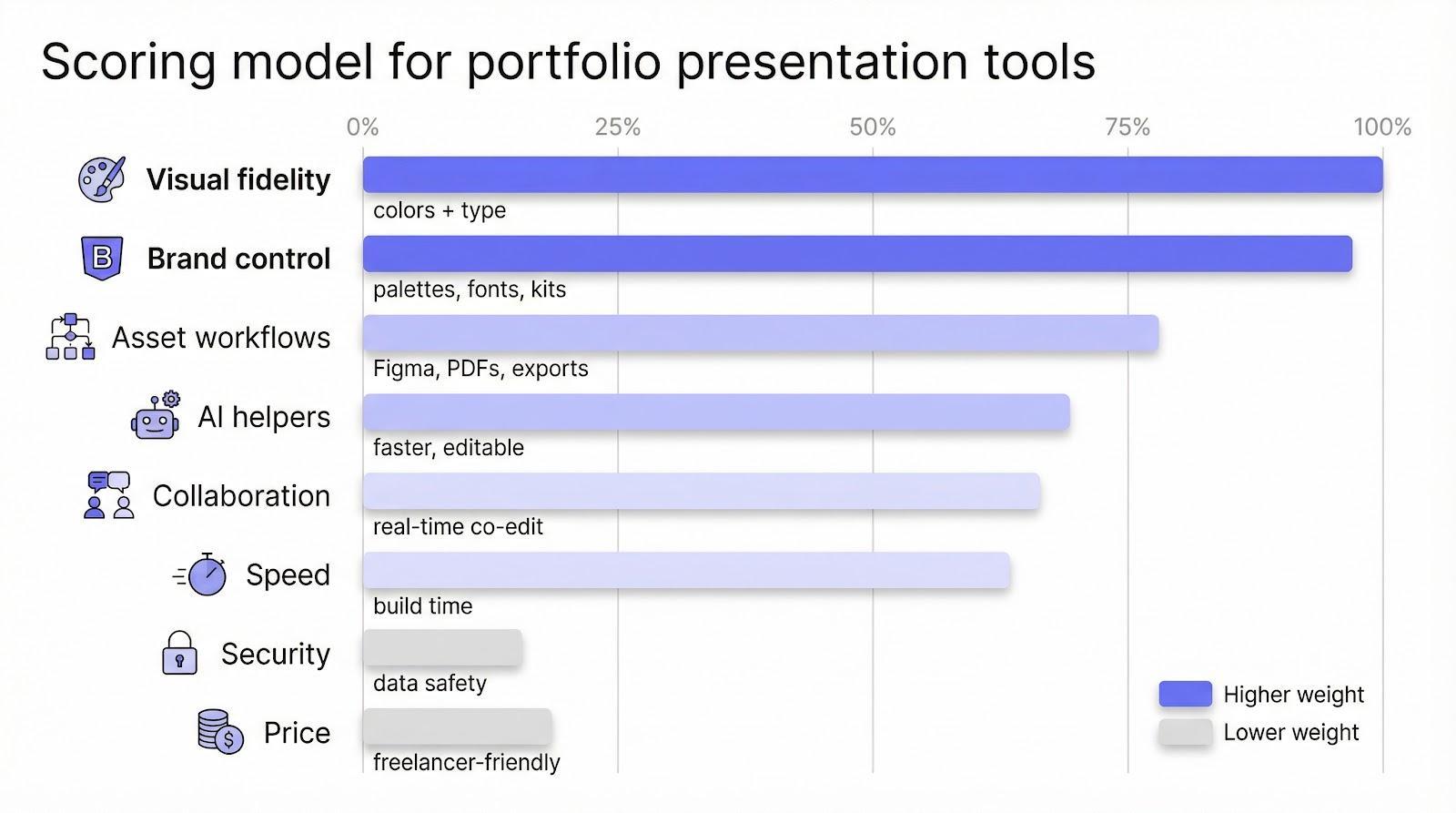
First, we graded visual fidelity. If a platform softened colors, stripped custom fonts, or mangled SVGs on export, it lost points, no excuses. Your work deserves to look exactly the way you designed it.
Next came brand muscle. We checked whether you can lock in palettes, upload typefaces, and apply a style guide in one sweep. Tools with automatic brand-kit enforcement surged ahead; those needing manual slide-by-slide tweaks fell back.
We then stress-tested asset workflows. Could we drag a Figma frame onto a slide without pixelation? Did exported PDFs keep vectors crisp for print? Import and export quirks surfaced fast during real client mocks.
Speed still matters, so we evaluated AI helpers. The litmus test was simple: do they shave hours off layout tedium and let you override every decision? If the algorithm fought our typographic tweaks, we marked it down.
Finally, collaboration and price rounded out the score. Real-time co-editing plus a free or low-cost tier keep freelancers in the game, so we refused to crown any tool that locks core features behind enterprise paywalls.
We weighted those nine factors, placing visual fidelity and brand control at the top and security and price at the tail, then tallied raw scores into one clean leaderboard. The result is a ranking you can trust when a recruiter pings you for a portfolio walk-through tomorrow.
The add-on has surpassed 1 million installs in the Workspace Marketplace with an average 4.6-star rating.
Plus’ own dashboard shows the momentum does not stop there: more than 2 million total installs when you add its PowerPoint users and a 4.8-star score on Microsoft AppSource back up the enthusiasm we heard from designers. You can verify those numbers, explore the AI Remix editor, and spin up a free trial inside the tools you already use by visiting www.plusai.com.
Open Google Slides, type a prompt, and watch ten on-brand portfolio slides appear before the coffee finishes dripping. That is Plus AI in action. It tops our list because it pairs speed with pixel-level control—two traits designers rarely find together. The add-on has surpassed 1 million installs in the Workspace Marketplace, with an average 4.6-star rating, showing that creatives and business users rely on it every week.
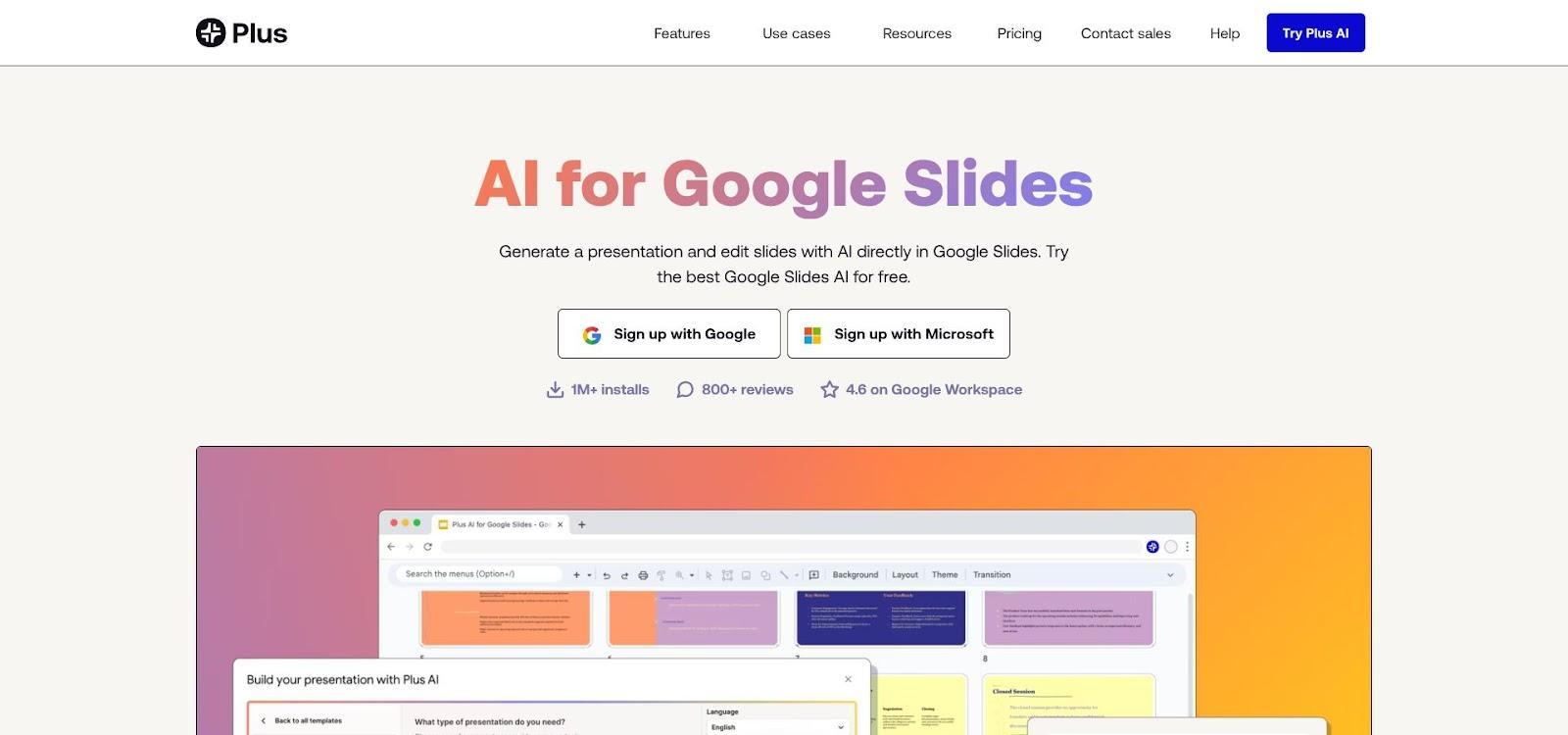
Plus AI lives inside software studios already share with clients, so you skip the steepest switching cost: relearning layout tools. You keep every master slide, custom font, and collaboration feature Google Slides offers. The AI drafts the first cut of each slide, then suggests tighter layouts or smarter galleries as you refine.
The payoff is time. Designers we interviewed cut deck-building from half a day to less than an hour, freeing space for higher-value polish like typography tweaks or motion mock-ups. Because Plus AI works offline once content is generated, your final edits stay safe even when Wi-Fi drops in a client lobby.
Advertisment
Open Figma, flip a toggle, and your artboard becomes a presenter-ready slide canvas. No exports, no compression scares, simply pixel-perfect hand-off from design to deck. That smooth workflow places Figma Slides in second place.
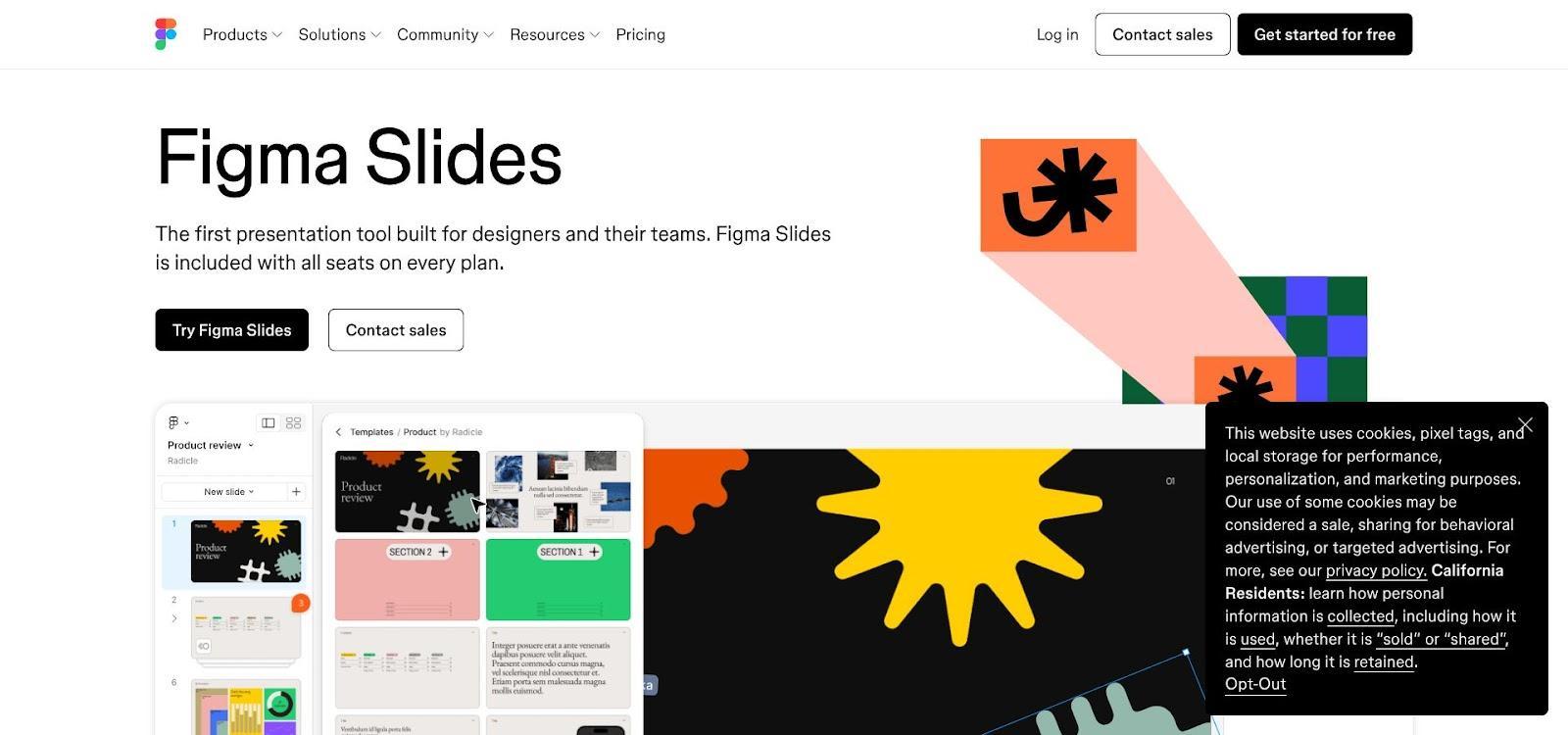
Figma calls it “the first presentation tool built for designers and their teams,” and the claim holds up. Every vector, component, and font you refined stays editable in the same file, so brand alignment moves from checklist to default.
Collaboration is quick too. Product managers can tweak copy while you adjust kerning on the next slide, all inside one multiplayer canvas. It feels less like making a presentation and more like extending your design system into narrative form.
Canva is the espresso shot of presentation tools. Open a template, swap in your work, toggle your Brand Kit, and you are three clicks from a polished portfolio. For freelancers racing a last-minute interview invite, that pace is worth gold.
Template breadth seals the deal. Type “portfolio” in the search bar and you will scroll past minimalist case-study spreads, bold color-block decks, and cinematic image reels. Pick one, then let the drag-and-drop editor handle alignment so you can focus on storytelling, not snapping guides.
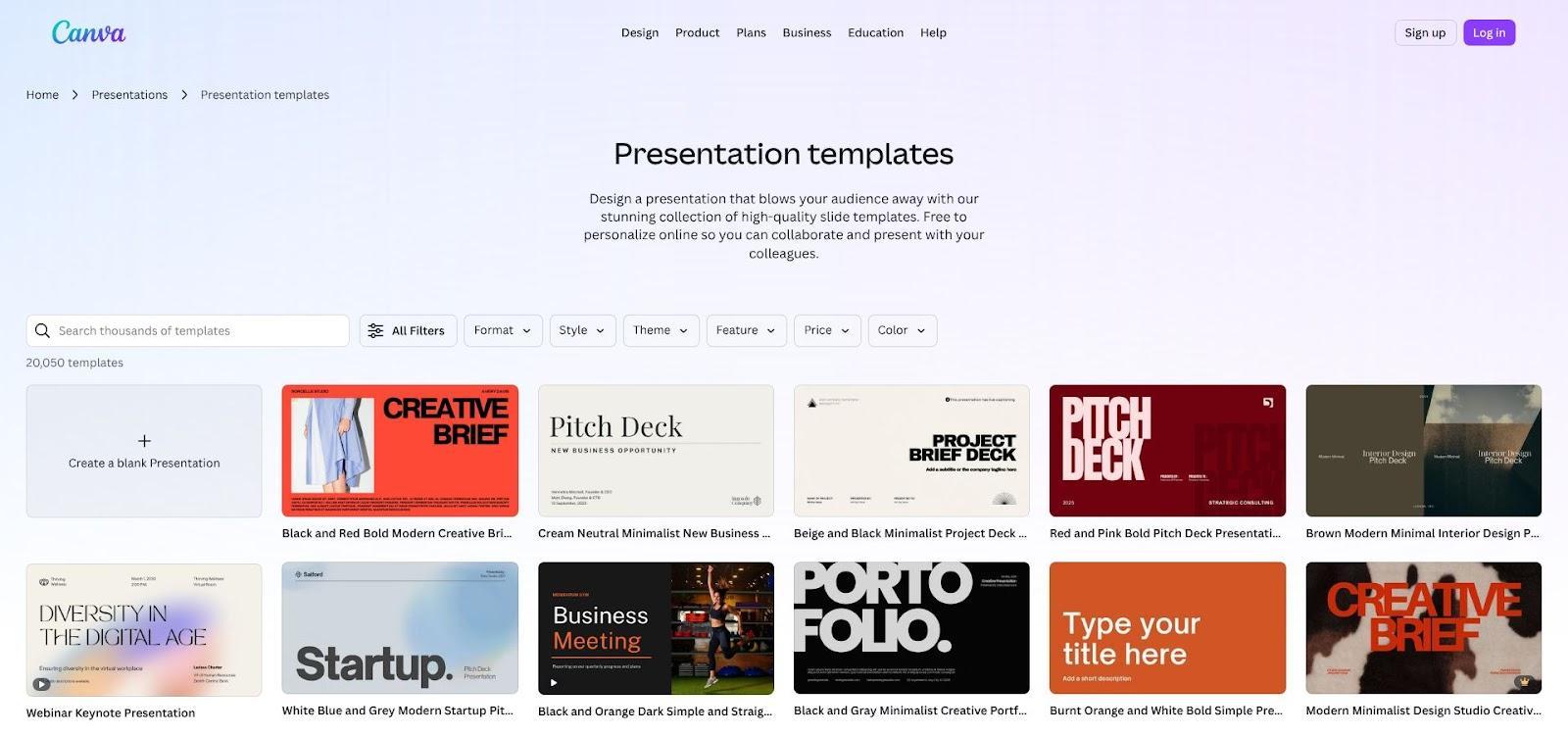
The same libraries that speed your workflow also feed thousands of decks, so originality takes intent. Spend the time you saved to refine typography, recolor assets, and layer in custom graphics. That extra craft helps you avoid the “seen it before” glare from art directors.
Canva’s Brand Kit can help. Upload your logo, set colors, and fonts once, and every new slide follows those rules. Small touch, big lift in perceived polish.
Advertisment
PowerPoint is the vinyl record of presentation software: decades old yet still packed with capability when you drop the needle. The desktop app lets designers move an icon by half a point, embed a 3D mock-up, or animate a logo letter by letter without complaint.
Recent updates add modern polish. Copilot drafts slide outlines, Designer offers clean layouts, and the Morph transition delivers film-like movement. These helpers remove grunt work while leaving the deep-tweak playground intact, so craft never takes a back seat to convenience.
When your portfolio needs perfect color fidelity or specialty fonts that web tools strip away, PowerPoint is a safe harbor. Export to PDF at 300 dpi, turn off image compression, and you can share a print-ready deck that still opens on any hiring manager’s laptop. Offline editing is another quiet win when you are rehearsing on a train with no signal.
Pitch feels like Google Slides grew up, bought a sharper outfit, and discovered design Twitter. Open a deck and you see teammate cursors zipping around in real time, comments popping up beside artboards, and video snippets embedded directly on slides. For distributed design studios, that live-feedback loop can trim review cycles from days to minutes.
Template quality is another draw. The gallery leans modern: spacious grids, bold type, and cheeky color combos. You can upload custom fonts on a Pro plan, then save a Brand Style so new slides follow your palette. It is not as strict as Beautiful.ai’s brand locks, yet it nudges everyone toward visual consistency.
Pitch animations remain basic; you get clean fades but no motion paths. If your portfolio depends on object choreography, embed a video demo or finish animating elsewhere. Exports to PDF and PowerPoint work, though complex embeds flatten, so always test before sending a leave-behind.
For pure collaboration speed, think of Pitch as the creative team’s shared whiteboard that just happens to export as a presentation.
Beautiful.ai treats layout rules the way a traffic warden treats parking tickets: no violations allowed. Set your colors, fonts, and logo once, and its smart slides lock every future page to that brand DNA. The product page puts it plainly: “Keep every slide on-brand, automatically.”
Picture the final hour before an interview. You are tired, the cursor slips, and a text box flips to default Arial. In Beautiful.ai that mistake never ships; the engine snaps it back to your chosen typeface as soon as you click away. The same protection applies to misaligned images or off-grid icons, rescuing polish when time is short.
Guardrails cost freedom. You cannot move elements with pixel-level precision or build layouts that break the template skeleton. Think of Beautiful.ai as a safety net for fast, consistent decks, not a playground for experimental typography.
If you juggle several freelance clients, create a theme for each brand, and watch revisions vanish. For a one-off personal portfolio, use it when you need guaranteed polish and have no time to fine-tune every layout nuance.
Advertisment
Gamma is what you open when the calendar says “portfolio review tomorrow” and the deck folder is still empty. Type a short prompt such as “Show my top five branding projects with one process slide each,” and the AI generates a scrolling narrative in under a minute. Text, image placeholders, and section headings land in the right spots, making the workflow feel closer to building a modern web page than a traditional slide deck.
Interactivity comes standard. Drop a live Figma prototype or a YouTube motion reel onto the page and it works without iframe fixes. Because every “slide” is really a card on a continuous canvas, reviewers can scroll at their own pace or click through presentation mode without losing context.
Gamma supplies a library of theme toggles—font pairings, color accents, background styles—but its card system sacrifices pixel-perfect layout control. That minimalism keeps the AI quick but means your visual voice depends more on the assets you embed than on layout chrome. Export options are solid: send your work to PDF or an editable PowerPoint file.
Use Gamma as an emergency generator or as a living case-study document that also presents well. For high-stakes, on-brand showpieces, move to one of the top-ranked tools once you have breathing room.
Sometimes the brief is crystal clear: “Send a PDF we can print for the board.” In those moments, no slide tool beats Adobe InDesign. It treats every page like a magazine spread, giving you centimeter-level grid control, advanced typography, and spot-color support. Build once, export a press-ready PDF, and know that the kerning, overprint, and CMYK values will survive the journey to paper.
The trick is simple. Design each “page” as if you are laying out a small booklet: hero image, project title, one-paragraph problem statement, full-bleed mock-ups, results bar. Then export the sequence as either an interactive PDF (with navigation buttons) or individual PNGs you can drop into PowerPoint for live presenting. The heavy design work stays in InDesign; the presentation wrapper simply advances images.
No live animations, no real-time feedback, and edits require the licensed desktop app. Collaboration happens through commented PDFs, which can feel slow compared with Figma or Pitch. Yet when absolute visual fidelity tops the priority list, such as for branding agencies pitching luxury clients, InDesign precision justifies the extra steps.
Advertisment
Many portfolio decks stall when it is time to visualize results. Visme closes that gap by pairing presentation layouts with an infographic engine. Drop your campaign metrics into a chart widget, tweak the color palette to match your brand kit, and the graphic snaps to grid without a trip to Illustrator. Designers who balance aesthetics and analytics value that two-for-one workflow.
Interactive elements are Visme’s sleeper feature. You can layer hover states over mock-ups, add tooltips that reveal process notes, or embed a short animated GIF that plays only when clicked. These subtle touches turn a static case study into a mini product tour, perfect for remote interviews where you cannot narrate every slide live.
Brand control is solid too. Upload custom fonts, lock HEX codes, and save the combo as a reusable theme. From that point, teammates who are less design-savvy can update slides without breaking typographic harmony.
The interface offers more knobs and panels than Canva, so first-time users face a steeper curve. Collaboration is asynchronous, with comments rather than real-time co-editing, so rapid feedback cycles feel slower than in Pitch or Figma Slides. Keep Visme in your toolkit for data-heavy portfolio chapters or when you need interactive stories that stay on-brand without round-tripping through multiple apps.
Prezi abandons the click-to-next-slide routine. Instead, you pan and zoom across a single canvas, diving into project details like a camera move. This spatial flow can make a branding portfolio feel more like an interactive museum exhibit than a linear deck.
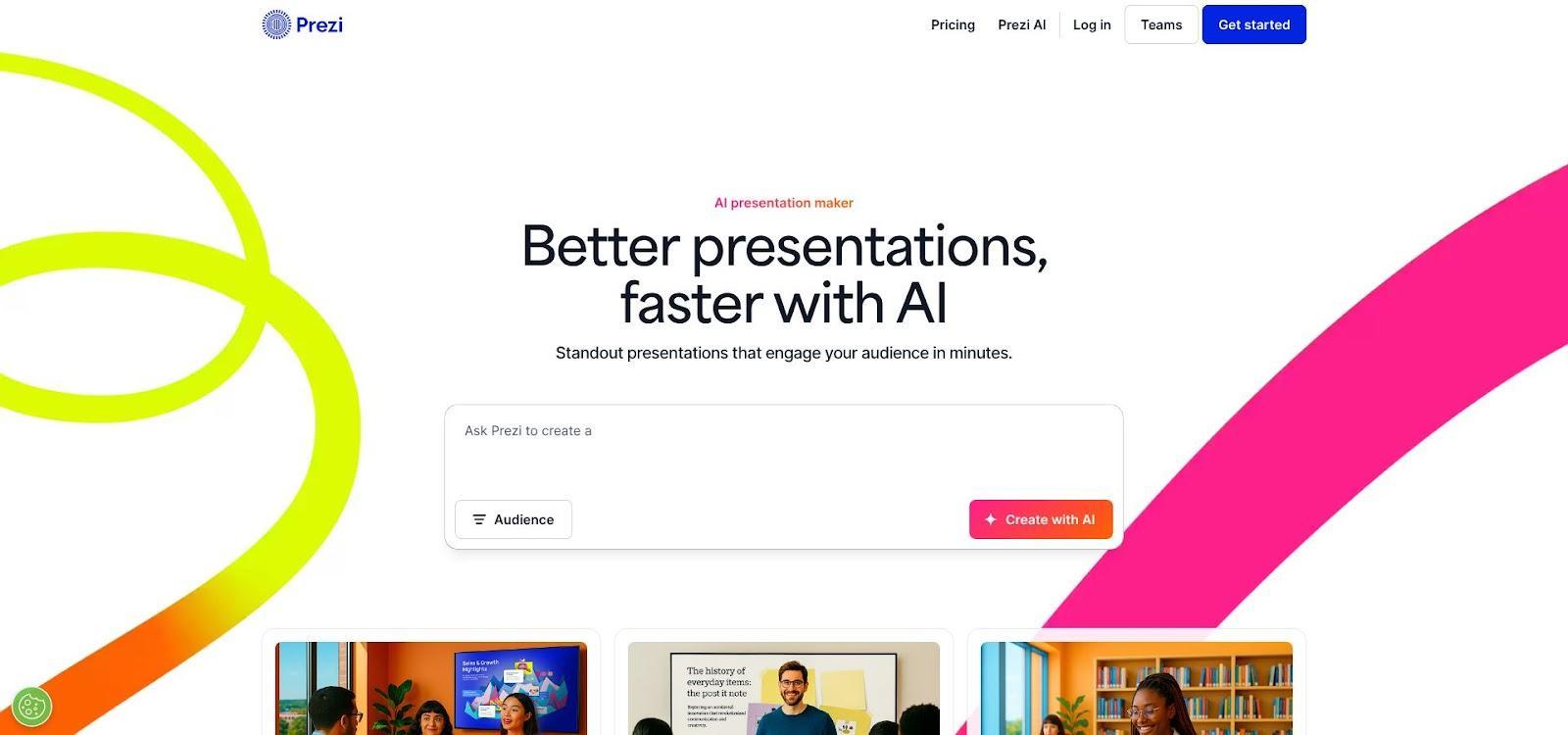
Open Prezi when you need to show relationships between projects, such as a master brand and its sub-identities, or to reveal process layers step by step. The zoom shows context first, then detail, mirroring how creative directors like to see the big idea before pixel specifics.
Freedom demands planning. Too many zooms can leave viewers uneasy, and mapping a smooth path takes more effort than arranging standard slides. Export options are limited; a PDF flattens the movement, so Prezi decks work best in live or video-call settings with a stable connection.
Keep Prezi in reserve as a differentiator. When everyone else opens Google Slides, a well-timed zoom narrative can wake a sleepy interview panel and showcase your presentation craft.
A few platforms missed our top ten but still solve edge-case problems you may face once a year, and when that day arrives you will be glad they exist.
Notion is the Swiss Army wiki some designers use as a living portfolio hub. Turn any page into a slide-style presentation with one click. The visual polish trails Canva, but if your work already lives in case-study docs, repackaging them inside Notion feels friction-free.
Storydoc builds scrolling microsites that track viewer analytics. If a venture-backed startup asks for engagement data on every investor deck, Storydoc’s heat-map panel shows exactly which project screenshots kept eyes glued.
Deckary works inside PowerPoint to automate slide creation without leaving the Microsoft ecosystem. Perfect for corporate environments where strict PPTX compliance is mandatory and you want to avoid export conversion problems.
Keynote earns a nod for its smooth typography and Magic Move transitions, especially inside Mac-only studios. Cross-platform sharing remains awkward, which kept it out of the main list, but if your entire team lives in macOS, the motion quality is hard to beat.
Treat these as specialty tools: great for the right context, excessive for daily portfolio maintenance.
How many projects should I show?
Aim for depth over breadth. Three to five standout projects, each framed with clear problem, process, and outcome beats, outscore a rapid-fire reel of fifteen shallow slides. Hiring managers remember tight stories, not slide counts.
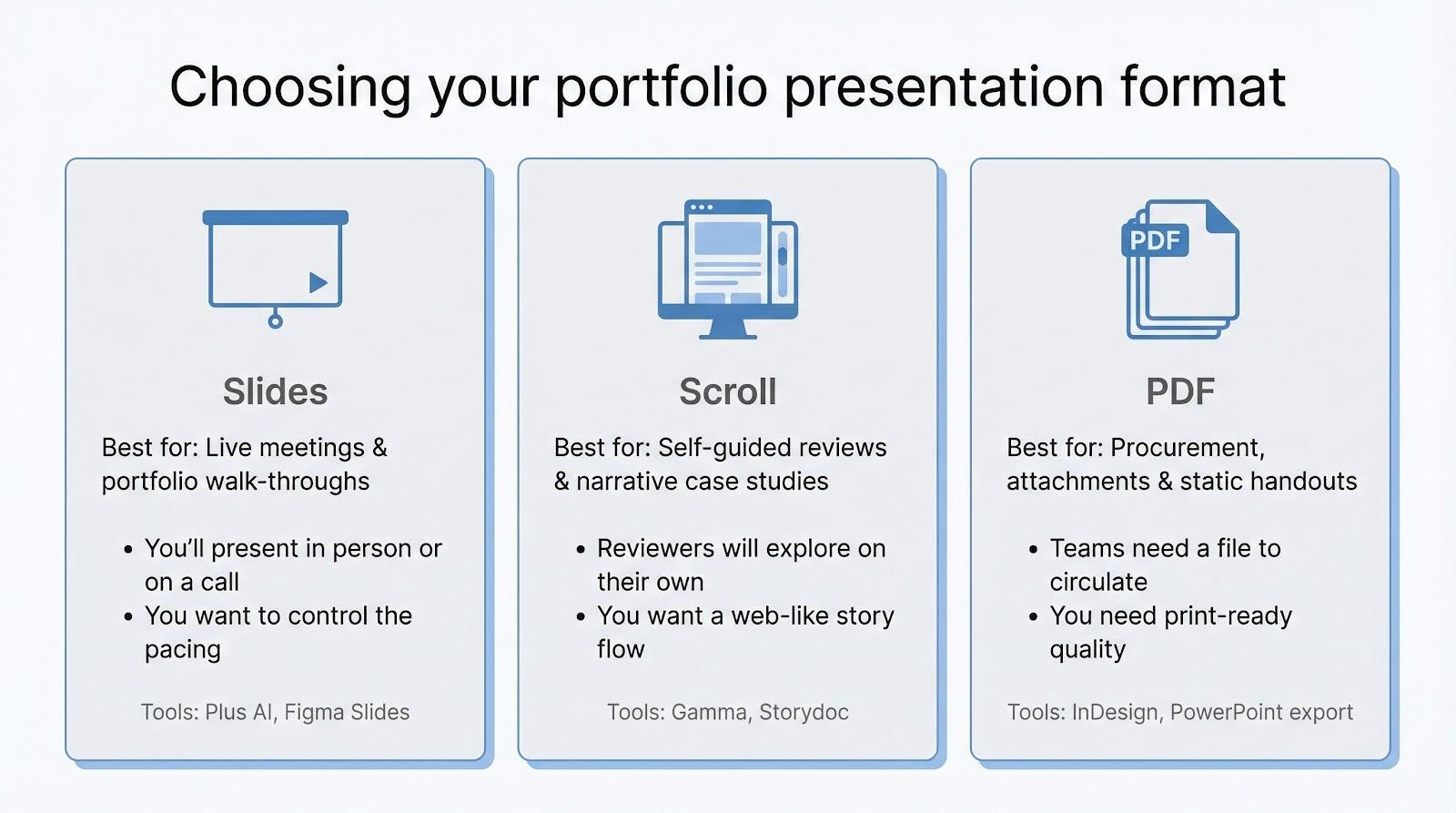
Slides, scroll, or PDF?
Match the medium to the moment. Live meetings shine with slides (Plus AI, Figma Slides). Self-guided reviews benefit from scrolling narratives (Gamma, Storydoc), and procurement teams still prefer a tidy PDF (InDesign, PowerPoint export). Keep a master deck and spin out the format your audience needs.
Can I reuse the same deck for every client?
You can, but you leave persuasion on the table. Use AI helpers such as Plus AI Rewrite or Canva Magic Write to adjust intro and takeaway slides to each prospect’s language. Personalization shows you care and often takes less than ten minutes.
How do I keep file size under control?
Optimize images before import (144 dpi for on-screen, PNG for transparency) and disable automatic compression in PowerPoint. In web tools, lean on native image libraries or downscale large mock-ups; most platforms auto-compress, but testing a draft export prevents pixel mush.
What if my portfolio work is under NDA?
Anonymize and abstract. Swap logos for placeholders, blur sensitive data, and spotlight your design decisions rather than proprietary content. Share the full version only in a secure, live walkthrough with screen-share controls you manage.
Advertisment
Treat these as specialty tools: great for the right context, excessive for daily portfolio maintenance. Choose the platform that best complements your workflow, and focus on storytelling while the software keeps every pixel true to your design vision.
If you found this post useful you might like to read these post about Graphic Design Inspiration.
Advertisment
Written by
If you like this post share it on your social media!

Advertisment
Advertisment