Mastering Adobe Photoshop shortcuts is one of the fastest ways to work more efficiently as a designer. Instead of navigating menus, keyboard shortcuts let you execute common actions instantly—saving time on every project.
Shortcuts matter because Photoshop is used repeatedly, often under tight deadlines. Actions like switching tools, transforming layers, adjusting selections, or exporting files happen hundreds of times per session. Reducing friction at this level directly improves speed, accuracy, and focus.
This guide focuses on practical, frequently used Photoshop shortcuts—the ones designers actually rely on in real workflows. Whether you work in branding, digital art, UI design, or photo editing, these shortcuts help you work faster without changing how you design.
In this guide, you’ll find:
Advertisment
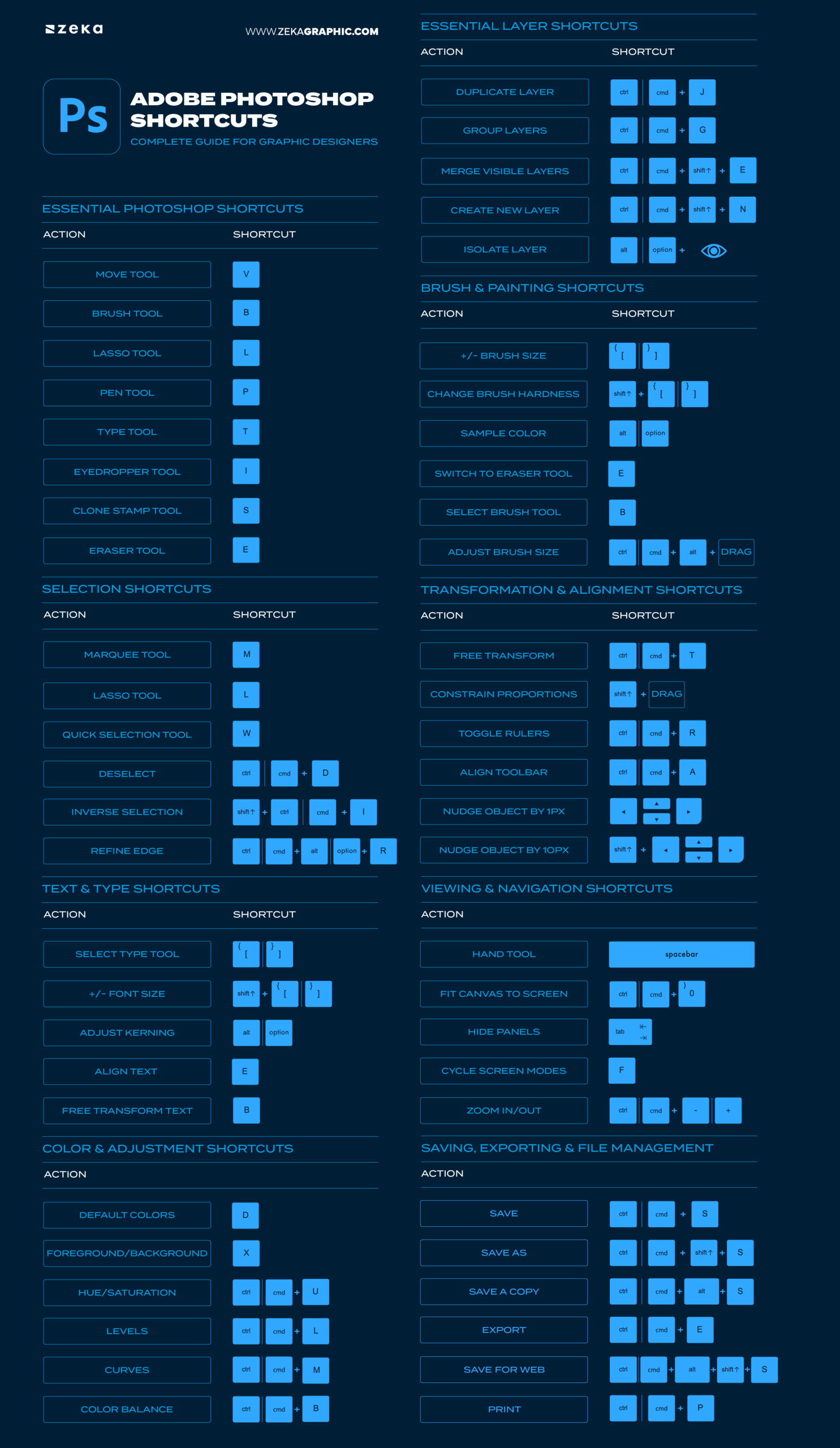
These are the core Photoshop shortcuts you’ll use in every project. Learning them first drastically reduces time spent on basic actions like saving, zooming, undoing, and navigating files.
Once memorized, they become automatic and keep your focus on design instead of interface controls.
Action | Shortcut |
New File | Ctrl/Cmd + N |
Save Project | Ctrl/Cmd + S |
Undo/Redo | Ctrl/Cmd + Z |
Zoom In / Out | Ctrl/Cmd + + / – |
Fit Canvas to Screen | Ctrl/Cmd + 0 |
Copy / Paste | Ctrl/Cmd + C / V |
Deselect | Ctrl/Cmd + D |
Once these become automatic, you’ll notice your creative flow improving dramatically — your focus stays on composition, color, and concept, not navigation.
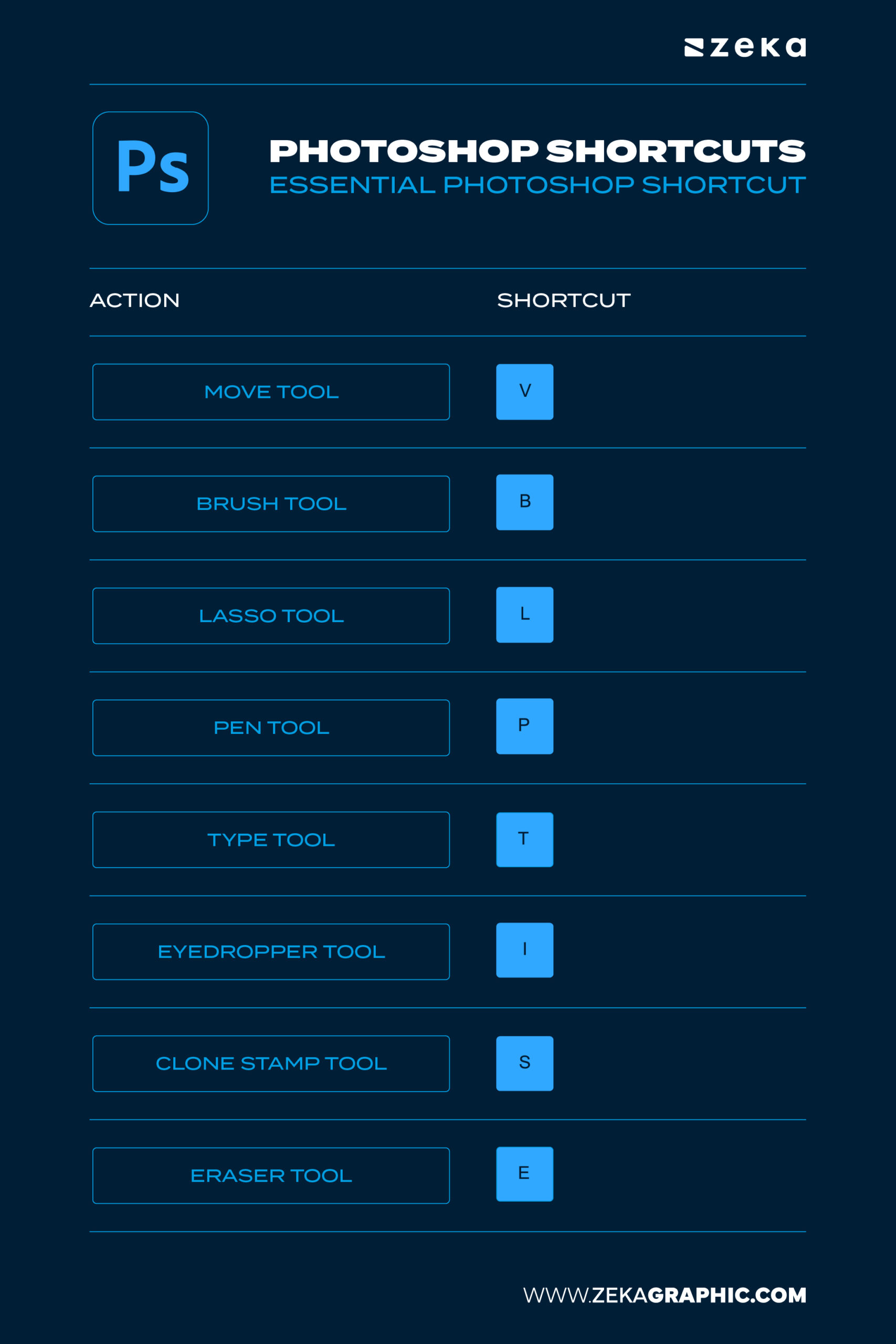
Tool shortcuts let you switch between Photoshop tools instantly. Instead of clicking icons, a single key activates the tool you need.
This is especially useful during retouching, illustration, and layout work where frequent tool changes slow down workflow.
Tool | Shortcut |
Move Tool | V |
Brush Tool | B |
Lasso Tool | L |
Pen Tool | P |
Type Tool | T |
Eyedropper Tool | I |
Clone Stamp Tool | S |
Eraser Tool | E |
Using tool shortcuts eliminates friction from your workflow. You’ll move faster, keep your focus, and feel in total control of your workspace — especially during creative bursts.
Advertisment
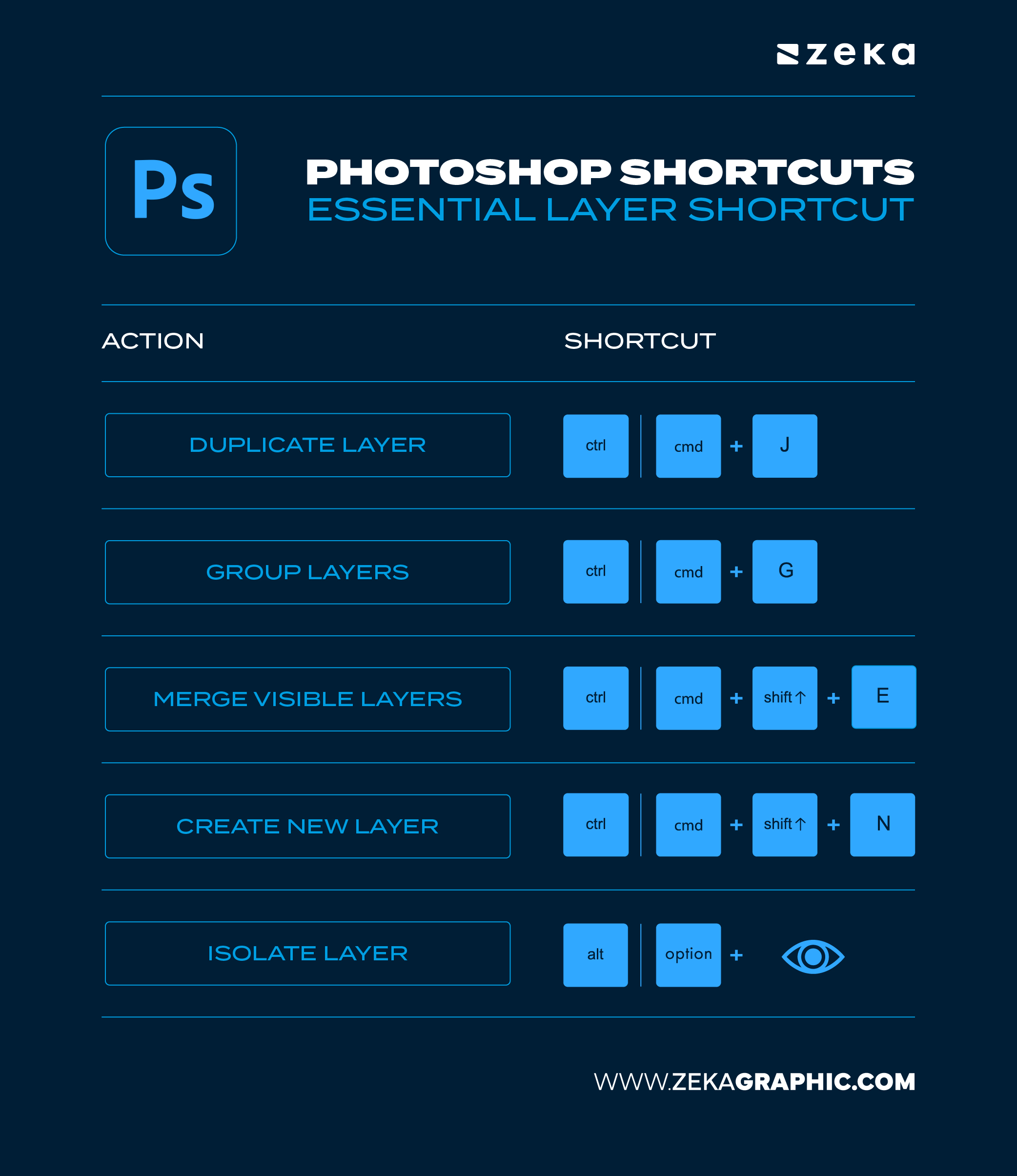
Photoshop layer shortcuts make it easy to duplicate, group, merge, and organize layers without touching the mouse.
They reduce mistakes, keep files structured, and are essential when working with complex or multi-layered designs.
Action | Shortcut |
Duplicate Layer | Ctrl/Cmd + J |
Group Layers | Ctrl/Cmd + G |
Merge Visible Layers | Ctrl/Cmd + Shift + E |
Create New Layer | Ctrl/Cmd + Shift + N |
Isolate Layer | Alt/Option + Click (on Eye Icon) |
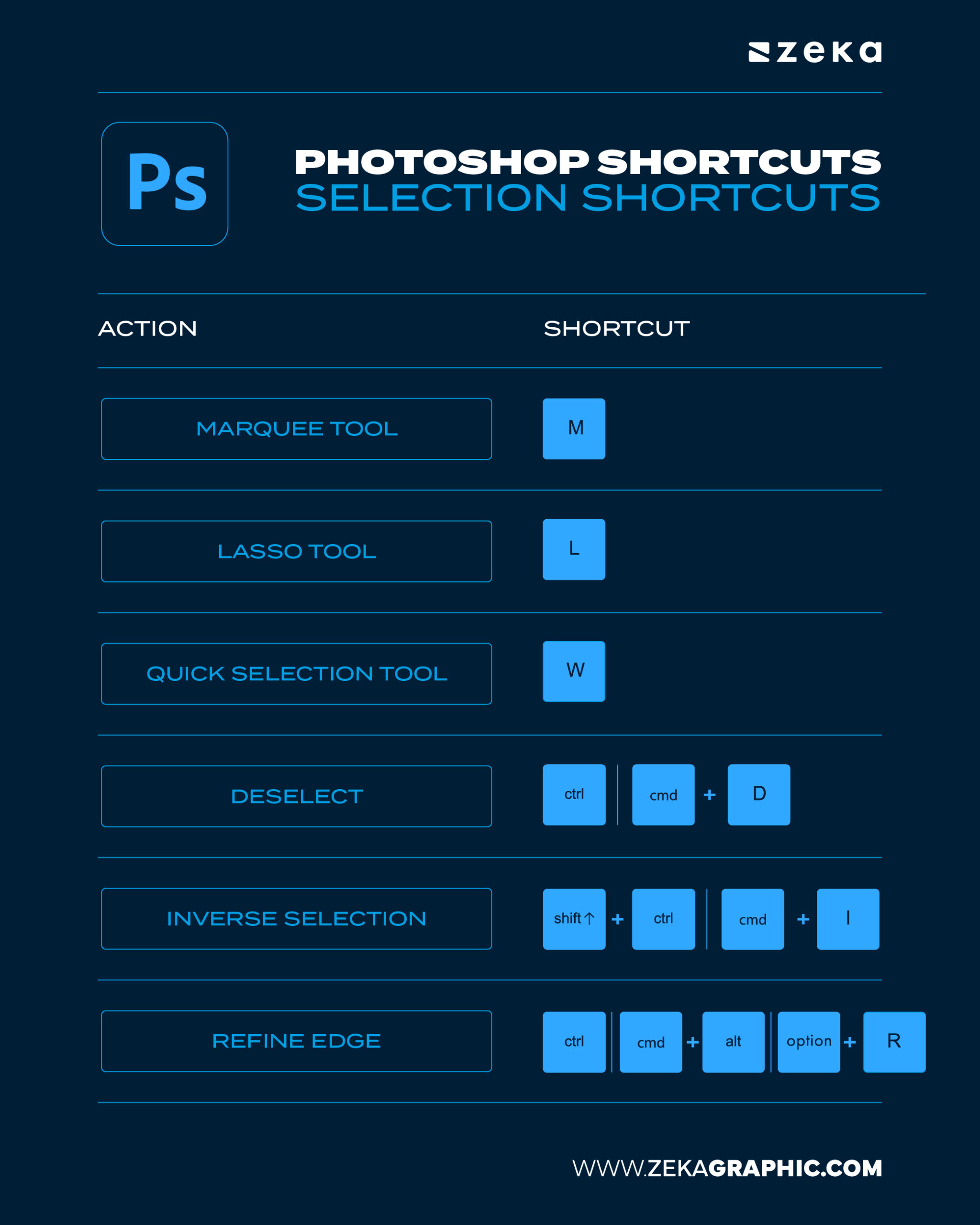
Selections control what you edit. Selection shortcuts speed up masking, object isolation, and compositing by letting you switch tools and refine edges instantly.
They’re critical for clean edits and accurate results.
Action | Shortcut |
Marquee Tool | M |
Lasso Tool | L |
Quick Selection Tool | W |
Deselect | Ctrl/Cmd + D |
Inverse Selection | Shift + Ctrl/Cmd + I |
Refine Edge | Ctrl/Cmd + Alt/Option + R |
Advertisment
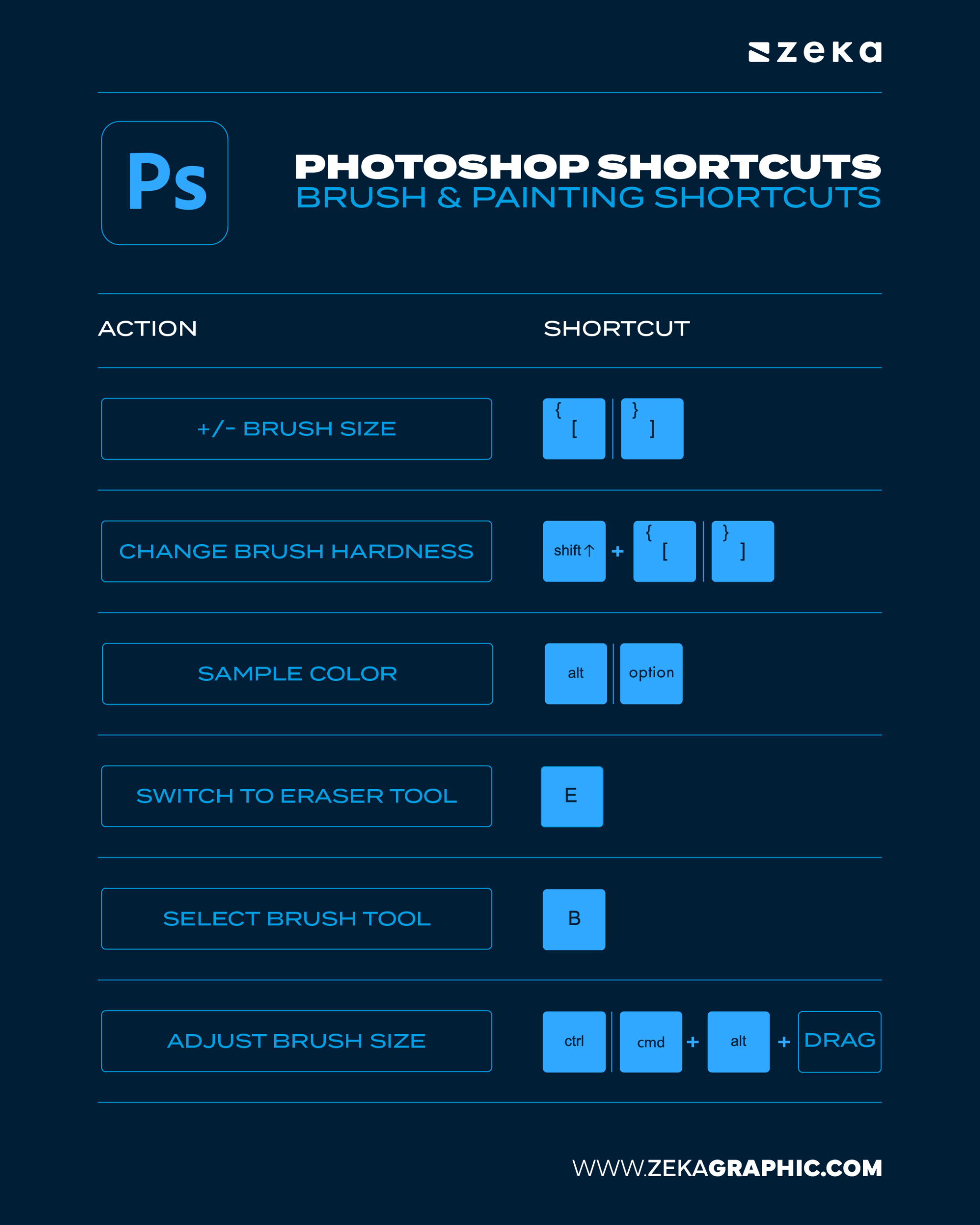
Brush shortcuts allow fast control over size, hardness, and color sampling while painting or retouching.
They keep your hand on the canvas and help maintain flow during detailed or repetitive work.
Action | Shortcut |
Decrease/Increase Brush Size | [ and ] |
Change Brush Hardness | Shift + [ or ] |
Sample Color | Alt/Option |
Switch to Eraser Tool | E |
Select Brush Tool | B |
Adjust Brush Size Dynamically | Ctrl/Cmd + Alt + Drag |
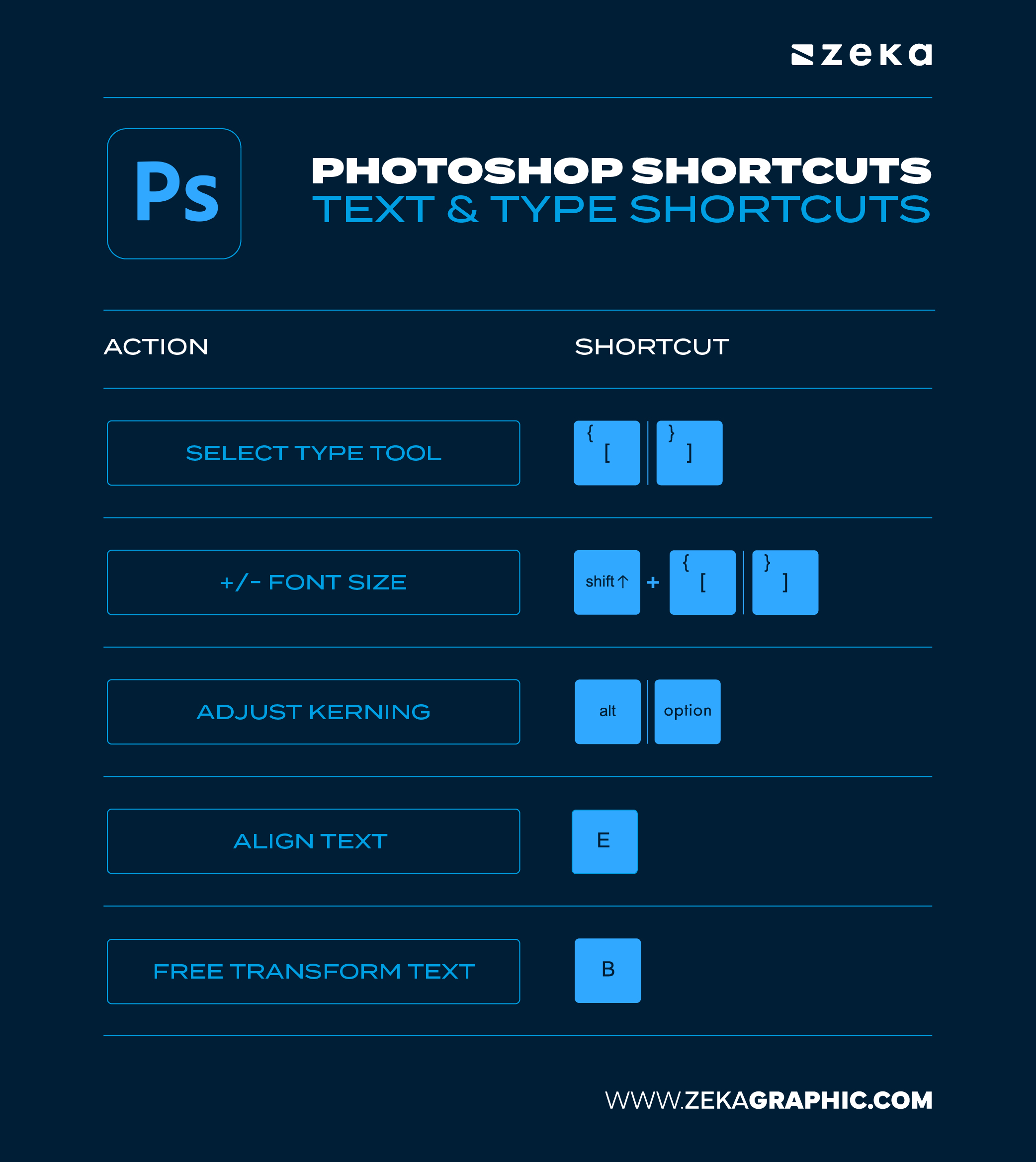
Text shortcuts let you adjust font size, spacing, alignment, and positioning without opening panels.
They’re ideal for posters, branding assets, and social media graphics where quick typography changes are common.
Action | Shortcut |
Select Type Tool | [ and ] |
Increase/Decrease Font Size | Shift + [ or ] |
Adjust Kerning | Alt/Option |
Align Text (Left, Center, Right) | E |
Free Transform Text (inside the Type Tool’s active text box) | B |
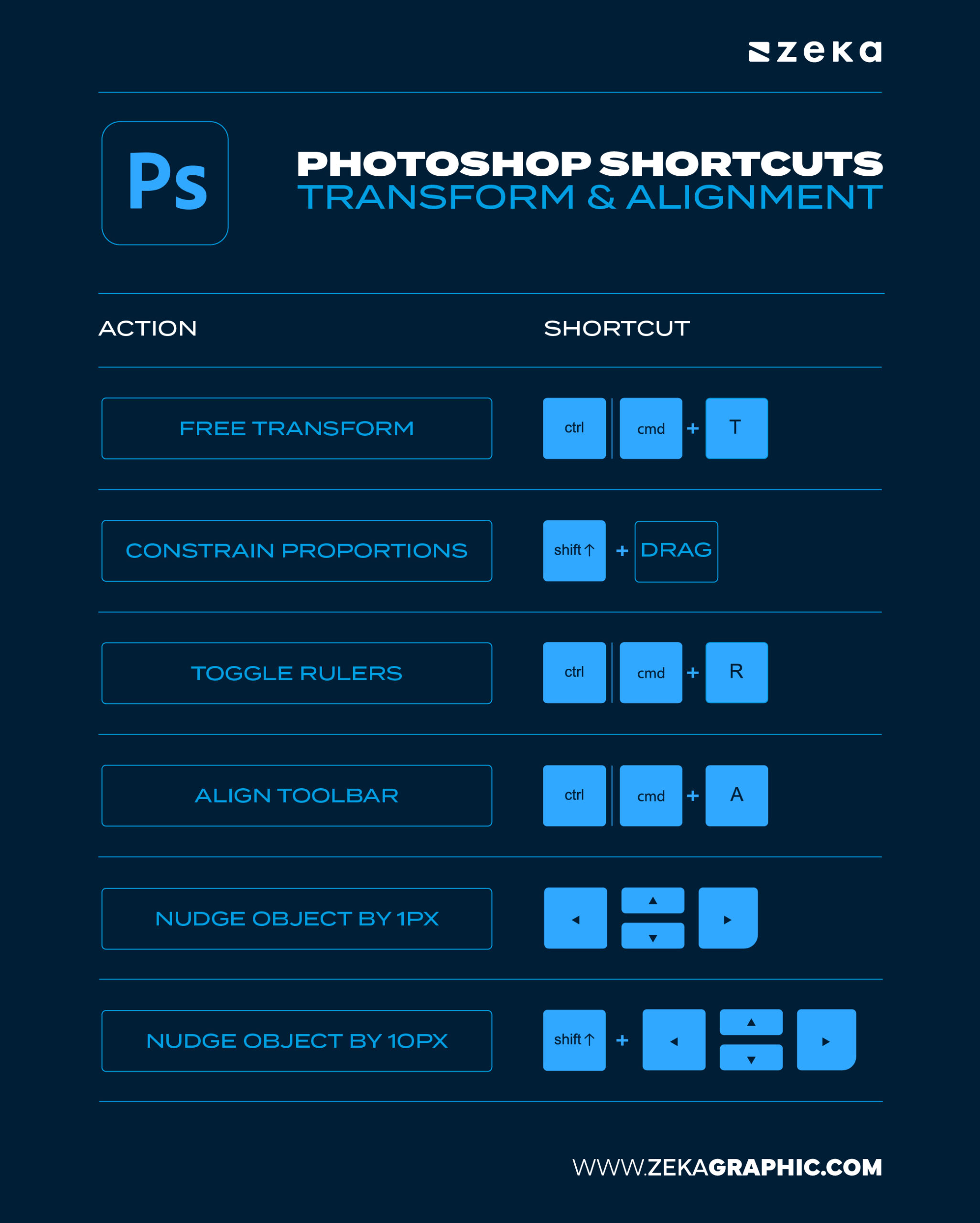
Transform shortcuts handle scaling, rotating, and repositioning layers quickly and accurately.
Combined with alignment tools, they ensure clean layouts without manual adjustments.
Action | Shortcut |
Free Transform | Ctrl/Cmd + T |
Constrain Proportions | Shift + Drag |
Toggle Rulers | Ctrl/Cmd + R |
Align Toolbar → Align to Canvas | Ctrl/Cmd + A |
Nudge Object by 1px | Arrow Keys |
Nudge Object by 10px | Shift + Arrow Keys |
Advertisment
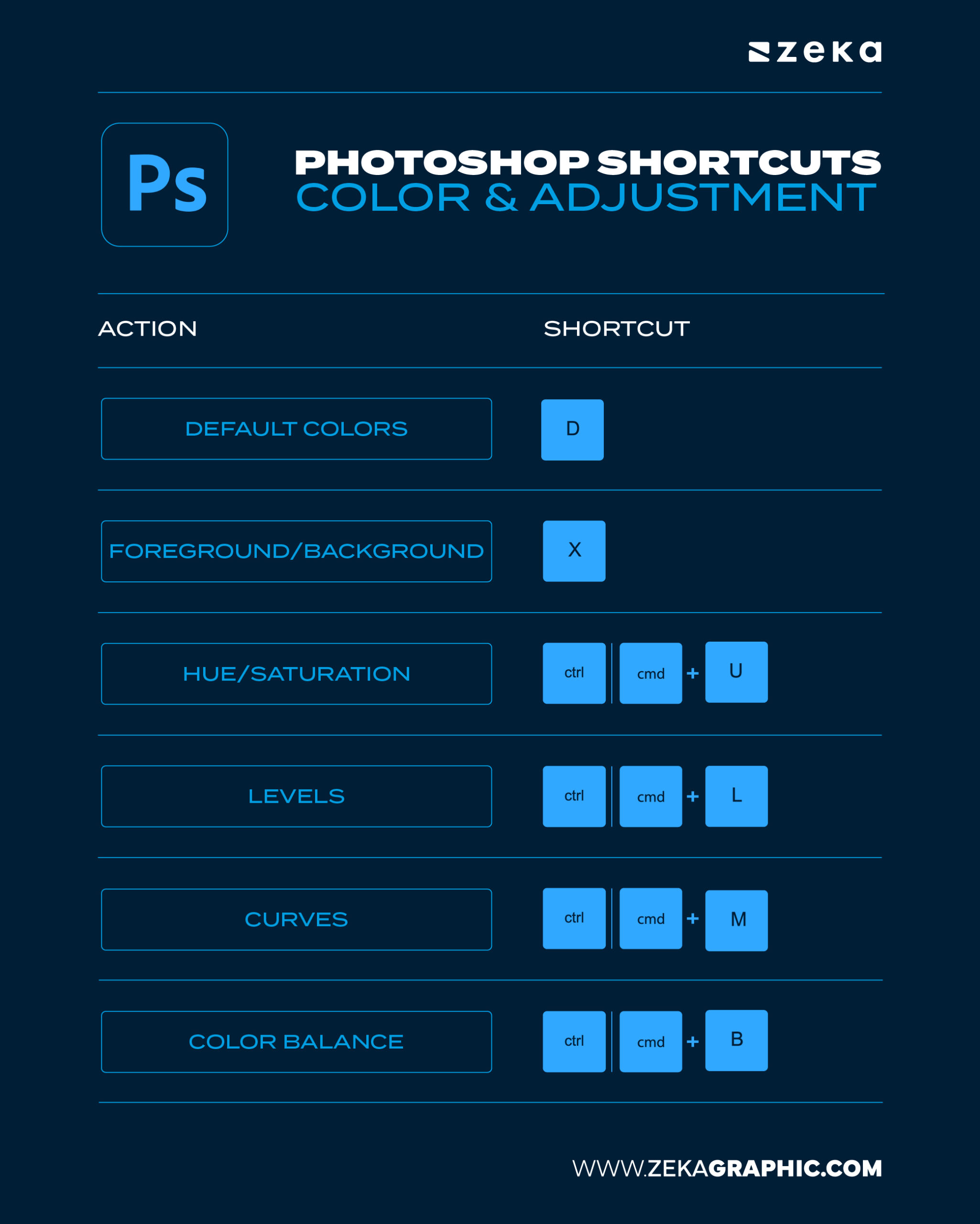
Color correction is one of the most time-consuming parts of any design or photo editing workflow — unless you know the Photoshop color shortcuts. These commands help you change hues, swap color modes, and add adjustment layers in seconds.
Action | Shortcut |
Default Colors | D |
Switch Foreground/Background | X |
Hue/Saturation | Ctrl/Cmd + U |
Levels | Ctrl/Cmd + L |
Curves | Ctrl/Cmd + M |
Color Balance | Ctrl/Cmd + B |
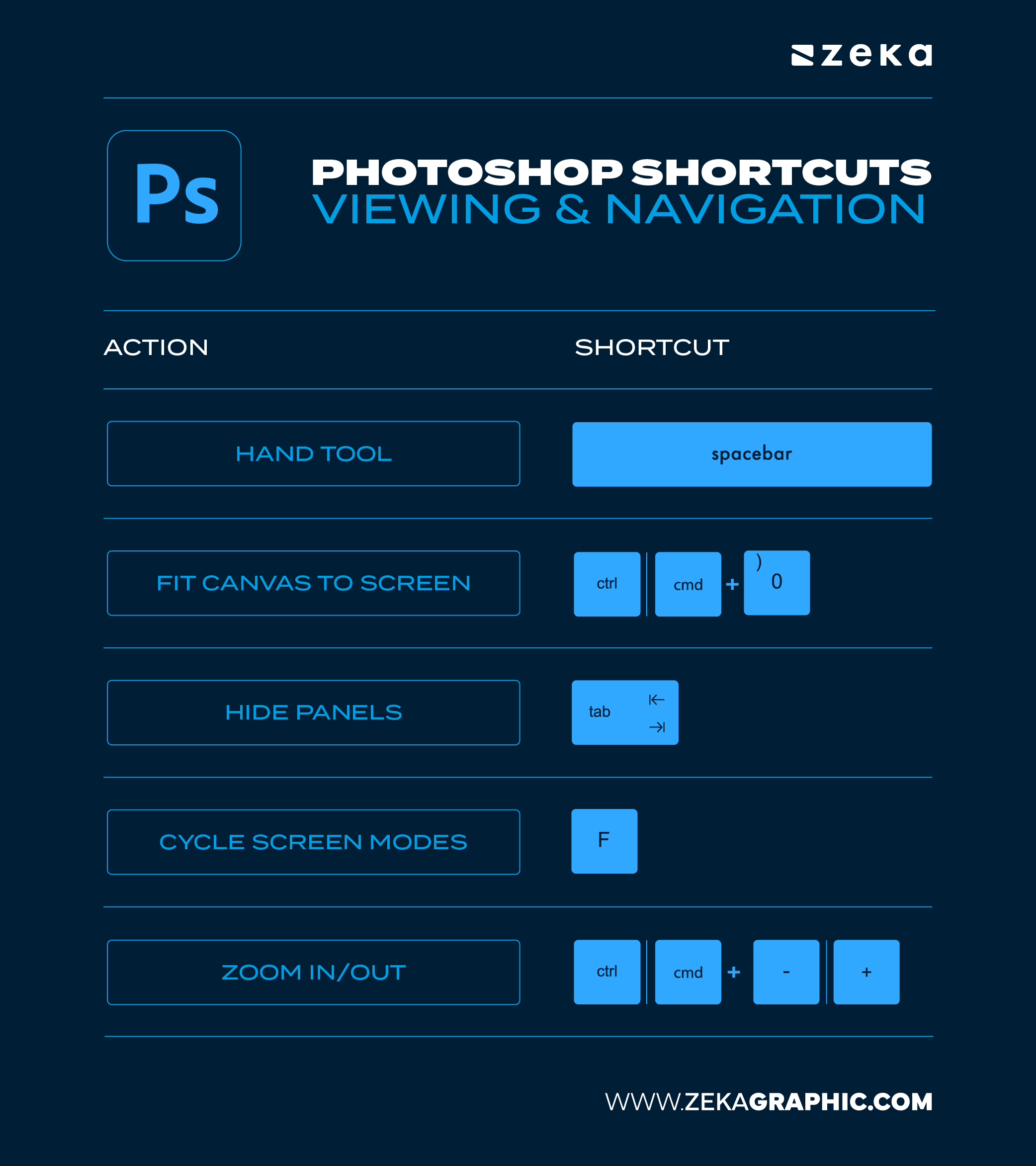
When working on large, multi-layered projects, fluid navigation becomes essential. The Photoshop navigation shortcuts allow you to move, zoom, and preview your designs seamlessly — keeping focus where it belongs: on your creative decisions.
Action | Shortcut |
Hand Tool | Spacebar |
Fit Canvas to Screen | Ctrl/Cmd + 0 |
Hide Panels | Tab |
Cycle Screen Modes | F |
Zoom In/Out | Ctrl/Cmd + M |
For designers working on large digital canvases, mastering navigation shortcuts is just as critical as knowing the brush keys.
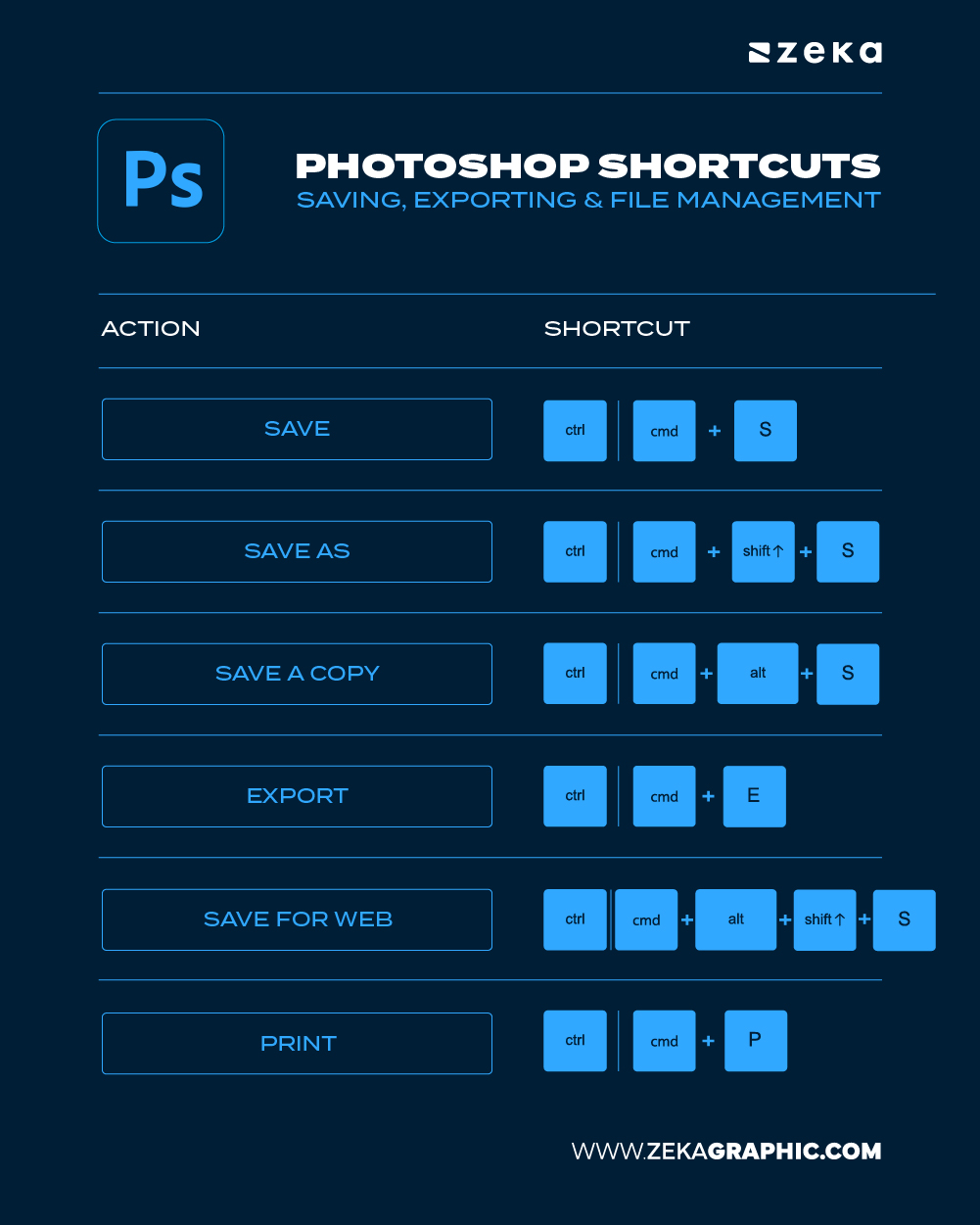
Efficient file handling is one of the most underrated yet crucial aspects of professional design. Knowing the right Photoshop export shortcuts can save you precious minutes on every project — especially when deadlines are tight or clients are waiting on revisions.
Action | Shortcut |
Save | Ctrl/Cmd + S |
Save As | Ctrl/Cmd + Shift + S |
Save a Copy | Ctrl/Cmd + Alt + S |
Export | Ctrl/Cmd + E |
Save for Web | Ctrl/Cmd + Alt + Shift + S |
Ctrl/Cmd + P |
Every designer has a unique workflow — so why stick with defaults? The ability to customize Photoshop shortcuts is one of the most powerful ways to make Photoshop truly yours. By mapping keys to your most-used commands, you cut repetitive clicks and build muscle memory for efficiency.
To create custom shortcuts, go to Edit > Keyboard Shortcuts, where you can modify nearly any command. Save your personalized set as a preset and export it to other devices to maintain consistency across your workstations. This flexibility is particularly valuable for agency designers or freelancers who switch between devices often.
Tips for Customizing Photoshop Shortcuts:
Want to optimize your setup further? Visit Adobe’s official guide on customizing shortcuts.
1. What are the most essential Photoshop shortcuts?
Essential shortcuts include Ctrl/Cmd + J (Duplicate Layer), B (Brush Tool), E (Eraser), M (Marquee), L (Lasso), and Ctrl/Cmd + T (Free Transform). These speed up your Photoshop editing workflow.
2. How do I view all keyboard shortcuts in Photoshop?
Go to Edit > Keyboard Shortcuts, or press Alt + Shift + Ctrl + K (Windows) / Opt + Shift + Cmd + K (Mac) to open the Keyboard Shortcuts dialog.
3. How can I improve my Photoshop workflow?
Use custom keyboard shortcuts, Actions, and Layer Masks. Organize layers properly and use Smart Objects to keep your designs non-destructive and efficient.
4. Can I create my own shortcuts in Photoshop?
Yes, go to Edit > Keyboard Shortcuts and map your favorite commands. It’s a powerful way to create a personalized Photoshop workflow.
5. What are the best Photoshop shortcuts for retouching?
Try J (Healing Brush), S (Clone Stamp), Alt/Opt + Click (Sample Area), and Ctrl/Cmd + Alt + Shift + E (Merge Visible to New Layer). These retouching shortcuts save tons of time.
Advertisment
At the end of the day, Photoshop shortcuts aren’t just time-savers — they’re creativity boosters. Once these commands become second nature, you’ll design faster, think clearer, and spend less time navigating menus. Every shortcut you master brings you closer to true design flow — where creativity moves at the speed of thought.
Whether you’re an illustrator, brand designer, or digital artist, the best Photoshop shortcuts will transform your daily workflow. Practice them regularly until they’re muscle memory, and you’ll notice a measurable boost in both speed and precision.
If you found this post useful you might like to read these post about Graphic Design Inspiration.
Advertisment
Written by
If you like this post share it on your social media!




Advertisment
Advertisment