When you’re deep in a creative layout — aligning grids, resizing frames, or adjusting text — every extra click costs time and focus. That’s why mastering Adobe InDesign shortcuts isn’t just about working faster; it’s about unlocking flow and precision.
As a graphic designer, I’ve learned that InDesign becomes truly powerful when it responds as fast as your ideas. These InDesign keyboard shortcuts for designers eliminate repetitive actions, helping you maintain creative rhythm while improving consistency.
Think of shortcuts as your invisible assistant — they allow you to design smarter, not harder. Whether you’re working on a 100-page catalog or a sleek brand brochure, mastering them is one of the best InDesign time-saving tricks you can learn.
Advertisment
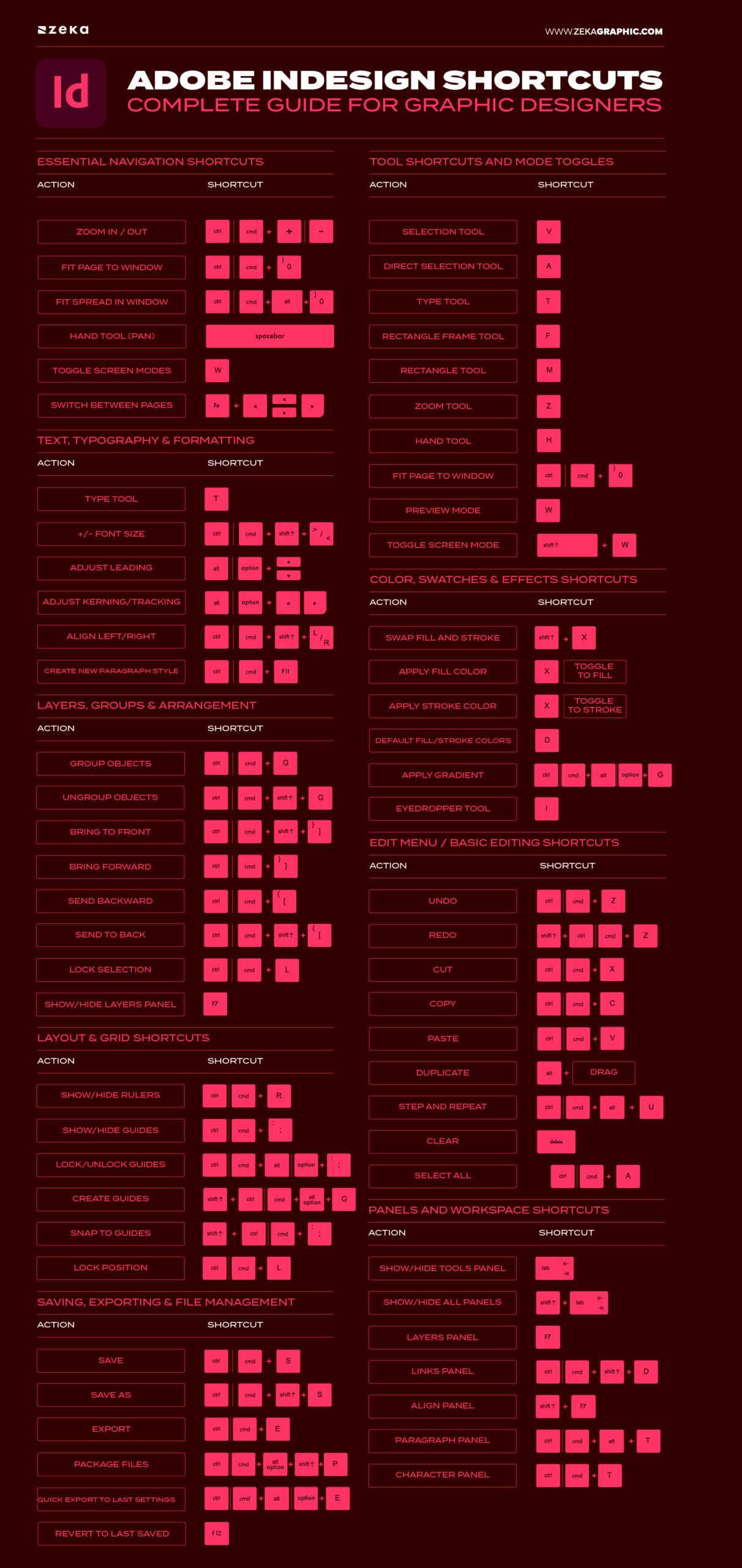
These shortctus are the most-used editing shortcuts every designer should master — from copy, cut, paste, and duplicate actions to advanced undo/redo operations and quick selections. It’s ideal for daily layout adjustments, quick revisions, and refining designs without constantly reaching for menus.
Action | Shortcut (Windows) | Shortcut (Mac) | Function |
Undo | Ctrl + Z | Cmd + Z | Reverses the last action |
Redo | Shift + Ctrl + Z | Shift + Cmd + Z | Reapplies a reverted action |
Cut | Ctrl + X | Cmd + X | Removes and copies the selection |
Copy | Ctrl + C | Cmd + C | Duplicates the selected item |
Paste | Ctrl + V | Cmd + V | Inserts the copied item |
Duplicate | Alt + Drag | Option + Drag | Creates an instant copy of an object |
Step and Repeat | Ctrl + Alt + U | Cmd + Option + U | Opens the Step and Repeat dialog for multiple copies |
Clear | Delete | Delete | Removes selected content |
Select All | Ctrl + A | Cmd + A | Selects all elements on the active spread |
Pro Tip: Combine Alt/Option + Drag to duplicate elements instantly — perfect for grid layouts, typography alignment, or pattern building.
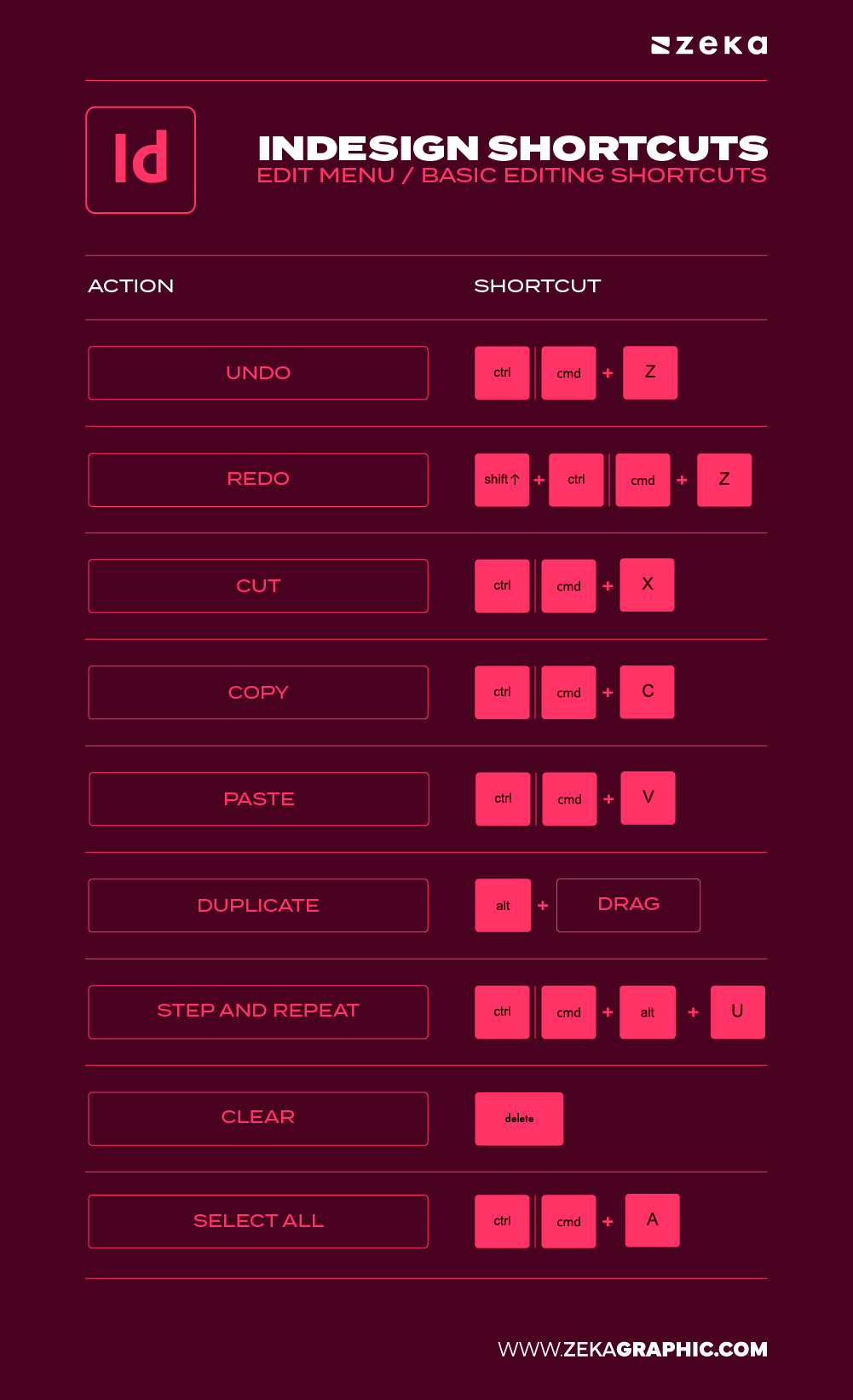
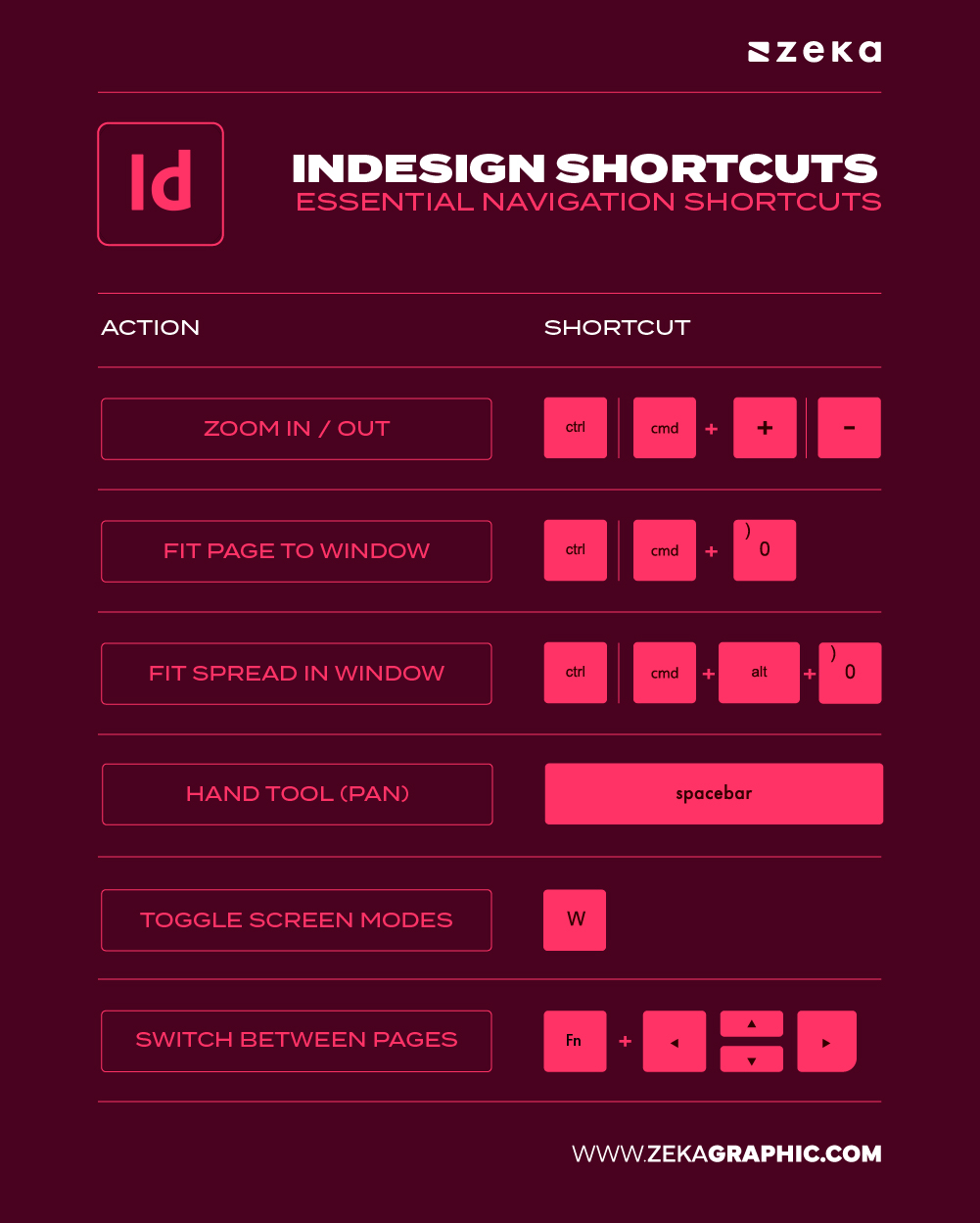
Efficient navigation is the heartbeat of every designer’s workflow. When working on large documents or multi-page spreads, these InDesign navigation shortcuts help you zoom, pan, and switch tools without losing your place or your focus. You’ll notice how using these quick keys keeps your hands on the keyboard — where productivity thrives.
Action | Shortcut (Mac/Win) |
Zoom In | Cmd + = / Ctrl + = |
Zoom Out | Cmd + – / Ctrl + – |
Fit Page in Window | Cmd + 0 / Ctrl + 0 |
Fit Spread in Window | Cmd + Option + 0 / Ctrl + Alt + 0 |
Hand Tool (Pan View) | Spacebar (Hold) |
Toggle Screen Modes | W |
Switch Between Pages | Fn + Arrow Keys |
When working on detailed editorial grids, these zoom in/out and fit page to window InDesign shortcuts ensure pixel-level accuracy without breaking flow. Personally, I keep one hand on the keyboard while navigating, so I never disrupt the layout process.
Advertisment
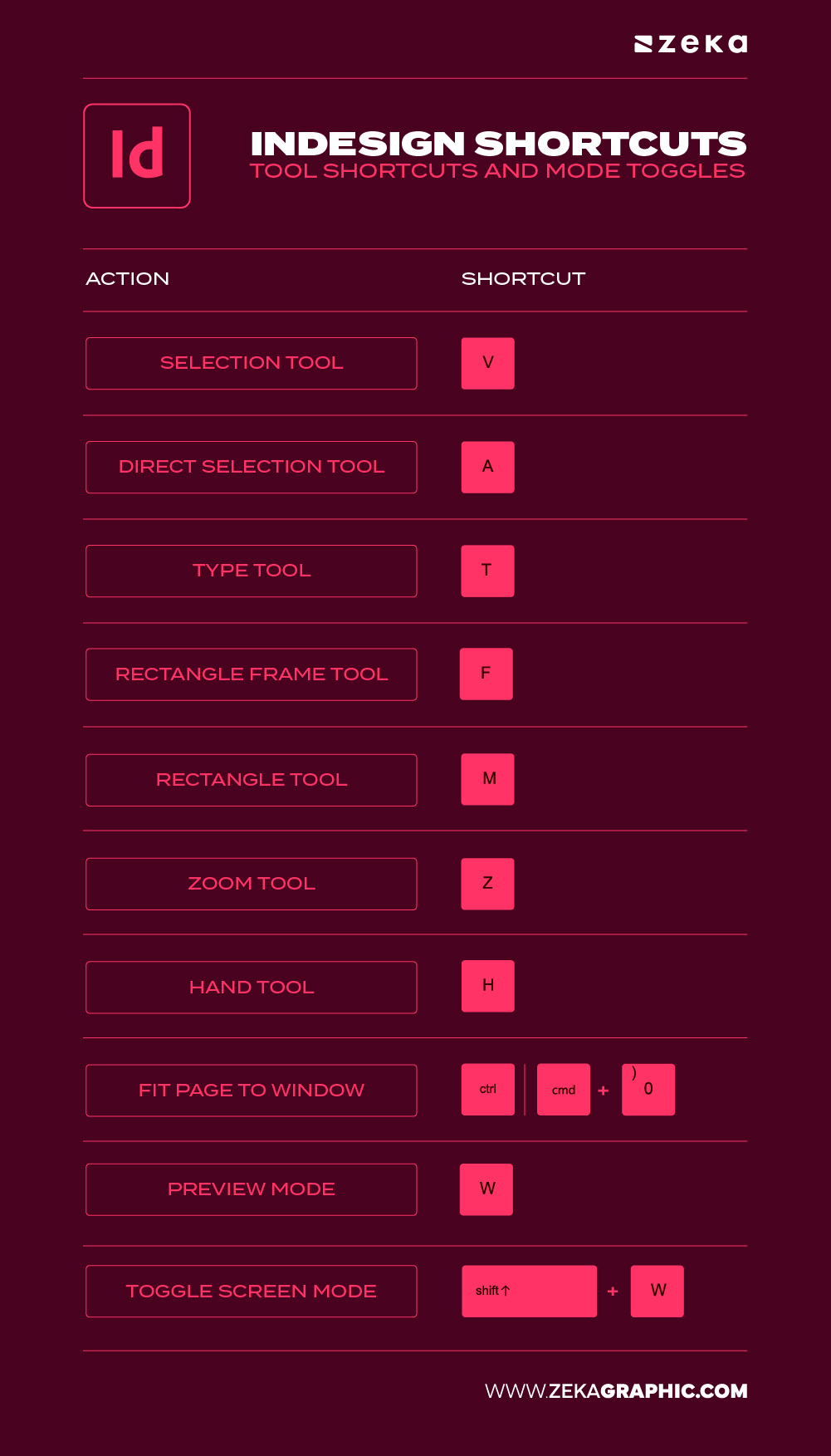
These are the essential tool and mode shortcuts that make switching between creative operations effortless. From the Selection Tool to the Text Tool and Preview Mode, mastering these shortcuts helps designers move seamlessly between editing, alignment, and layout adjustments — keeping creativity uninterrupted.
Tool / Mode | Shortcut | Description |
Selection Tool | V | Selects, moves, or resizes objects |
Direct Selection Tool | A | Selects specific points or paths within objects |
Type Tool | T | Adds or edits text boxes |
Rectangle Frame Tool | F | Creates image placeholders |
Rectangle Tool | M | Draws rectangular shapes |
Zoom Tool | Z | Zooms in/out on the layout |
Hand Tool | H | Pans across the workspace |
Fit Page in Window | Ctrl + 0 / Cmd + 0 | Centers and fits page view |
Preview Mode | W | Hides guides and shows a clean layout preview |
Toggle Screen Mode | Shift + W | Switches between Normal, Preview, and Presentation modes |
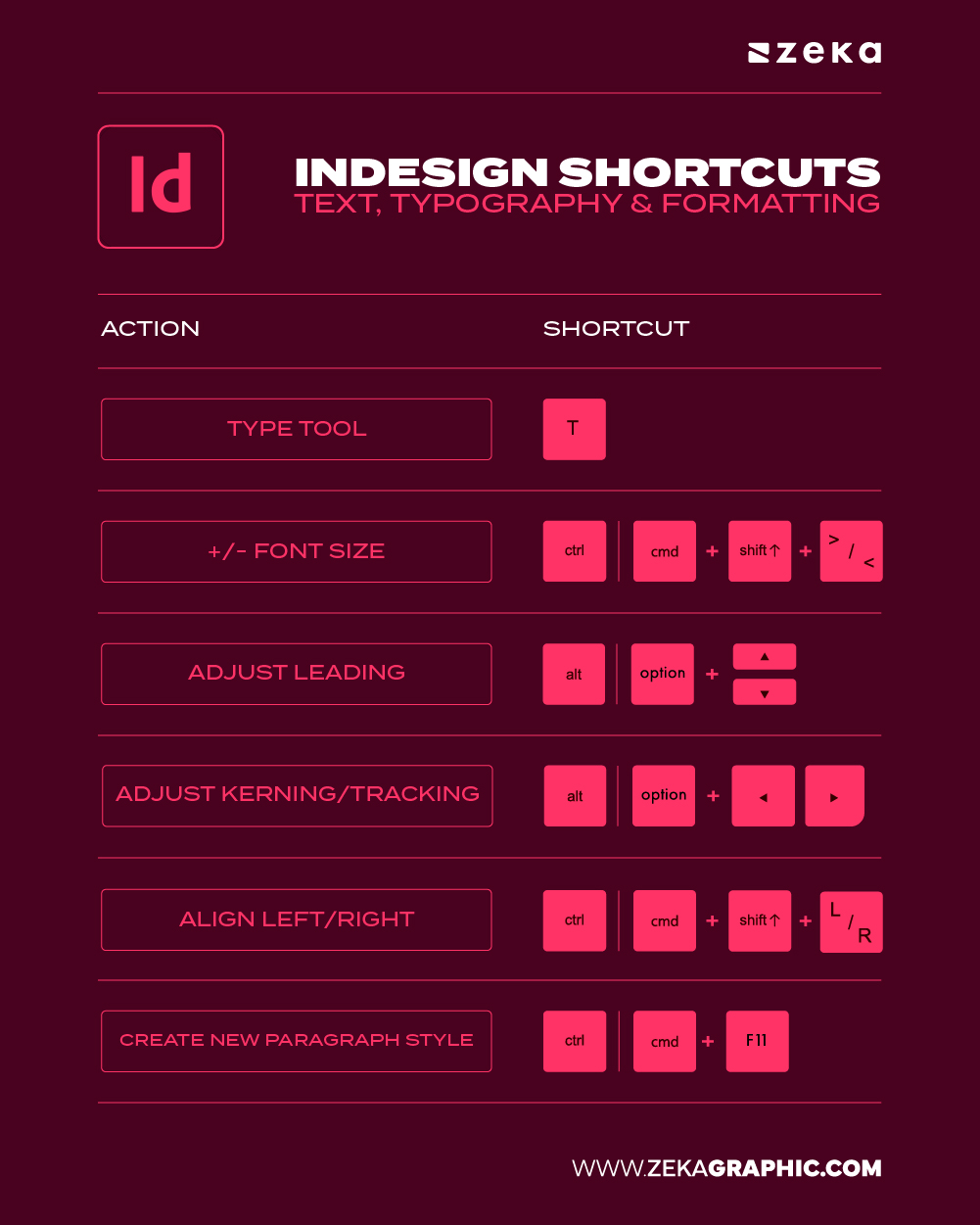
Typography is the foundation of every great design. Knowing the right Adobe InDesign text shortcuts helps you refine type instantly — adjusting spacing, alignment, and hierarchy with pixel-perfect accuracy.
Action | Shortcut (Mac/Win) |
Type Tool | T |
Increase/Decrease Font Size | Cmd + Shift + > / < or Ctrl + Shift + > / < |
Adjust Leading | Option + ↑ / ↓ or Alt + ↑ / ↓ |
Adjust Kerning/Tracking | Option + ← / → or Alt + ← / → |
Align Text Left/Center/Right | Cmd + Shift + L / C / R or Ctrl + Shift + L / C / R |
Create New Paragraph Style | Cmd + F11 / Ctrl + F11 |
When refining headlines or adjusting multi-column text, the adjust leading and align text shortcuts are lifesavers. You’ll notice how these small adjustments bring balance and rhythm to your layout — especially when combining type hierarchy with strong grid alignment.
Advertisment
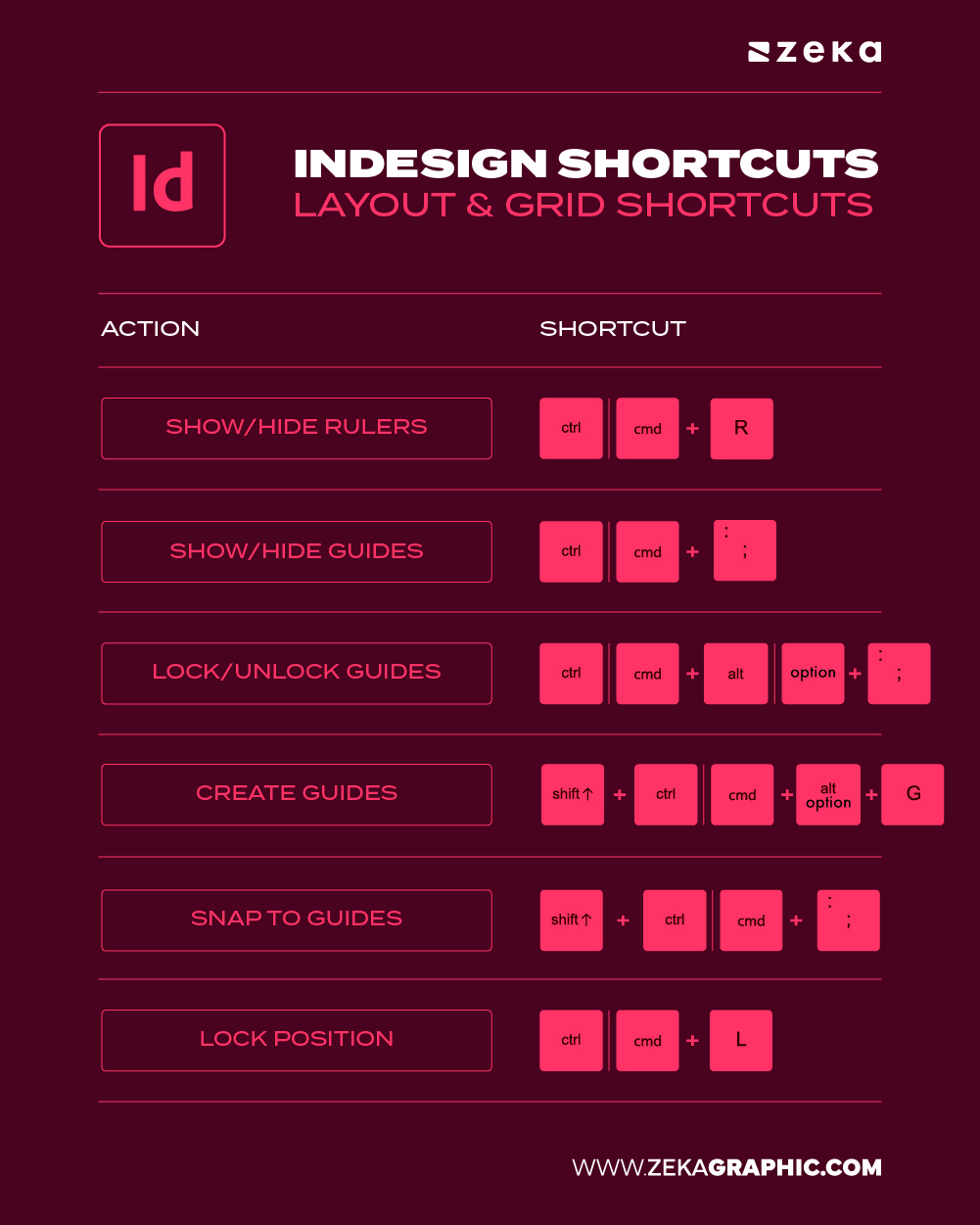
A clean, consistent grid is what separates good layouts from great ones. These InDesign layout shortcuts help you structure designs fast — from creating guides and rulers to locking elements for pixel-perfect alignment.
Action | Shortcut (Mac/Win) |
Show/Hide Rulers | Cmd + R / Ctrl + R |
Show/Hide Guides | Cmd + ; / Ctrl + ; |
Lock/Unlock Guides | Cmd + Option + ; / Ctrl + Alt + ; |
Create Guides | Shift + Cmd + Option + G / Shift + Ctrl + Alt + G |
Snap to Guides | Shift + Cmd + ; / Shift + Ctrl + ; |
Lock Position | Cmd + L / Ctrl + L |
Personally, I rely on the create guides and ruler shortcuts whenever I start an editorial grid or packaging layout. They make it effortless to maintain consistency across spreads — crucial for magazines, catalogs, and brand templates.
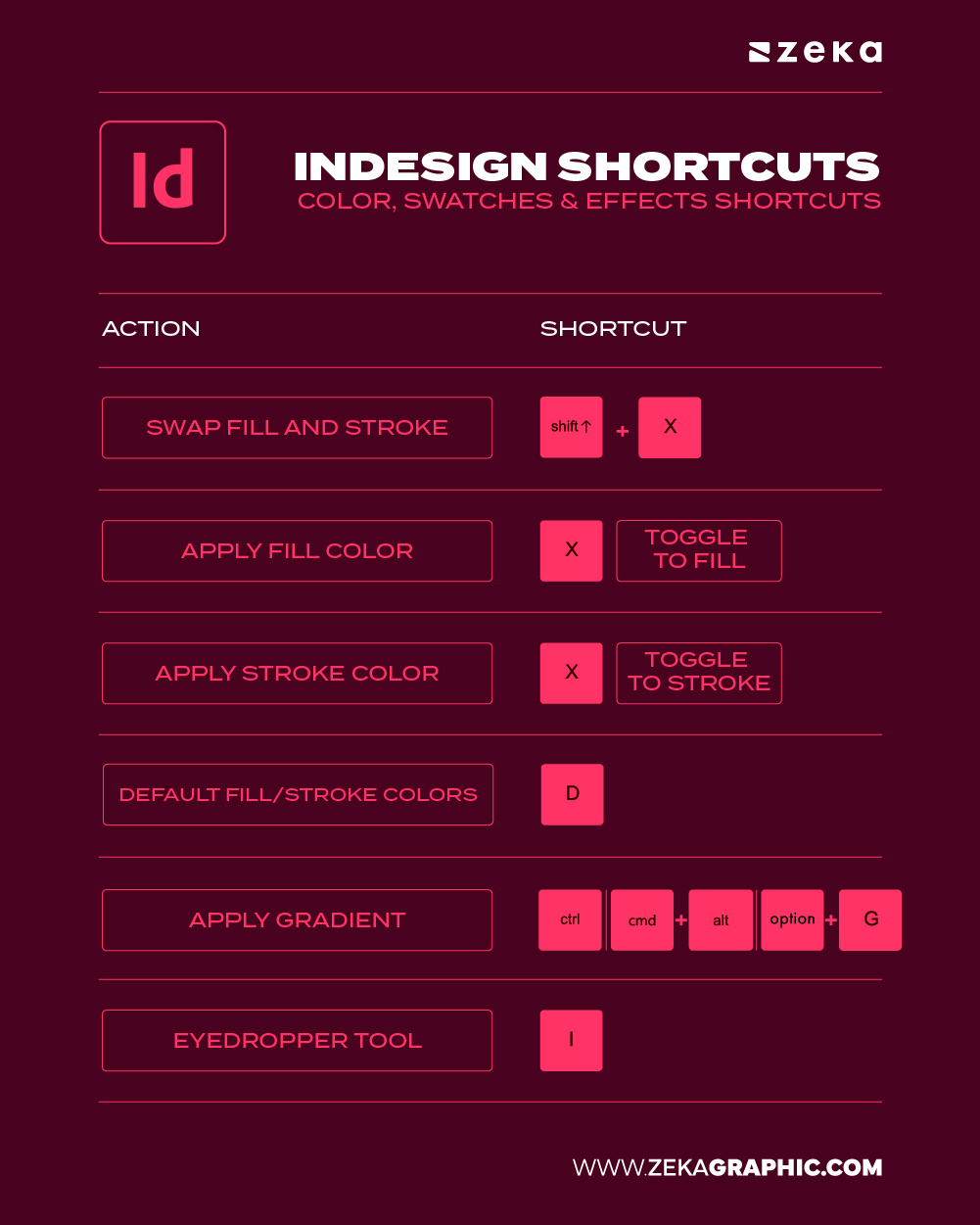
Color brings emotion to your layout — but switching panels can kill momentum. These InDesign color shortcuts keep your creative rhythm intact while managing fills, strokes, and gradients instantly.
Action | Shortcut (Mac/Win) |
Swap Fill and Stroke | Shift + X |
Apply Fill Color | X (toggle to fill) then select color |
Apply Stroke Color | X (toggle to stroke) then select color |
Default Fill/Stroke (white fill, black stroke) | D |
Apply Gradient | Cmd + Option + G / Ctrl + Alt + G |
Sample Color (Eyedropper Tool) | I |
Efficient swatch management and color picker shortcuts allow you to build brand consistency quickly. For branded projects, I use saved swatches with shortcut toggles to avoid mismatched hues — it’s small details like these that make layouts feel cohesive and professional.
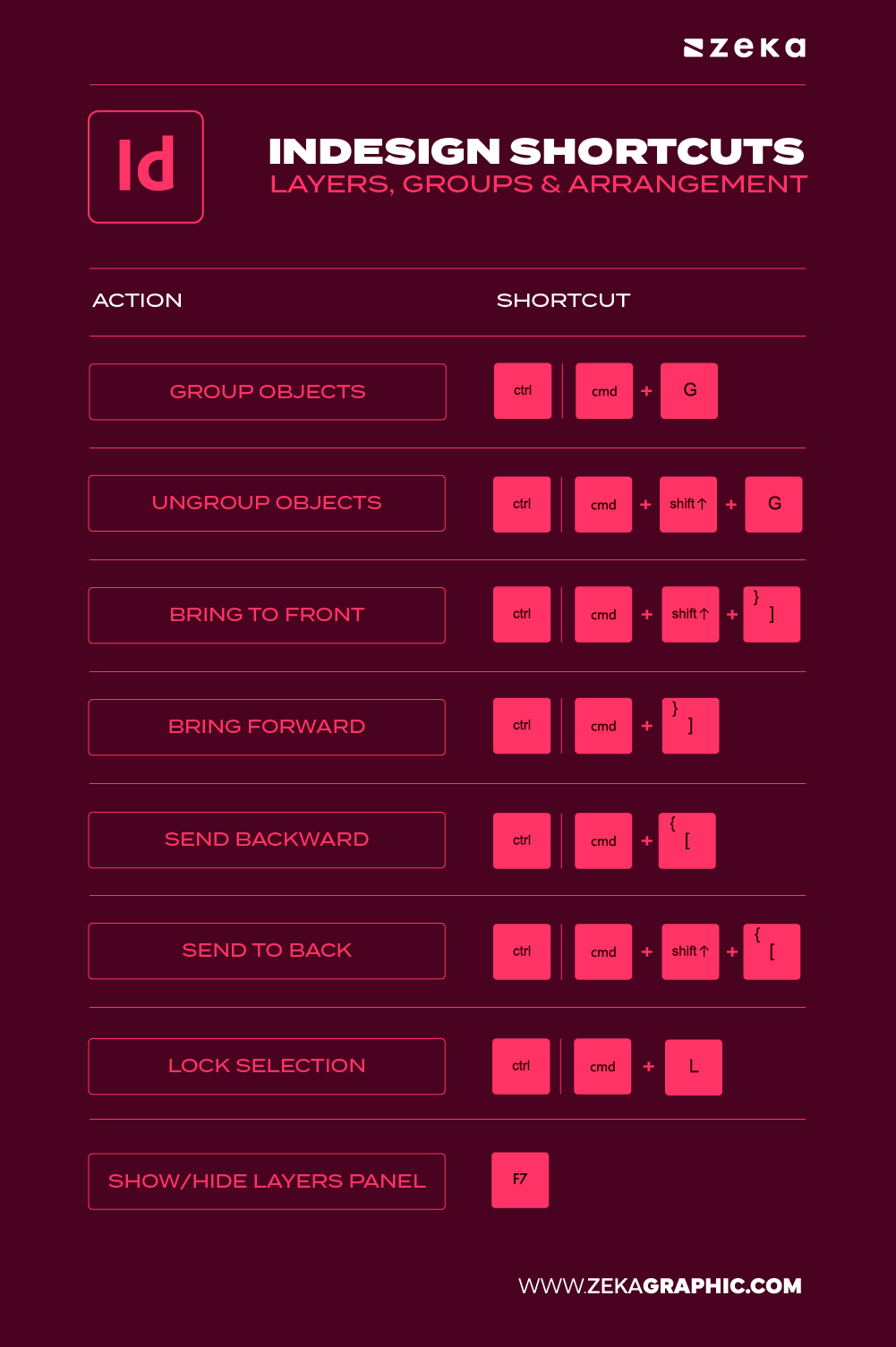
When your document fills with dozens of overlapping objects, mastering InDesign layer shortcuts becomes essential. They keep your workspace structured and make editing large projects a breeze.
Action | Shortcut (Mac/Win) |
Group Objects | Cmd + G / Ctrl + G |
Ungroup Objects | Cmd + Shift + G / Ctrl + Shift + G |
Bring Forward / Send Backward | Cmd + ] / [ or Ctrl + ] / [ |
Bring to Front / Send to Back | Cmd + Shift + ] / [ or Ctrl + Shift + ] / [ |
Lock/Unlock Layer | Cmd + L / Ctrl + L |
Show/Hide Layers Panel | F7 |
These grouping and arrangement shortcuts are game-changers for maintaining hierarchy in editorial or event design. When managing layered compositions — like combining text, textures, and images — these quick commands help you stay organized and efficient.
Advertisment
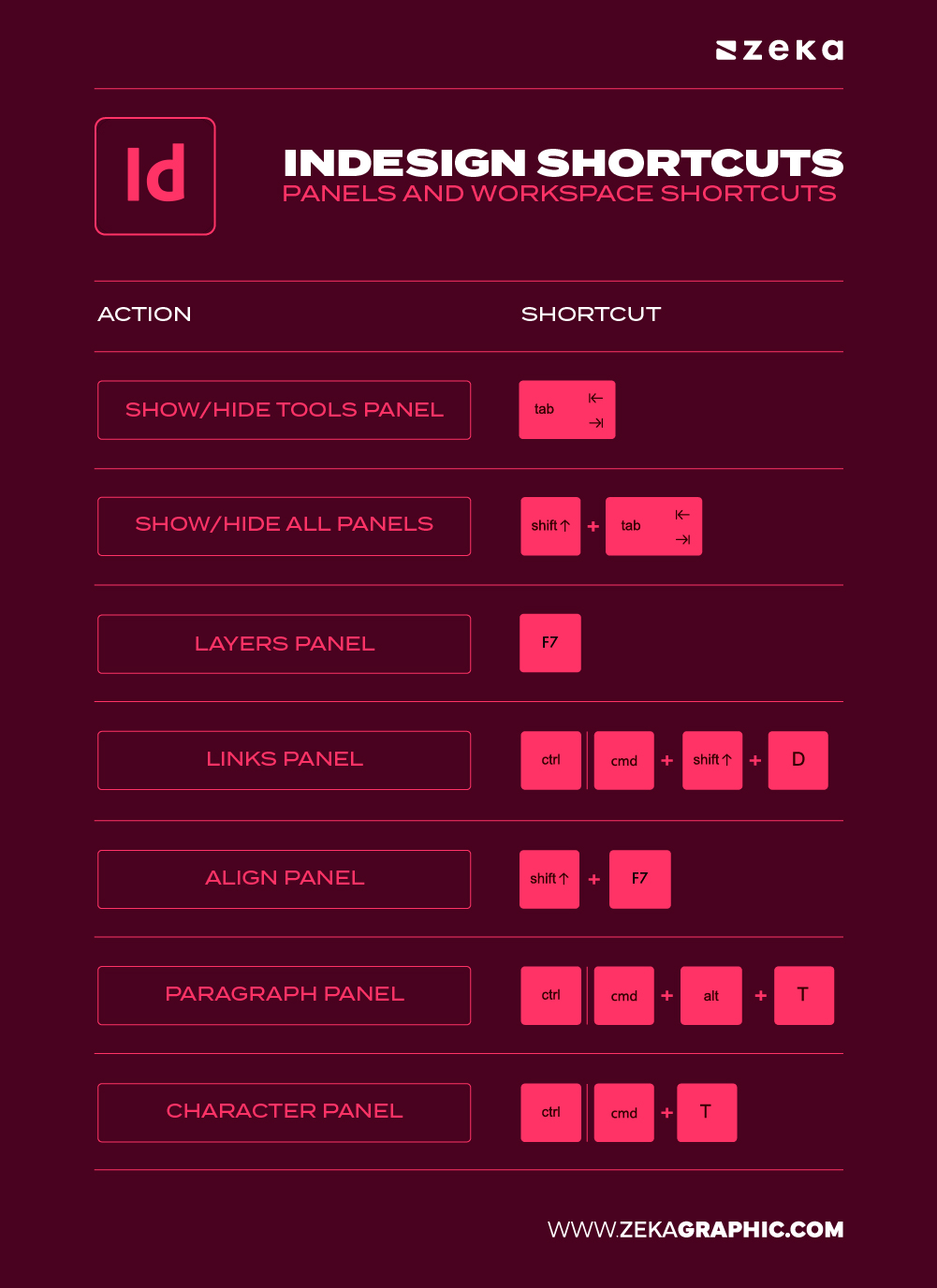
Efficient use of panels and workspace shortcuts lets you design faster and keep your workspace tidy. Whether opening the Layers panel, aligning elements, or resetting your layout view, these shortcuts are perfect for maintaining a personalized, optimized creative environment.
Action | Shortcut (Mac/Win) |
Show/Hide Tools Panel | Tab |
Show/Hide All Panels | Shift + Tab |
Layers Panel | Cmd + Shift + D / Ctrl + Shift + D |
Links Panel | Cmd + Shift + ] / [ or Ctrl + Shift + ] / [ |
Align Panel | Shift + F7 |
Paragraph Panel | Cmd + Option + T / Ctrl + Alt + T |
Character Panel | Cmd + T / Ctrl + T |
Pro Tip: Hide all panels with Shift + Tab when you need to focus — it’s like “Zen Mode” for layout designers.
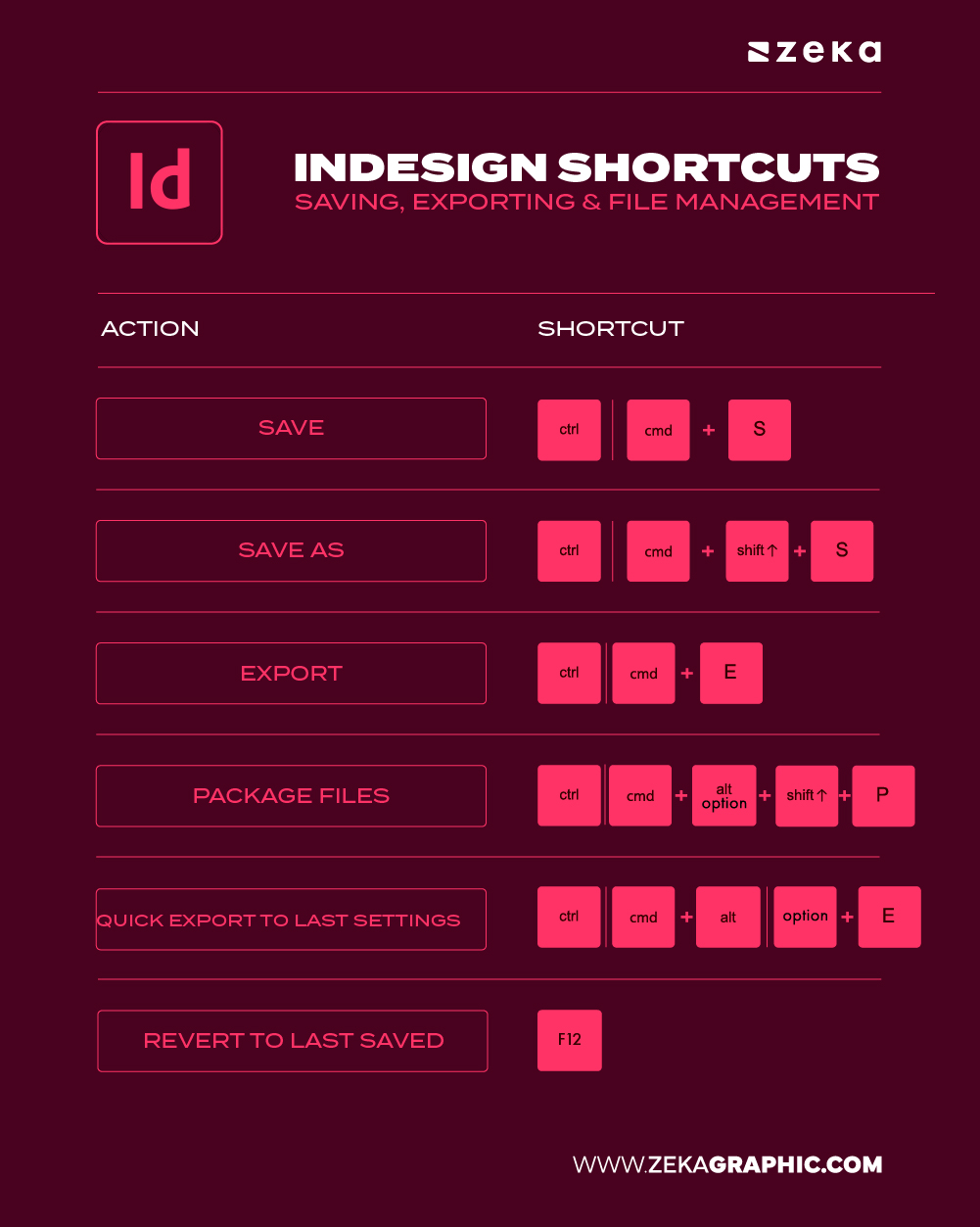
Every designer knows that feeling — hours of perfect layout work suddenly gone because of a crash or an unsaved update. That’s why learning InDesign save shortcuts and smart file management practices is crucial.
These are the essential shortcuts that keep your workflow safe and your exports flawless:
Action | Shortcut (Mac/Win) |
Save Document | Cmd + S / Ctrl + S |
Save As | Cmd + Shift + S / Ctrl + Shift + S |
Export | Cmd + E / Ctrl + E |
Package Files (Collect Fonts, Links, etc.) | Cmd + Option + Shift + P / Ctrl + Alt + Shift + P |
Quick Export to Last Used Settings | Cmd + Option + E / Ctrl + Alt + E |
Revert to Last Saved Version | F12 |
The export InDesign to PDF shortcut (Cmd/Ctrl + E) is one I use constantly — especially when finalizing layouts for clients or printers. You can save export presets for different purposes (like Print, Web, or High Quality) to speed up delivery.
Another often-overlooked lifesaver is “Save As Package” — this collects all linked files, fonts, and resources in one folder, making archiving or transferring projects effortless. Whether you’re freelancing or working in a studio, packaging ensures no missing links when sharing files.
💡 Pro Tip: Create incremental backups with filenames like ProjectName_v01.indd — this makes revision control easy when collaborating.
1. What are the most important shortcuts in Adobe InDesign?
The most essential InDesign shortcuts are Ctrl/Cmd + D (Place Image), Ctrl/Cmd + Shift + E (Fit Frame to Content), W (Preview Mode), and Ctrl/Cmd + Shift + > or < (Change font size).
2. How do I see all shortcuts in InDesign?
Open Edit > Keyboard Shortcuts, or use Alt + Shift + Ctrl + K (Windows) / Opt + Shift + Cmd + K (Mac) to open the shortcuts editor.
3. How can I improve my workflow in InDesign?
Learn text, layout, and object shortcuts, use Master Pages, Styles, and Grids. These practices enhance InDesign workflow optimization and layout speed.
4. Can I customize shortcuts in Adobe InDesign?
Yes. You can create your own shortcut sets via Edit > Keyboard Shortcuts — perfect for building a custom InDesign workflow for frequent tools.
5. What shortcuts help with text formatting in InDesign?
Try Ctrl/Cmd + Shift + L/C/R/J for text alignment, Ctrl/Cmd + Shift + >/< to change font size, and Alt/Opt + Arrow Keys to adjust kerning — great for typography control.
Advertisment
When you master Adobe InDesign shortcuts, something changes: the software stops feeling like a tool and starts feeling like an extension of your creative process. Every layout, every spread, every design choice becomes smoother, faster, and more precise.
From navigation and typography to exporting and hidden tricks, each shortcut saves a few seconds — but those seconds compound into hours of productivity. More importantly, they help you stay in the zone, where creativity feels effortless.
If you’re looking to elevate your workflow, print this guide or bookmark it — and practice a few new shortcuts each day. Over time, they’ll become second nature.
If you found this post useful you might like to read these post about Graphic Design Inspiration.
Advertisment
Written by
If you like this post share it on your social media!





Advertisment
Advertisment