Mastering Affinity Studio Shortcuts is one of the smartest ways to work faster and stay in creative flow. Whether you’re designing logos, layouts, or illustrations, knowing your keyboard commands saves seconds on every task — and those seconds add up to hours.
As a graphic designer, I’ve learned that shortcuts are more than convenience; they’re creative control. They let you move from idea to execution without interrupting your rhythm. With Affinity Studio (the all-in-one version that merges Photo, Designer, and Publisher), understanding these shortcuts means unlocking the true speed of a professional workflow — without paying for Adobe Creative Cloud.
If you’re looking for the best Affinity Studio keyboard shortcuts, this guide covers everything: file operations, tools, editing, and even painting and text commands. You’ll not only find the shortcuts themselves but also tips to adapt your workflow if you’re switching from Adobe.
Advertisment
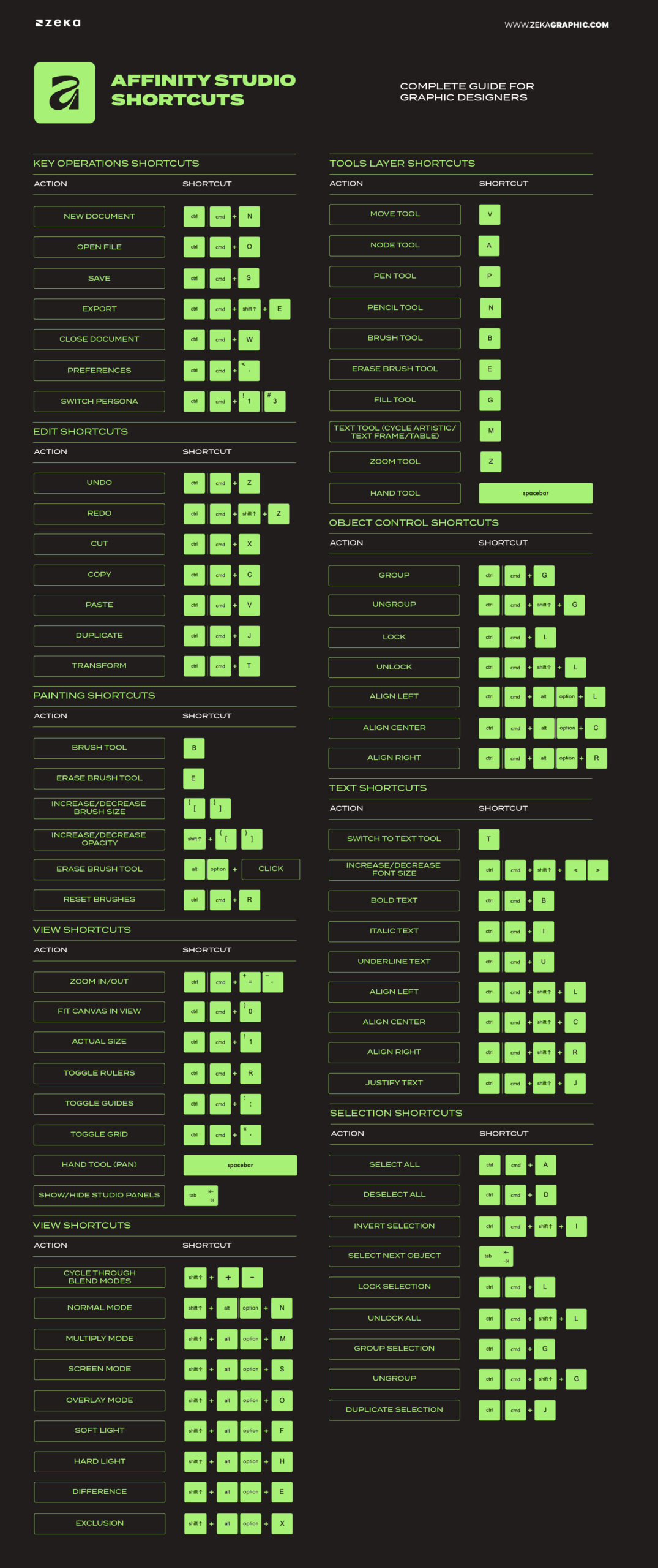
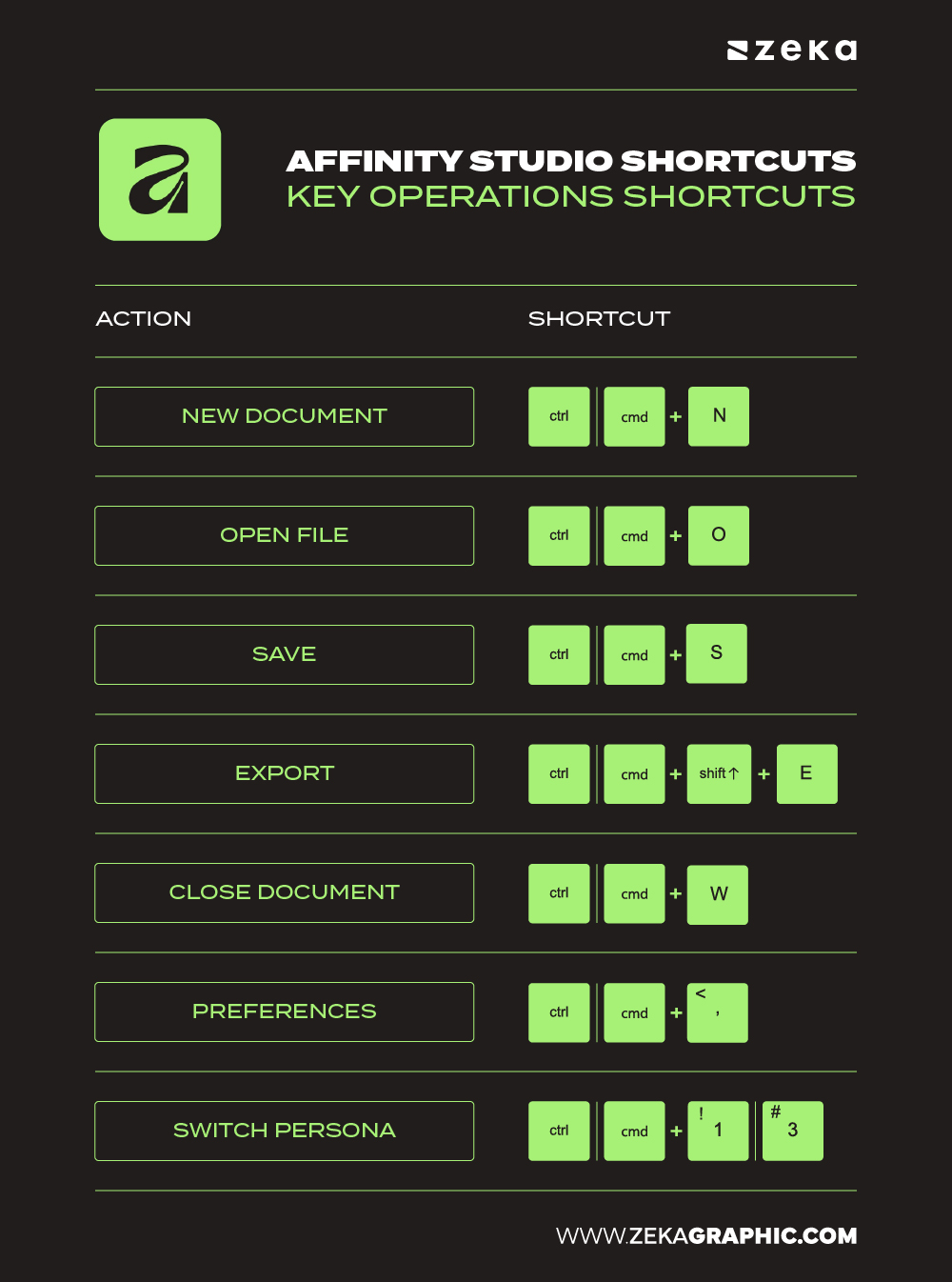
Operations shortcuts in Affinity Studio help you manage documents, exports, and personas quickly. They are essential for switching between Designer, Photo, and Publisher without interrupting your workflow.
Using these shortcuts improves speed and file control, especially in multi-artboard or long projects. For designers moving away from Adobe, this system feels faster, local, and more efficient.
Action | Shortcut (Windows / Mac) |
New Document | Ctrl + N / Cmd + N |
Open File | Ctrl + O / Cmd + O |
Save | Ctrl + S / Cmd + S |
Export | Ctrl + Shift + E / Cmd + Shift + E |
Close Document | Ctrl + W / Cmd + W |
Preferences | Ctrl + , / Cmd + , |
Switch Persona | Ctrl + 1–3 / Cmd + 1–3 |
Pro Tip: Save and export regularly using shortcuts to avoid losing progress during large vector or photo projects.
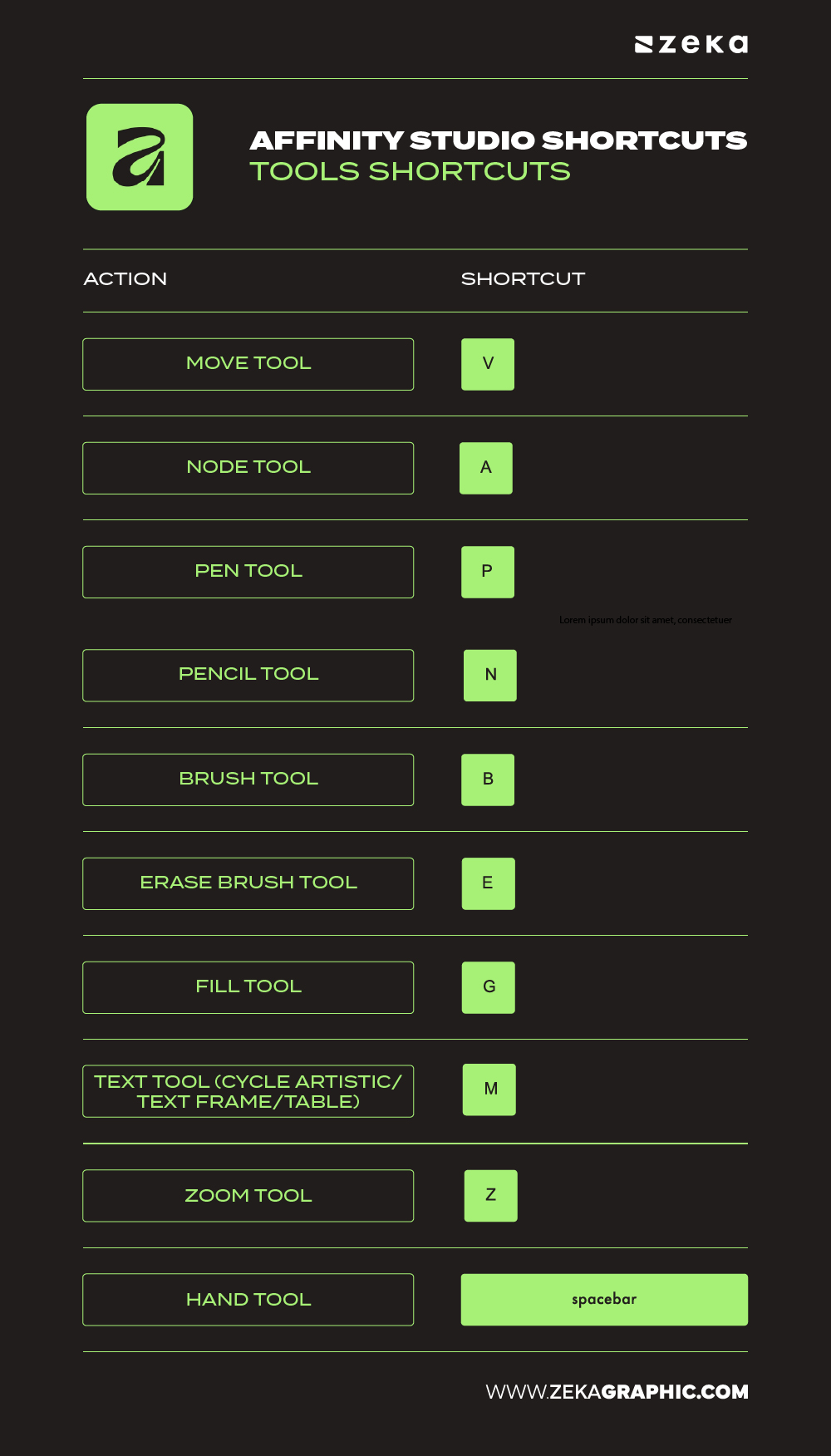
Tool shortcuts allow you to switch between core design tools instantly, keeping your focus on the canvas instead of the interface. This is crucial for illustration, branding, and UI work where speed matters.
Because Affinity uses shared tools across personas, learning these shortcuts once improves your entire workflow and reduces repetitive mouse movement.
Action | Shortcut (Windows / Mac) |
Move Tool | V |
Node Tool | A |
Pen Tool | P |
Pencil Tool | N |
Brush Tool | B |
Erase Brush Tool | E |
Fill Tool | G |
Gradient Tool | M |
Zoom Tool | Z |
Hand Tool | Spacebar |
Design Tip: Use V for Move and A for Node Tool interchangeably — mastering these two alone can reduce editing time by up to 40%.
Advertisment
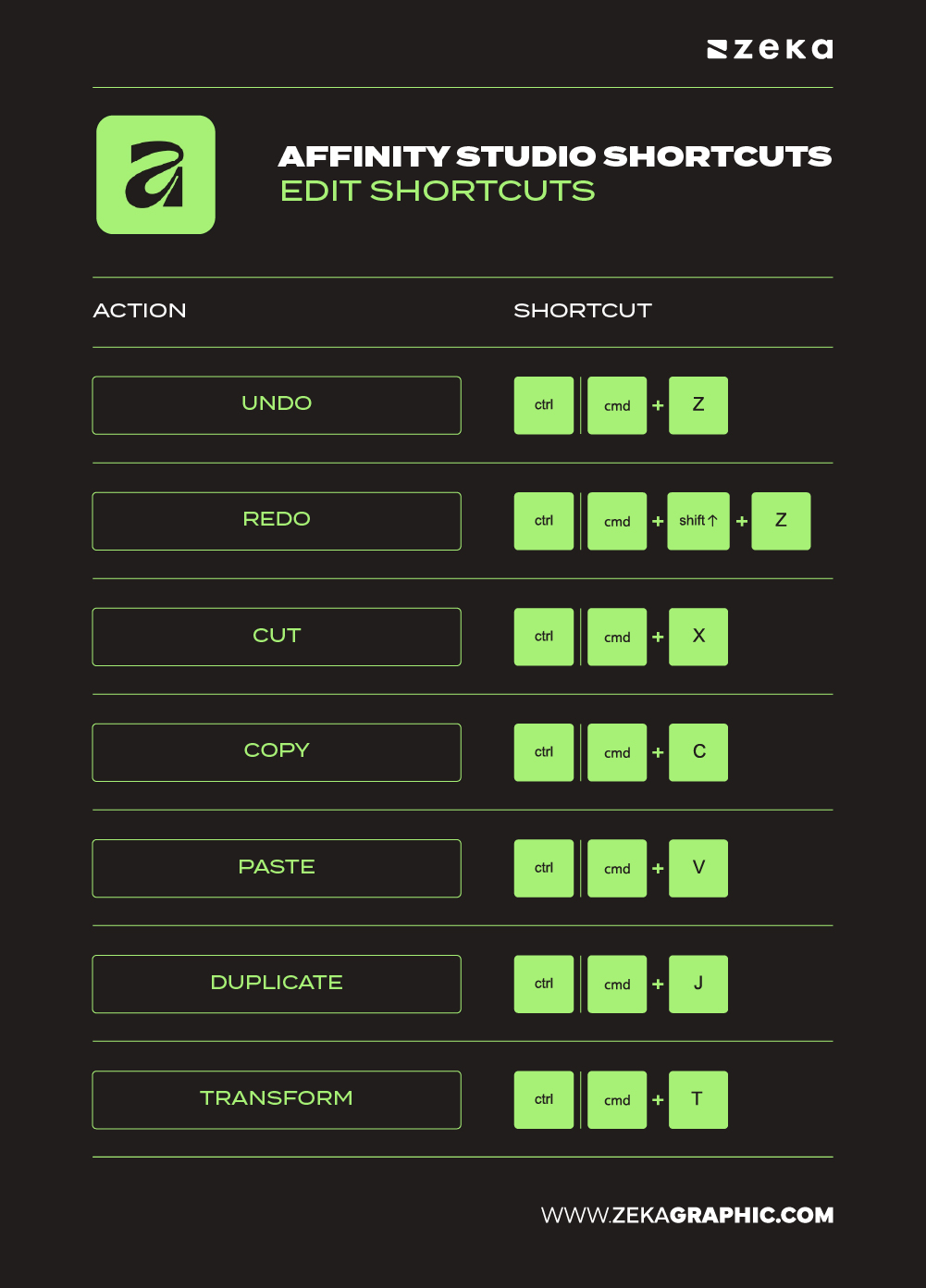
Editing is where speed truly matters. The Edit shortcuts in Affinity Studio let you duplicate, undo, and transform instantly — no menus required. They mirror many Adobe equivalents (Ctrl/Cmd + Z for Undo, Ctrl/Cmd + D for Duplicate), making them easy to adopt.
These shortcuts keep you in rhythm while refining designs. Whether you’re adjusting shapes, fixing mistakes, or transforming layers, they ensure consistency and agility across every project.
Action | Shortcut (Windows / Mac) |
Undo | Ctrl + Z / Cmd + Z |
Redo | Ctrl + Shift + Z / Cmd + Shift + Z |
Cut | Ctrl + X / Cmd + X |
Copy | Ctrl + C / Cmd + C |
Paste | Ctrl + V / Cmd + V |
Duplicate | Ctrl + J / Cmd + J |
Transform | Ctrl + T / Cmd + T |
Efficiency Tip: Using Ctrl/Cmd + J to duplicate objects is perfect for grid layouts, icons, and repetitive branding elements.
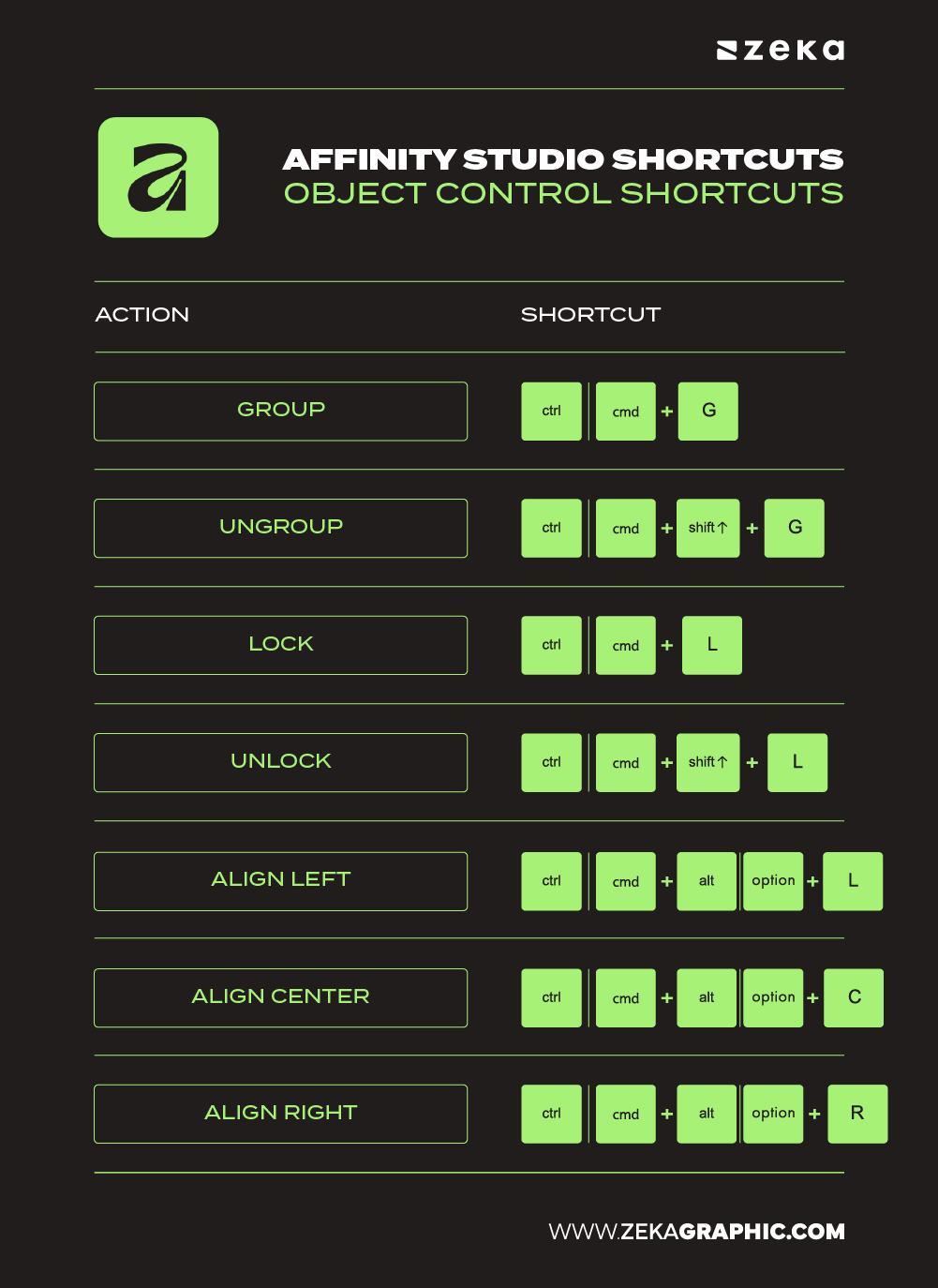
In Affinity Studio, object control shortcuts are the backbone of layout precision. They help you align, group, and distribute elements with pinpoint accuracy — essential for logo design, posters, and UI grids.
Unlike manual dragging, these shortcuts ensure perfect spacing and alignment. You can quickly arrange layers, lock positions, and organize groups, which streamlines your creative structure.
Action | Shortcut (Windows / Mac) |
Group | Ctrl + G / Cmd + G |
Ungroup | Ctrl + Shift + G / Cmd + Shift + G |
Lock | Ctrl + L / Cmd + L |
Unlock | Ctrl + Shift + L / Cmd + Shift + L |
Align Left | Ctrl + Alt + L / Cmd + Opt + L |
Align Center | Ctrl + Alt + C / Cmd + Opt + C |
Align Right | Ctrl + Alt + R / Cmd + Opt + R |
Pro Tip: Use alignment shortcuts during layout composition instead of relying on snapping — it gives you faster, pixel-perfect results.
Advertisment
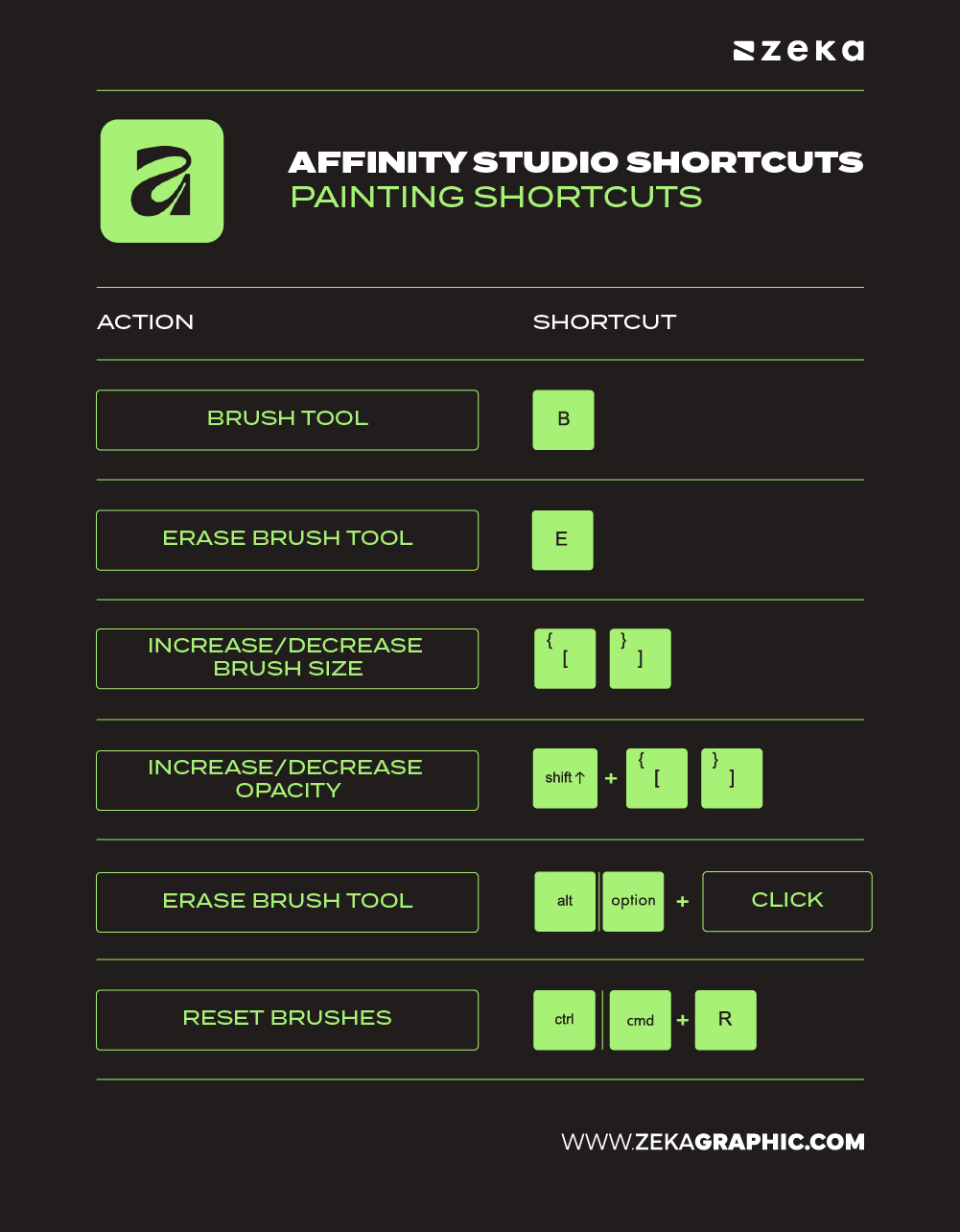
For illustrators and digital artists, painting shortcuts in Affinity Studio’s Pixel Persona** are indispensable. They let you switch brushes, adjust opacity, and manage colors without breaking focus — similar to Photoshop’s but often more fluid.
These shortcuts are ideal for digital painting, concept art, and retouching workflows, where control and speed matter most. The more you memorize them, the closer your process feels to drawing naturally.
Action | Shortcut (Windows / Mac) |
Brush Tool | B |
Erase Brush Tool | E |
Increase Brush Size | ] |
Decrease Brush Size | [ |
Increase Opacity | Shift + ] |
Decrease Opacity | Shift + [ |
Color Picker | Alt + Click / Opt + Click |
Reset Brushes | Ctrl + R / Cmd + R |
Creative Tip: Combine Alt + Click with quick opacity tweaks to achieve natural color transitions — perfect for soft shading and texture work.
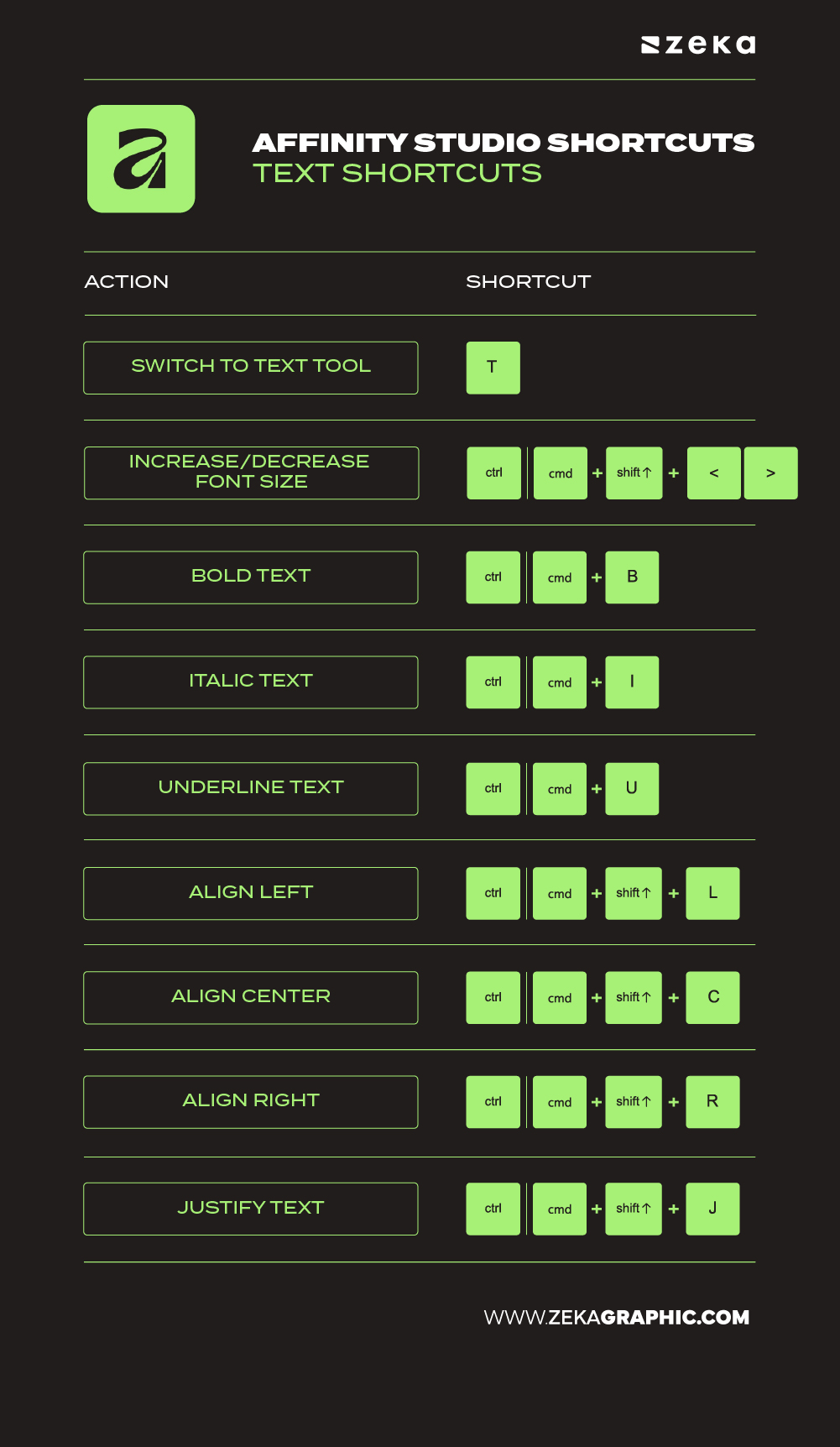
Typography is one of the most time-consuming parts of design — adjusting text boxes, aligning titles, tweaking line spacing, and resizing fonts.
Instead of navigating menus or panels, you can change alignment, font size, or switch tools directly from the keyboard. This makes it much easier to maintain a fast, uninterrupted design flow, especially when working on branding layouts, posters, or UI prototypes where text plays a central role.
Action | Shortcut (Windows / Mac) |
Switch to Text Tool | T |
Increase Font Size | Ctrl/Cmd + Shift + > |
Decrease Font Size | Ctrl/Cmd + Shift + < |
Bold Text | Ctrl/Cmd + B |
Italic Text | Ctrl/Cmd + I |
Underline Text | Ctrl/Cmd + U |
Align Left | Ctrl/Cmd + Shift + L |
Align Center | Ctrl/Cmd + Shift + C |
Align Right | Ctrl/Cmd + Shift + R |
Justify Text | Ctrl/Cmd + Shift + J |
Tip: Combine alignment and size shortcuts with the Move Tool (V) for the fastest typographic workflow possible.
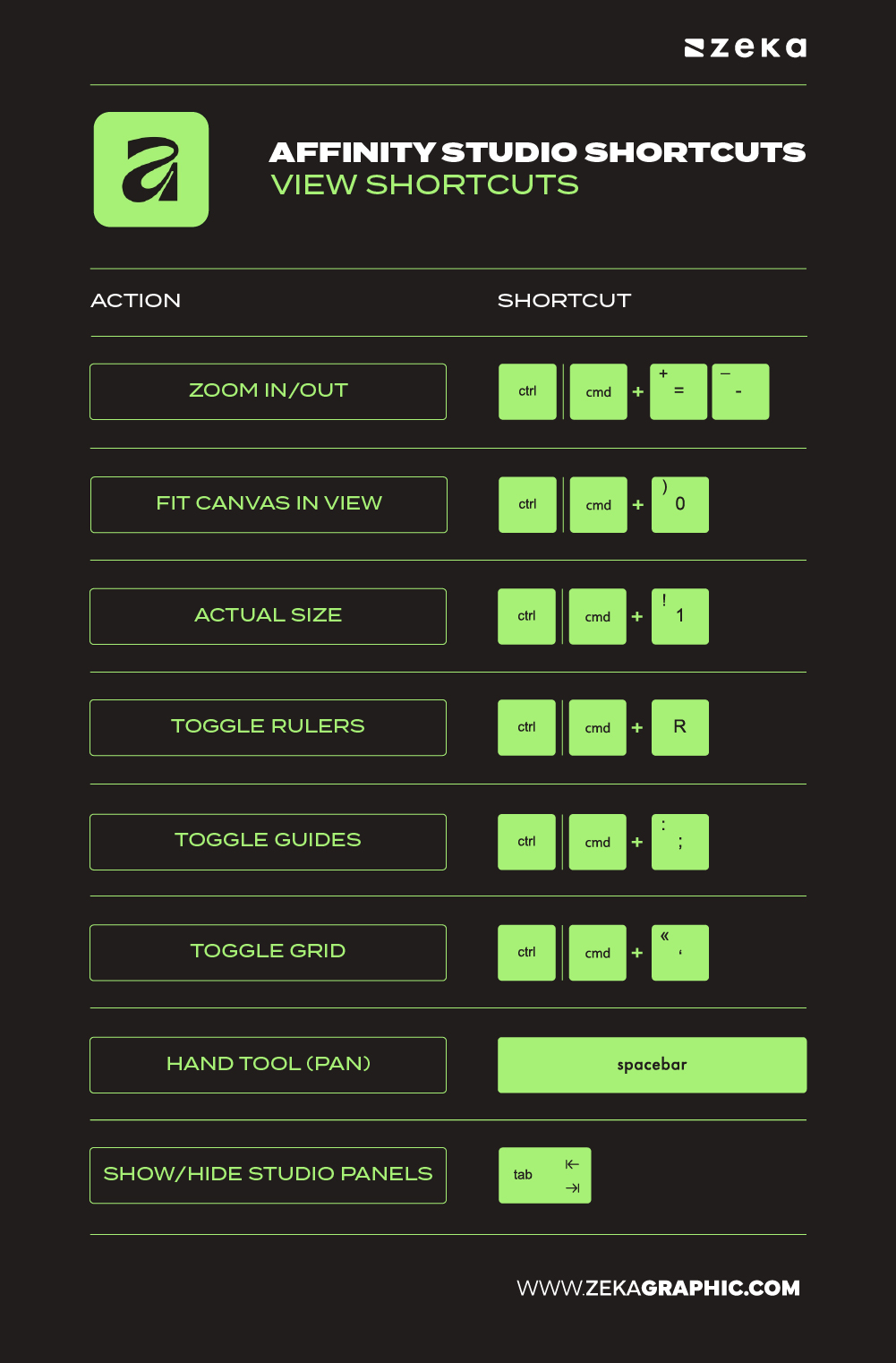
They help you move around your canvas instantly, toggling guides or grids on demand, and controlling zoom levels without breaking concentration. Smooth navigation isn’t just convenience; it’s a serious productivity advantage for detailed work like icon design or retouching pixel art.
Action | Shortcut (Windows / Mac) |
Zoom In | Ctrl/Cmd + = |
Zoom Out | Ctrl/Cmd + – |
Fit Canvas in View | Ctrl/Cmd + 0 |
Actual Size | Ctrl/Cmd + 1 |
Toggle Rulers | Ctrl/Cmd + R |
Toggle Guides | Ctrl/Cmd + ; |
Toggle Grid | Ctrl/Cmd + ‘ |
Hand Tool (Pan) | Spacebar |
Show/Hide Studio Panels | Tab |
Pro Tip: Combine Ctrl/Cmd + Space and drag to zoom precisely where your cursor points — perfect for pixel-perfect adjustments.
Advertisment
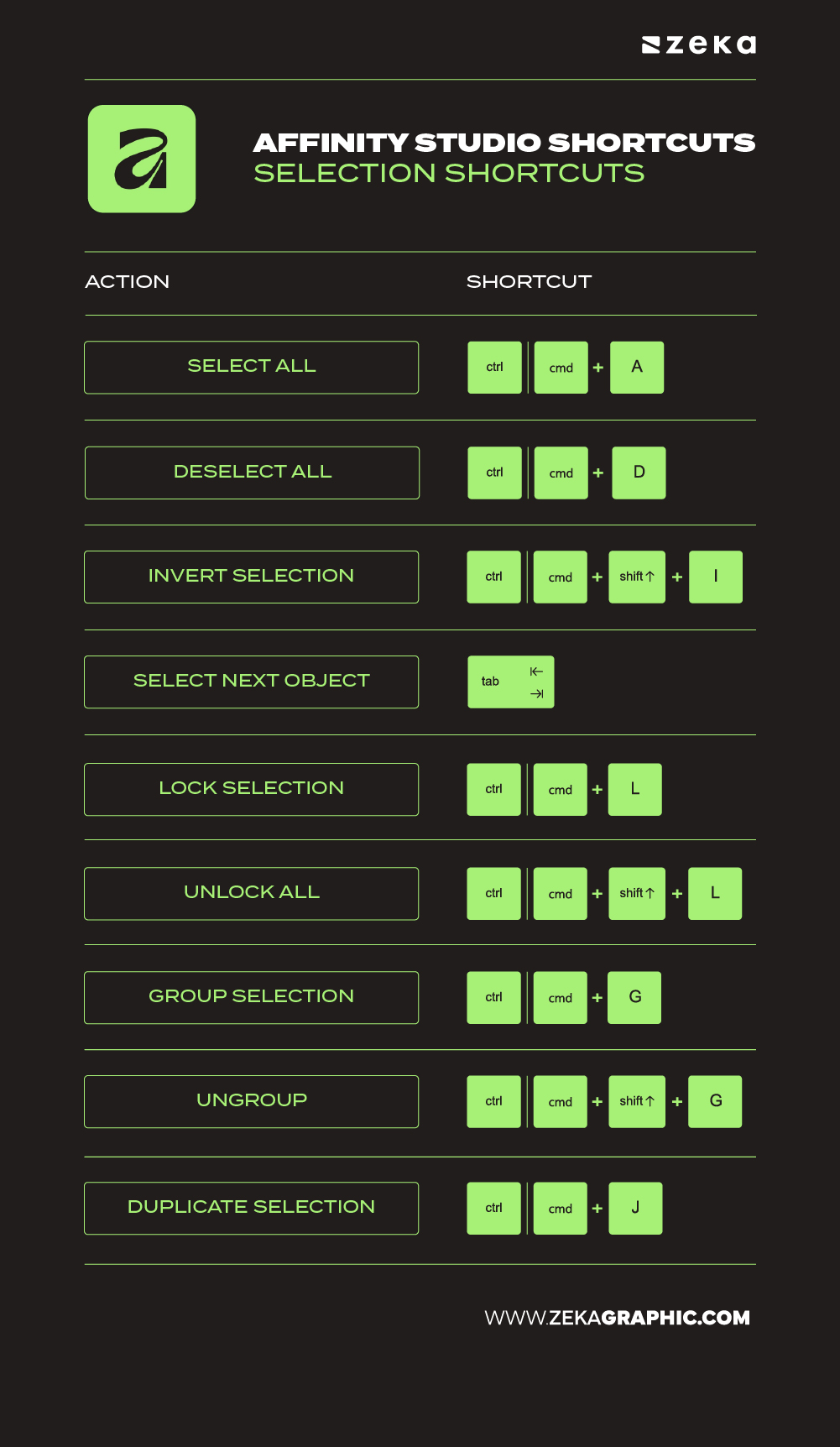
Precise selection can make or break your workflow — especially when handling complex compositions. Affinity Designer selection shortcuts let you quickly isolate, lock, and deselect elements so you can focus only on what matters.
Action | Shortcut (Windows / Mac) |
Select All | Ctrl/Cmd + A |
Deselect All | Ctrl/Cmd + D |
Invert Selection | Ctrl/Cmd + Shift + I |
Select Next Object | Tab |
Lock Selection | Ctrl/Cmd + L |
Unlock All | Ctrl/Cmd + Shift + L |
Group Selection | Ctrl/Cmd + G |
Ungroup | Ctrl/Cmd + Shift + G |
Duplicate Selection | Ctrl/Cmd + J |
Tip: Combine “Lock” and “Group” shortcuts to protect finished layers while experimenting with new design ideas.
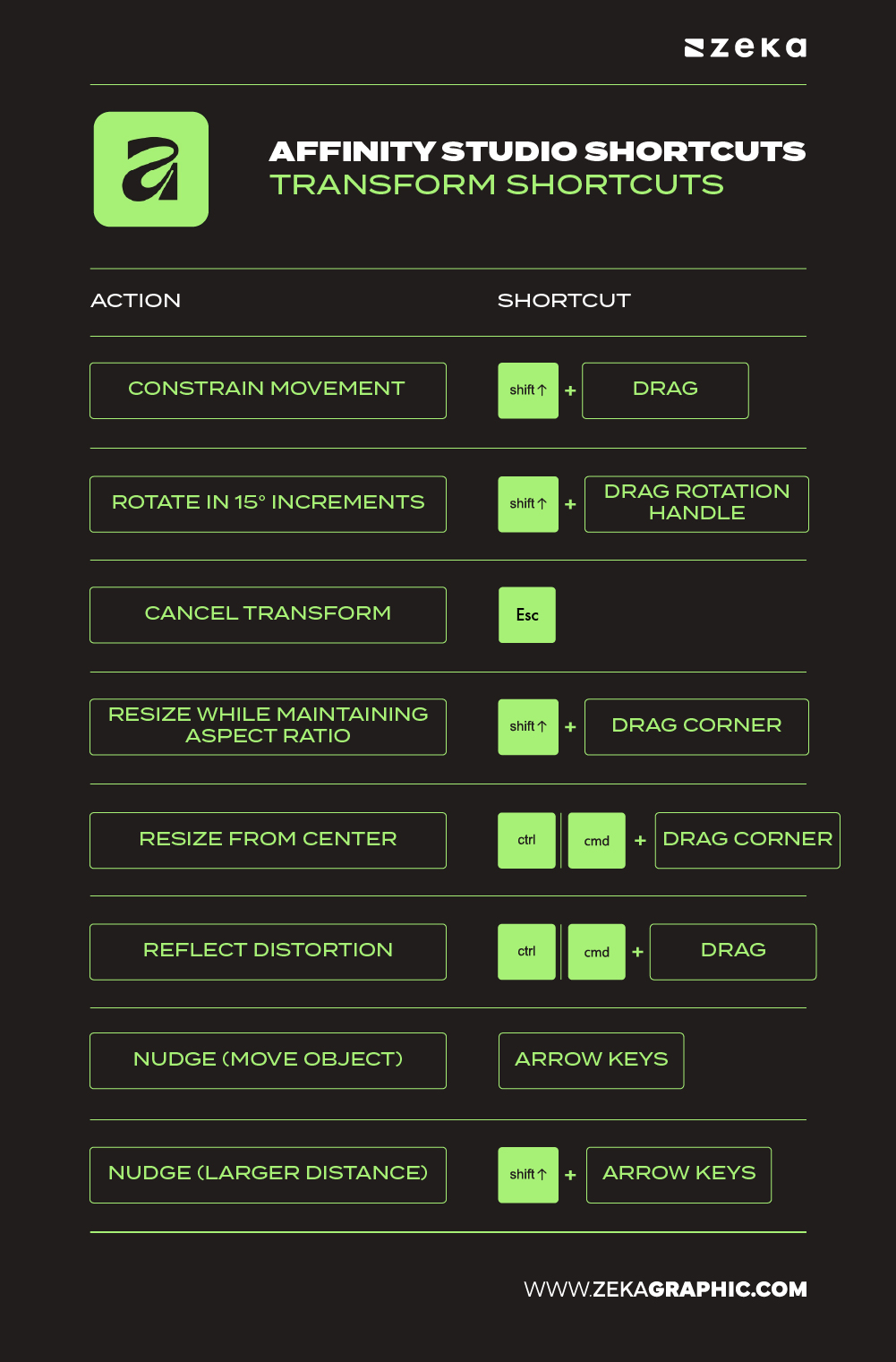
These commands help you work with accuracy while keeping your creative flow uninterrupted — especially during logo design, grid-based layouts, and UI composition.
Action | Mac Shortcut | Windows Shortcut |
Constrain Movement (Horizontal/Vertical/Diagonal) | ⇧ + Drag | Shift + Drag |
Rotate in 15° Increments | ⇧ + Drag Rotation Handle | Shift + Drag Rotation Handle |
Cancel Transform | Esc | Esc |
Resize While Maintaining Aspect Ratio | ⇧ + Drag Corner | Shift + Drag Corner |
Resize From Center | ⌘ + Drag Corner | Ctrl + Drag Corner |
Reflect Distortion | ⌘ + Drag | Ctrl + Drag |
Nudge (Move Object) | Arrow Keys | Arrow Keys |
Nudge (Larger Distance) | ⇧ + Arrow Keys | Shift + Arrow Keys |
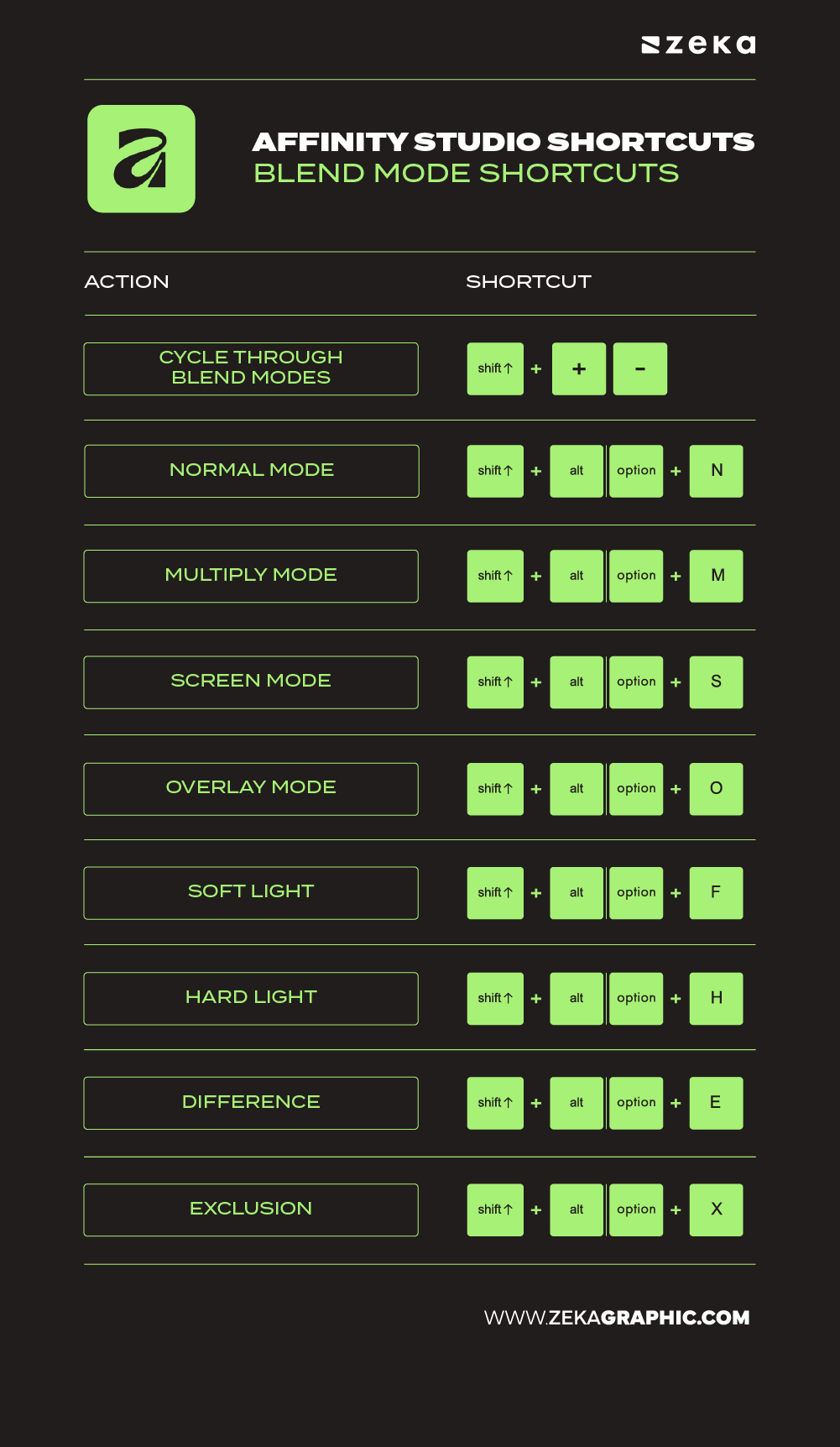
For many designers, blending modes are where creativity explodes — adding texture, light, and emotion. But diving through menus can kill momentum. Shortcuts allow you to test Overlay, Multiply, or Screen instantly, turning your experiments into results.
Action | Shortcut (Windows / Mac) |
Cycle Through Blend Modes | Shift + Plus/Minus |
Normal Mode | Shift + Alt/Option + N |
Multiply Mode | Shift + Alt/Option + M |
Screen Mode | Shift + Alt/Option + S |
Overlay Mode | Shift + Alt/Option + O |
Soft Light | Shift + Alt/Option + F |
Hard Light | Shift + Alt/Option + H |
Difference | Shift + Alt/Option + E |
Exclusion | Shift + Alt/Option + X |
Pro Tip: Blend modes are non-destructive — experiment freely and use Shift + Plus/Minus to explore dynamic visual effects quickly.
Advertisment
Mastering the complete Affinity Designer shortcuts list is more than a productivity hack — it’s a mindset shift. Each command saves seconds, and those seconds compound into hours of creative flow. You’ll not only design faster but also with greater control and precision.
Keep this guide bookmarked, and practice a few new key combos each day. Over time, your muscle memory will take over — and you’ll design as fluidly as you think.
Final Tip: Print this shortcuts list or save it as a reference on your desktop — it’s your fast track to mastering Affinity Studio’s power.
If you found this post useful you might like to read these post about Graphic Design Inspiration.
Advertisment
Written by
If you like this post share it on your social media!






Advertisment
Advertisment