Illustrator is powerful—but it can feel slow when every action means digging through menus. That’s where Adobe Illustrator shortcuts change everything.
They remove friction.
They keep your focus on the design.
They make your workflow feel smooth instead of interrupted.
No matter if you’re building a logo, refining vectors, or working on layouts, shortcuts help you move faster and think more clearly. Less clicking, more creating.
Over time, they become second nature. And that’s when Illustrator stops feeling like a tool—and starts feeling like an extension of your hands.
In this guide, you’ll learn:
Advertisment
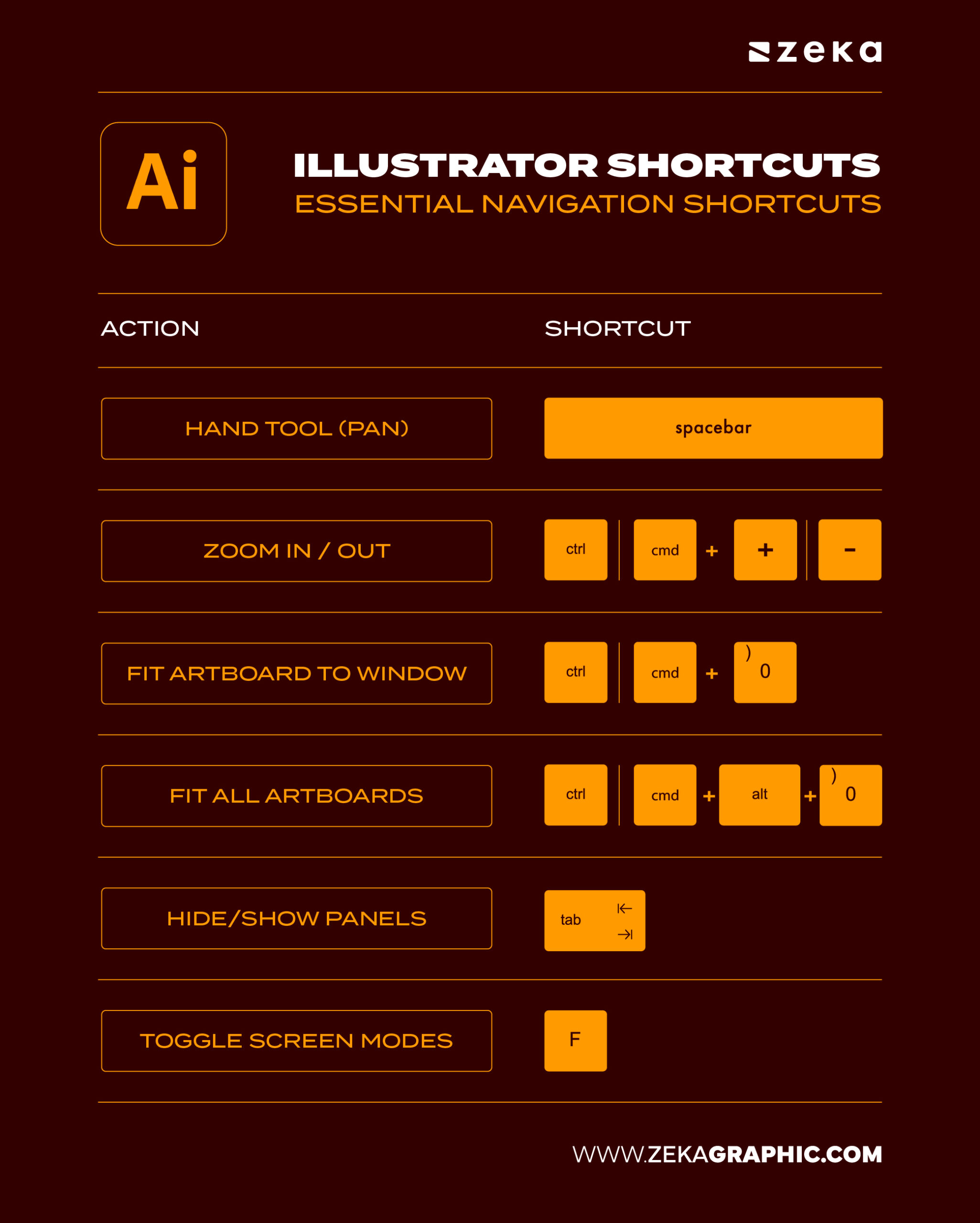
Moving around your canvas shouldn’t slow you down. Navigation shortcuts let you zoom, pan, and switch views instantly—especially useful when working with multiple artboards or detailed layouts.
These are the small habits that keep your flow intact. Less clicking, more designing.
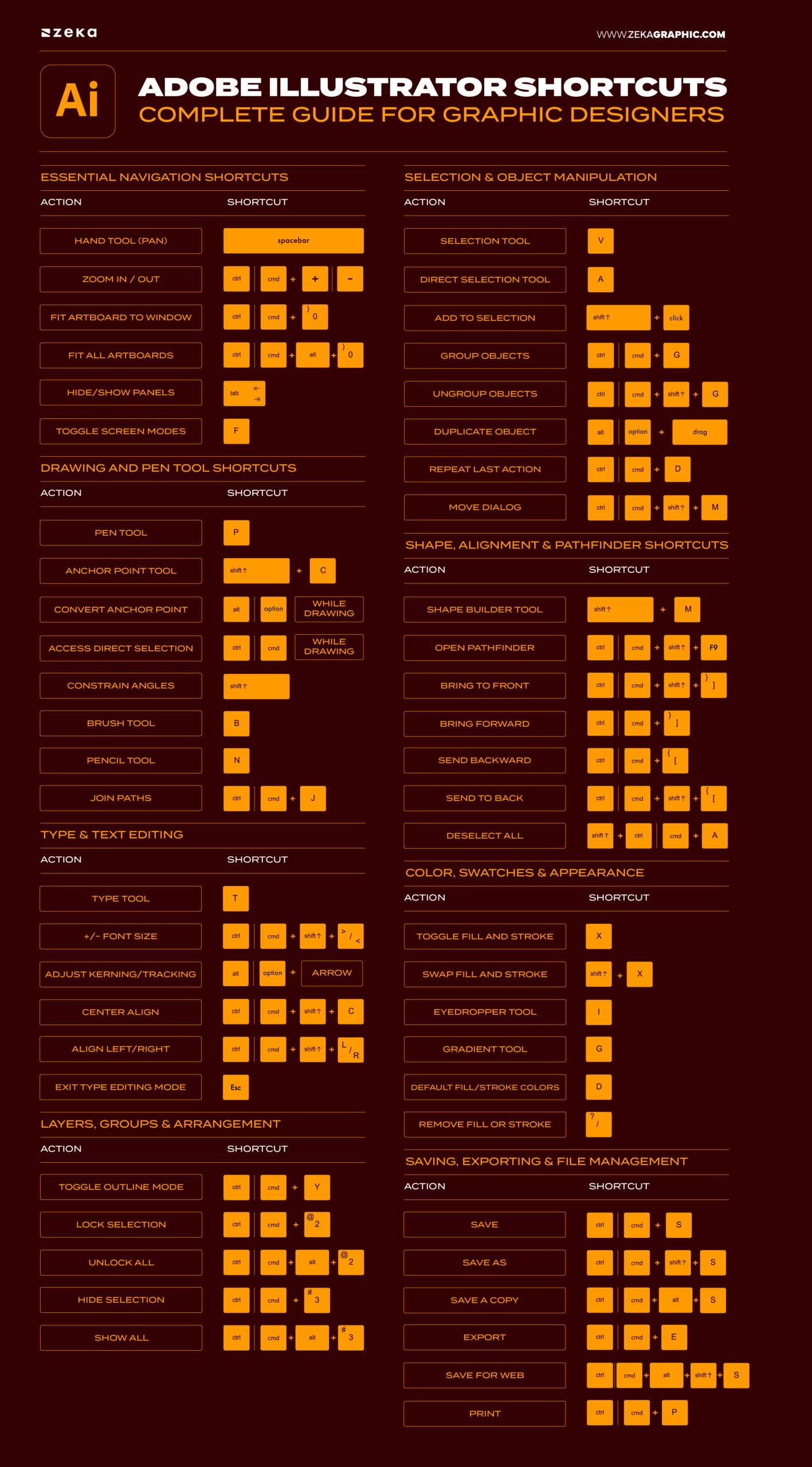
Action | Shortcut |
Hand Tool (Pan) | Spacebar |
Zoom In / Out | Ctrl/Cmd + + / – |
Fit Artboard to Window | Ctrl/Cmd + 0 |
Fit All Artboards | Ctrl/Cmd + Alt + 0 |
Hide/Show Panels | Tab |
Toggle Screen Modes | F |
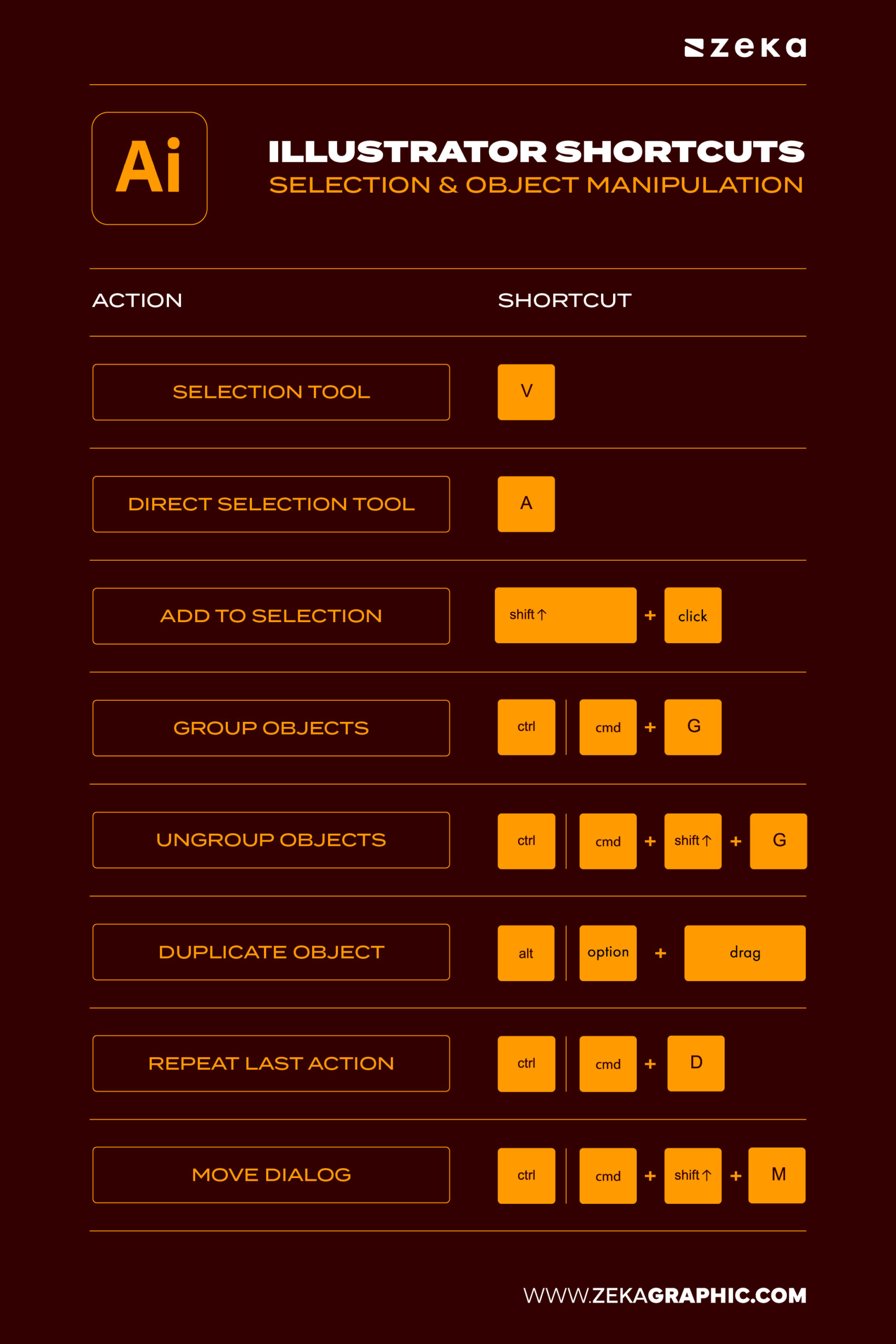
Most of your time in Illustrator is spent selecting, moving, and adjusting objects. When this part feels slow, everything feels slow.
Good shortcuts here mean cleaner layouts, faster edits, and less friction when building compositions.
Action | Shortcut |
Selection Tool | V |
Direct Selection Tool | A |
Add to Selection | Shift + Click |
Group Objects | Ctrl/Cmd + G |
Ungroup Objects | Ctrl/Cmd + Shift + G |
Duplicate Object | Alt/Option + Drag |
Repeat Last Action | Ctrl/Cmd + D |
Move Dialog | Ctrl/Cmd + Shift + M |
Advertisment
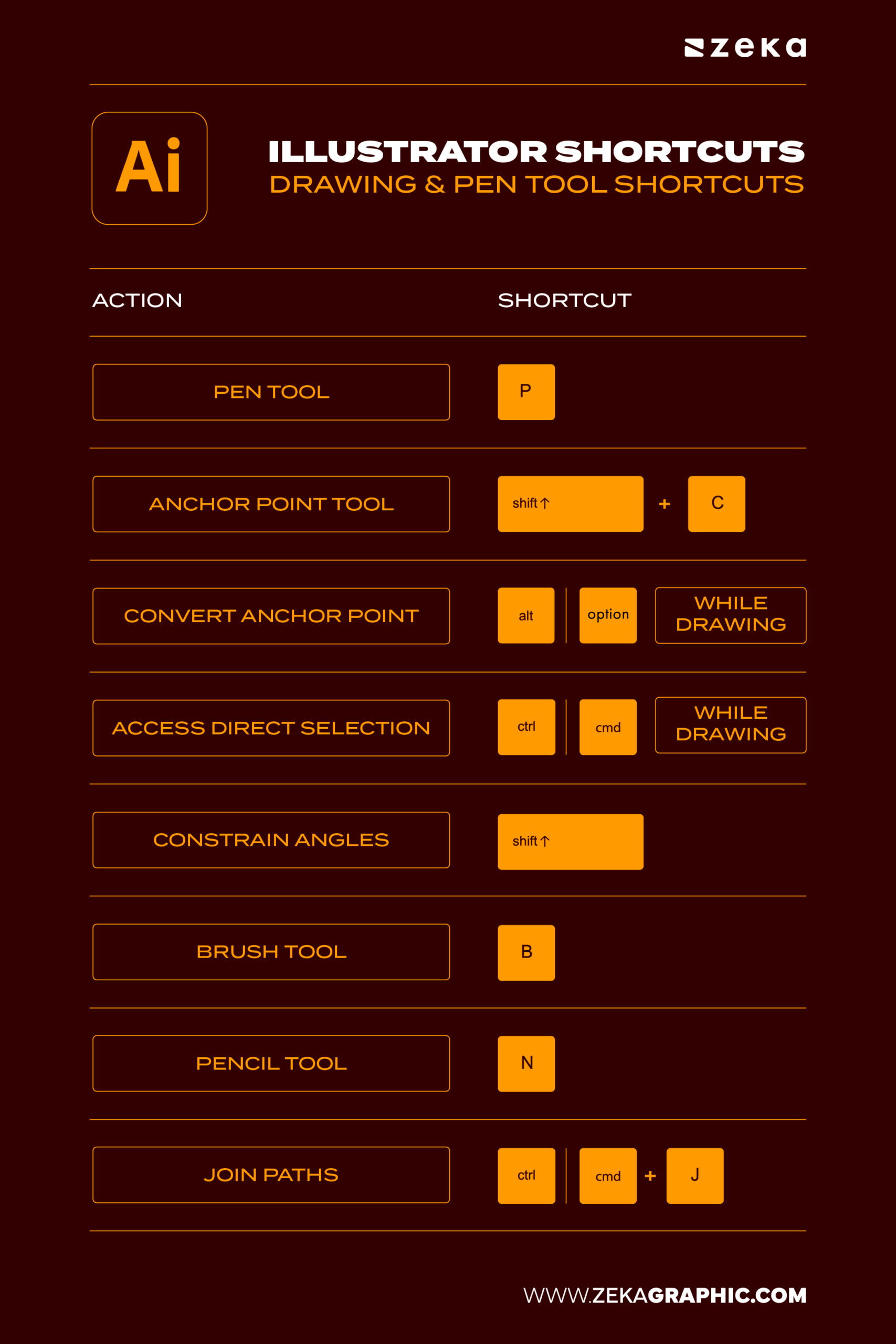
This is where things become precise. The Pen Tool and drawing shortcuts turn Illustrator from a tool into something that feels almost like sketching.
Once these are internalized, creating paths and refining curves becomes fluid instead of technical.
Action | Shortcut |
Pen Tool | P |
Anchor Point Tool | Shift + C |
Convert Anchor Point | Alt/Option (while drawing) |
Access Direct Selection | Ctrl/Cmd (while drawing) |
Constrain Angles | Shift |
Brush Tool | B |
Pencil Tool | N |
Join Paths | Ctrl/Cmd + J |
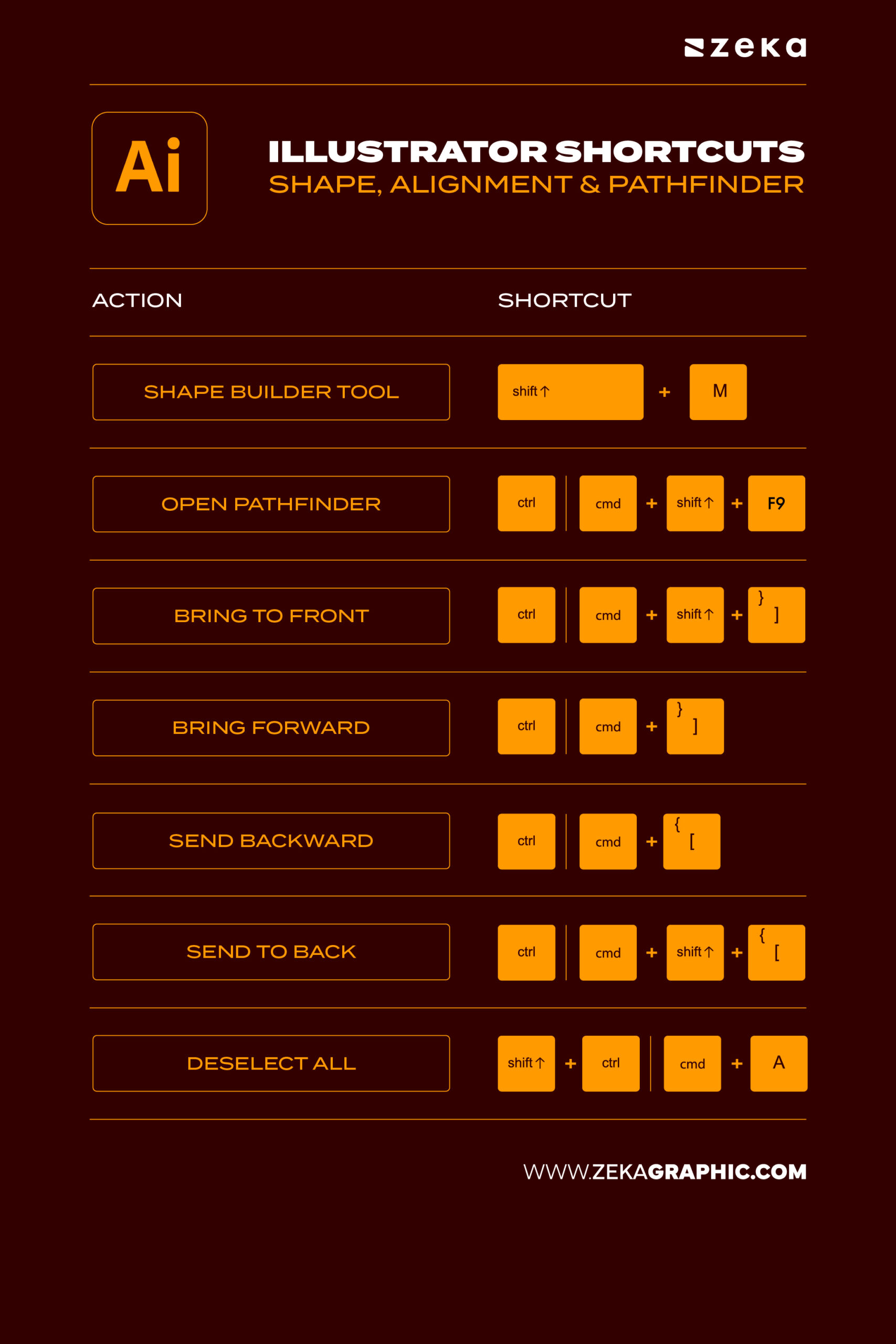
Clean design depends on alignment and structure. Instead of manually adjusting elements, these shortcuts let you build balanced layouts in seconds.
Perfect for logos, grids, and anything that needs precision.
Action | Shortcut |
Shape Builder Tool | Shift + M |
Open Pathfinder | Ctrl/Cmd + Shift + F9 |
Bring to Front | Ctrl/Cmd + Shift + ] |
Bring Forward | Ctrl/Cmd + ] |
Send Backward | Ctrl/Cmd + [ |
Send to Back | Ctrl/Cmd + Shift + [ |
Deselect All | Shift + Ctrl/Cmd + A |
Pro Tip: Combine the Shape Builder Tool with Pathfinder for advanced geometric compositions — a must for clean logo construction.
Advertisment
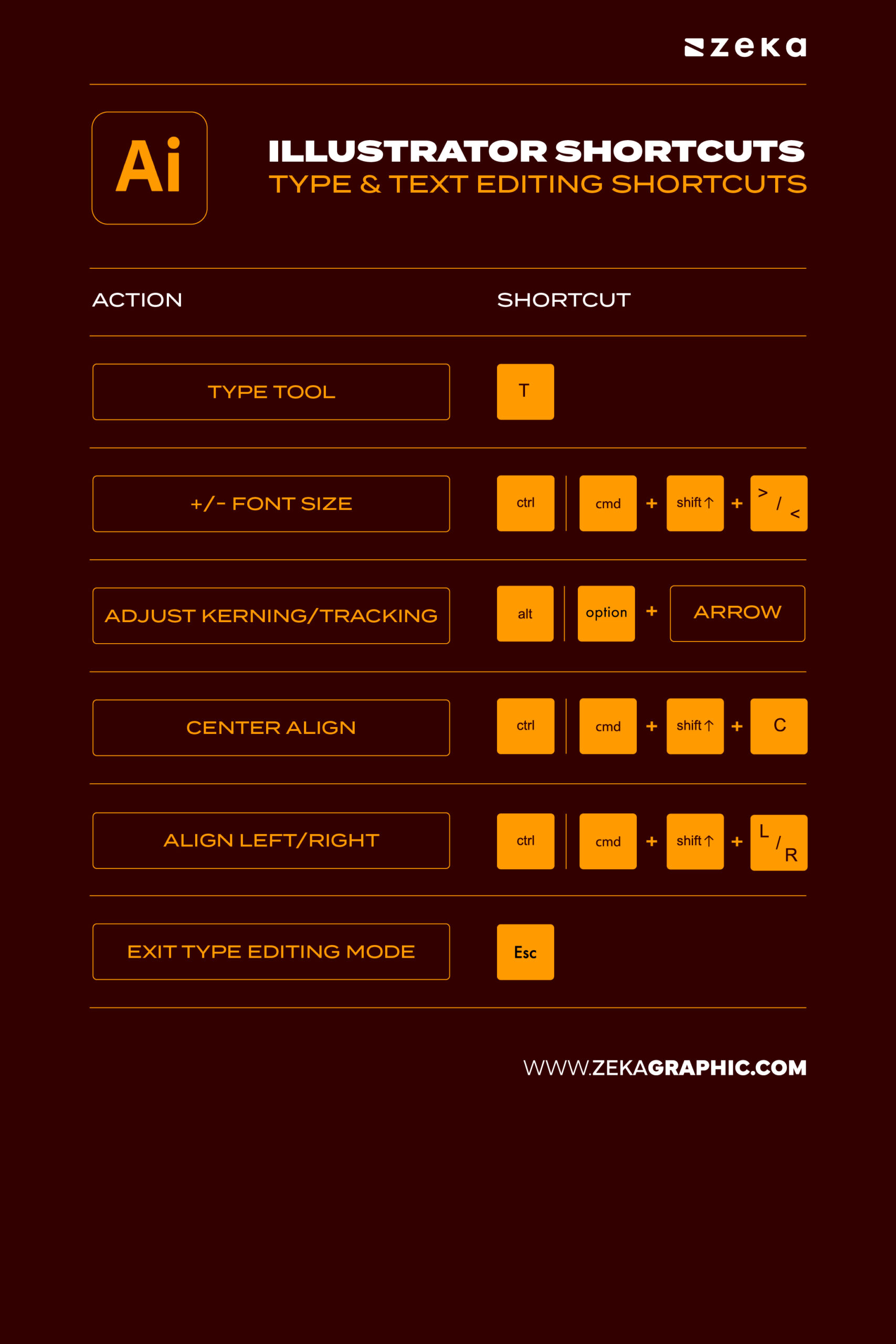
Working with text should feel responsive. These shortcuts help you adjust spacing, alignment, and hierarchy quickly—without digging through panels.
Small tweaks, done faster, make a big visual difference.
Action | Shortcut |
Type Tool | T |
Increase/Decrease Font Size | Ctrl/Cmd + Shift + > / < |
Adjust Kerning/Tracking | Alt/Option + Arrow |
Center Align | Ctrl/Cmd + Shift + C |
Align Left/Right | Ctrl/Cmd + Shift + L / R |
Exit Type Editing Mode | Esc |
💡 Mini Tip: When designing text-heavy layouts, use Area Type for paragraphs — and combine it with these shortcuts for precise alignment control.
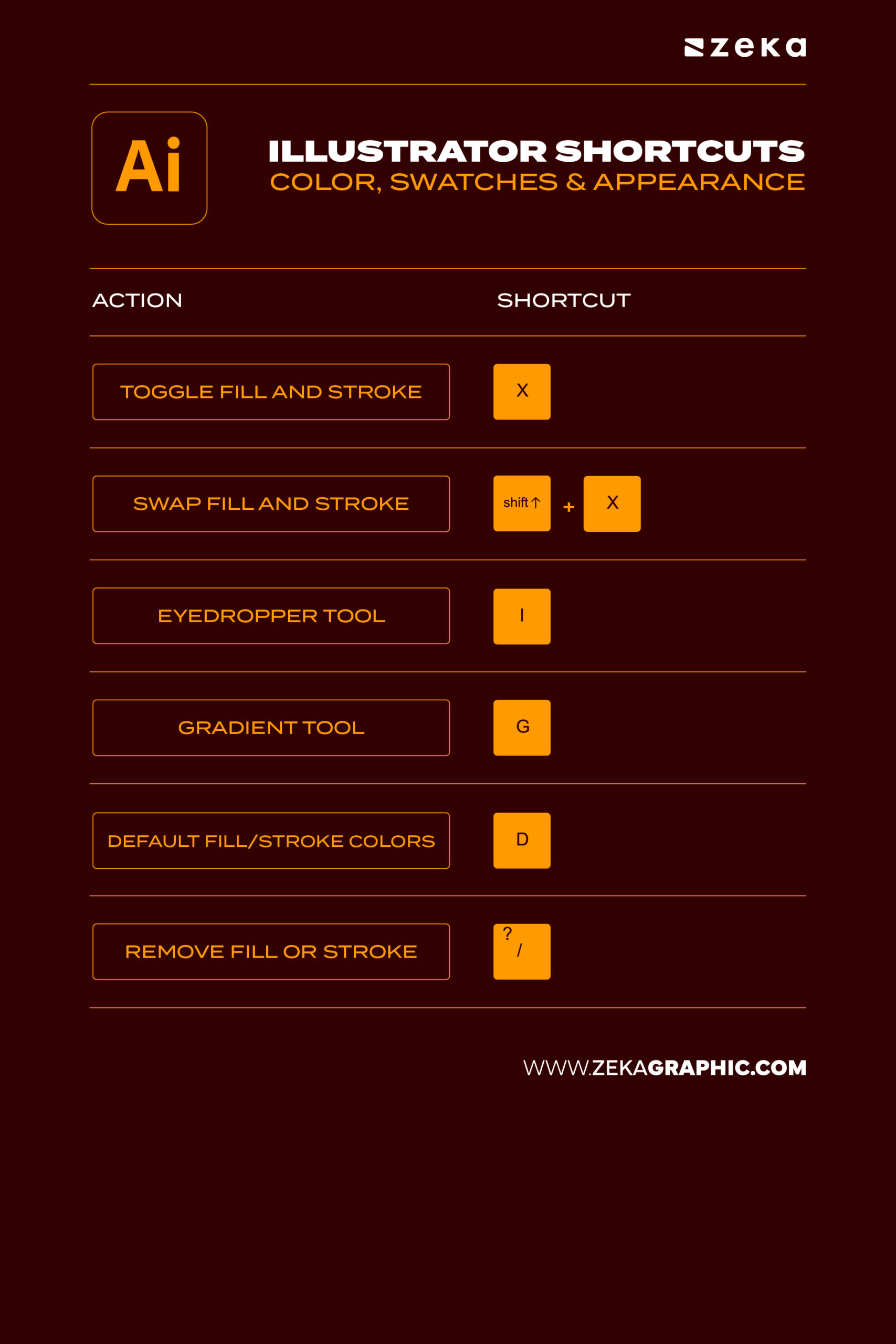
Color decisions happen constantly. Switching fills, testing palettes, or sampling colors should be instant.
These shortcuts keep experimentation quick and natural, without breaking your rhythm.
Action | Shortcut |
Toggle Between Fill and Stroke | X |
Swap Fill and Stroke | Shift + X |
Eyedropper Tool | I |
Gradient Tool | G |
Default Fill/Stroke Colors | D |
Remove Fill or Stroke | / |
💡 Pro Tip: Combine the Eyedropper (I) with the Appearance panel to capture not only color but effects and transparency from one object to another.
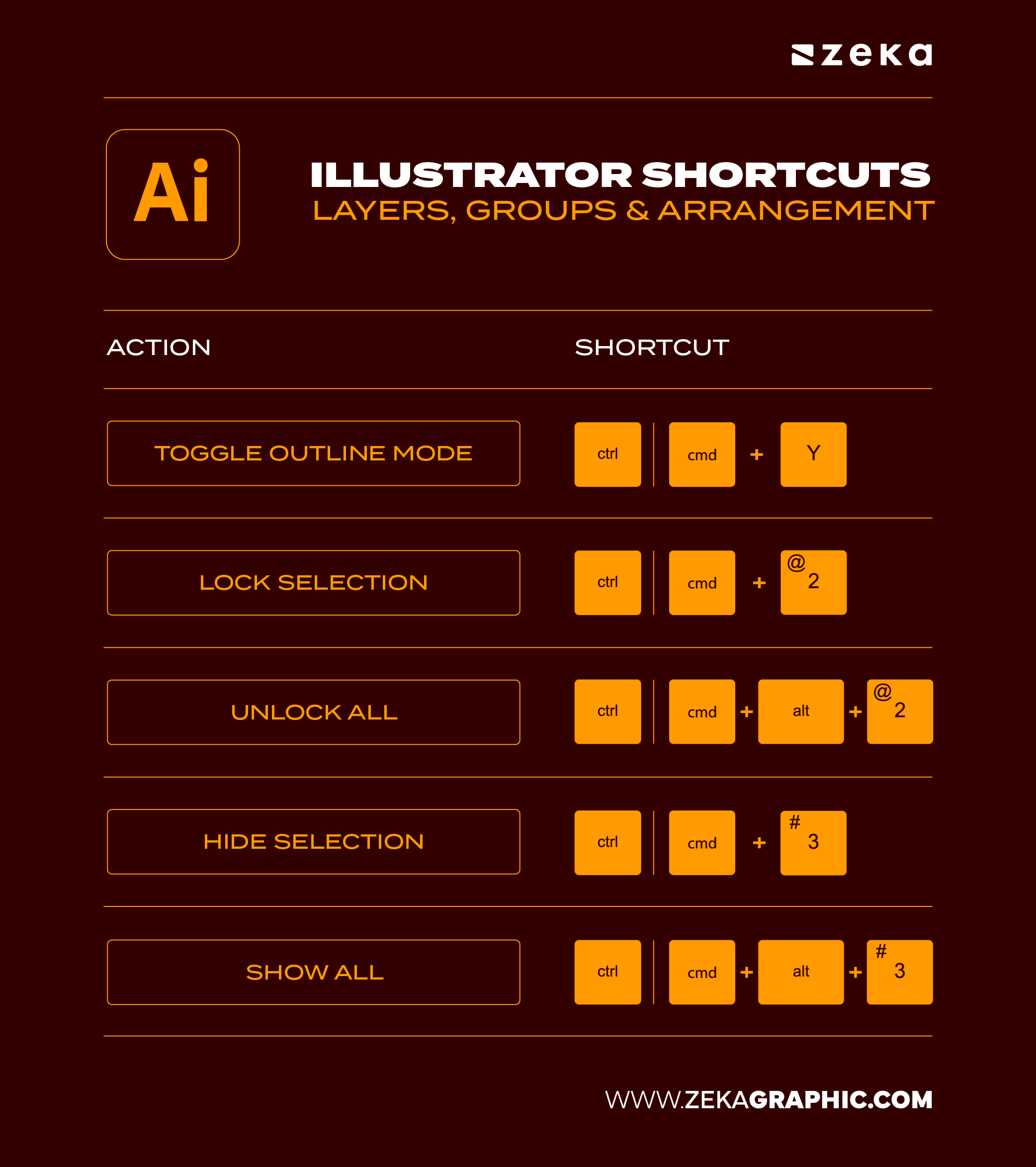
As projects grow, organization becomes everything. Layers, groups, and visibility controls help you stay in control without slowing down.
A clean structure means fewer mistakes and smoother edits.
Action | Shortcut |
Toggle Outline Mode | Ctrl/Cmd + Y |
Lock Selection | Ctrl/Cmd + 2 |
Unlock All | Ctrl/Cmd + Alt + 2 |
Hide Selection | Ctrl/Cmd + 3 |
Show All | Ctrl/Cmd + Alt + 3 |
Mini Tip: Use consistent layer naming and combine these shortcuts with the Layers panel to navigate complex compositions efficiently.
Advertisment
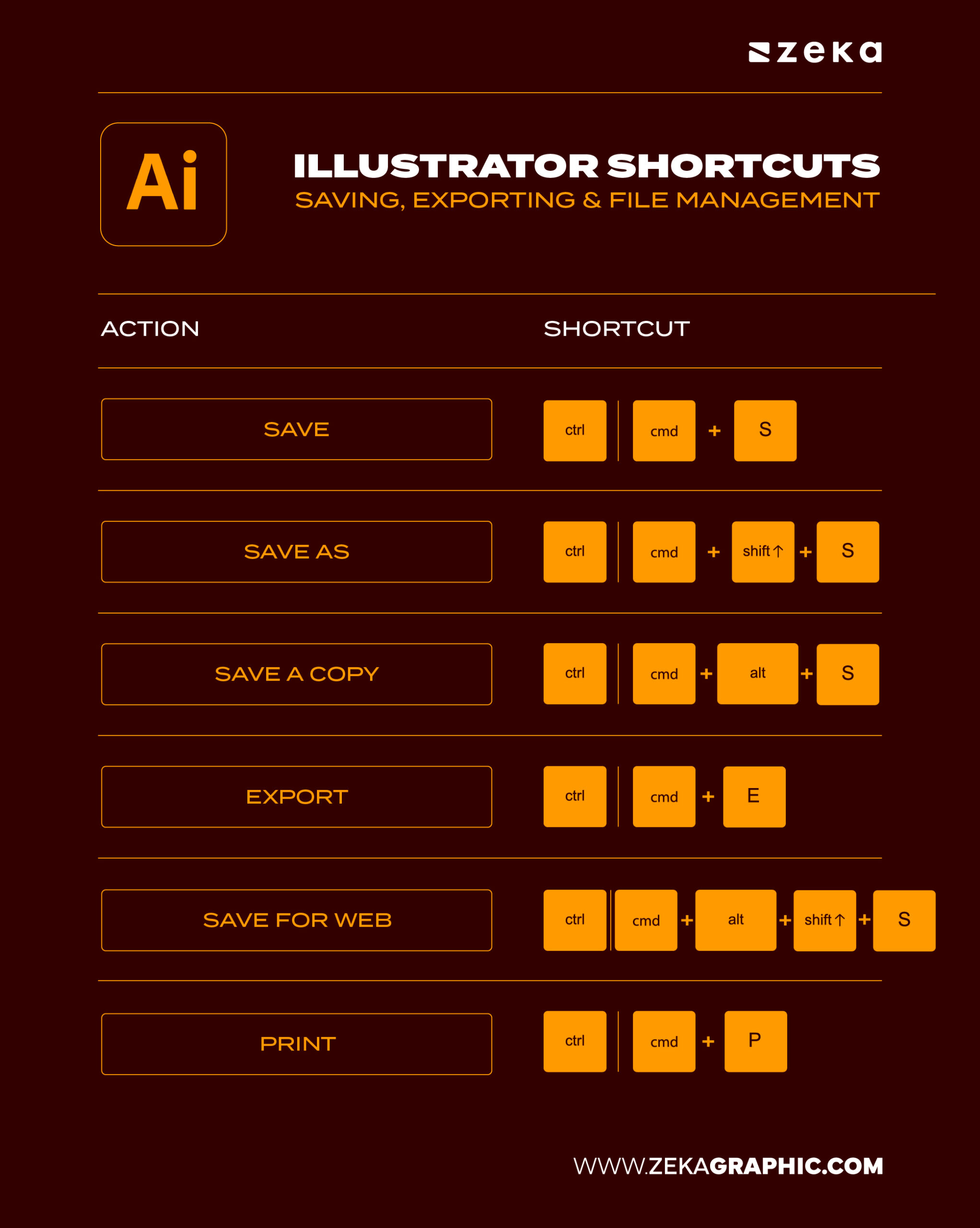
The workflow doesn’t end when the design is done. Saving, exporting, and managing files efficiently keeps projects organized and client-ready.
These shortcuts help you move quickly without missing important steps.
Action | Shortcut |
Save | Ctrl/Cmd + S |
Save As | Ctrl/Cmd + Shift + S |
Save a Copy | Ctrl/Cmd + Alt + S |
Export | Ctrl/Cmd + E |
Save for Web | Ctrl/Cmd + Alt + Shift + S |
Ctrl/Cmd + P |
💡 Pro Tip: Always use version naming in your filenames (e.g., “logo_v03.ai”) to stay organized during client revisions.
Every experienced designer has a few hidden Illustrator shortcuts that feel like superpowers. These time-saving features can dramatically improve workflow efficiency and precision. From instantly duplicating shapes to creating clipping masks, these advanced shortcuts turn Illustrator into a responsive, intuitive creative tool.
For instance, Alt + Drag to duplicate is one I use constantly when building UI components or repeating icon patterns — it’s faster than any copy-paste. Meanwhile, Ctrl/Cmd + 7 and Ctrl/Cmd + Shift + 7 let you toggle clipping masks effortlessly, perfect for showcasing product mockups or abstract illustrations.
Action | Shortcut |
Paste in Front | Ctrl/Cmd + F |
Paste in Back | Ctrl/Cmd + B |
Duplicate Object | Alt/Option + Drag |
Make Clipping Mask | Ctrl/Cmd + 7 |
Release Clipping Mask | Ctrl/Cmd + Shift + 7 |
Show/Hide Rulers | Ctrl/Cmd + R |
Show/Hide Guides | Ctrl/Cmd + ; |
Toggle Smart Guides | Ctrl/Cmd + U |
💡 Pro Tip: Combine Smart Guides with Pathfinder tools to align and snap complex vector shapes with pixel-perfect accuracy.
1. What are the most common shortcuts in Illustrator?
Common Illustrator shortcuts include V (Selection Tool), P (Pen Tool), M (Rectangle Tool), Ctrl/Cmd + G (Group), and Ctrl/Cmd + Z (Undo). These speed up vector design workflows instantly.
2. How do I find all shortcuts in Illustrator?
Press Ctrl/Cmd + Shift + Alt + K to open the Keyboard Shortcuts panel and view or customize your hotkeys.
3. How can I speed up my vector design process?
Use Illustrator shortcuts, custom actions, and global swatches to create designs faster. A shortcut-based workflow can boost productivity by 40–50%.
4. Can I make my own keyboard shortcuts in Illustrator?
Absolutely. Go to Edit > Keyboard Shortcuts and reassign tools or commands. This is ideal for professionals building a personalized Illustrator workflow.
5. What are the best shortcuts for logo design?
Useful logo design shortcuts include Shift + O (Artboard Tool), Ctrl/Cmd + 7 (Clipping Mask), and Alt + Drag (Duplicate). These time-saving Illustrator techniques streamline brand creation.
Advertisment
Adobe Illustrator shortcuts aren’t just about speed — they’re about building confidence and rhythm in your creative process. Once you internalize these key commands, Illustrator becomes an extension of your imagination. You’ll move from concept to final artwork fluidly, saving time while improving precision.
Whether you’re working on brand systems, illustrations, or digital products, mastering shortcuts gives you the power to design smarter, faster, and more creatively. Start small — focus on one shortcut category per week — and before long, your workflow will feel effortless.
If you found this post useful you might like to read these post about Graphic Design Inspiration.
Advertisment
Written by
If you like this post share it on your social media!






Advertisment
Advertisment