When working in modern UI/UX design, speed and precision are everything. That’s where Figma Shortcuts come in — they’re not just tiny tricks but complete workflow upgrades. As a graphic designer, I’ve learned that mastering the shortcuts in 2026 can cut your design time in half while keeping your creative rhythm intact.
Keyboard shortcuts for UI design aren’t just about convenience; they redefine how you think about interaction. Every keystroke becomes a micro-efficiency that compounds over time — opening panels, toggling layers, or switching between tools instantly. The more you integrate these Figma hotkeys into your daily process, the faster your creative instincts respond, making design feel natural and uninterrupted.
In this post, I’ll walk you through everything from essential beginner shortcuts to advanced power-user commands. We’ll cover Figma navigation, layers, text, components, and prototyping — all optimized for productivity. By the end, you’ll design smarter, not harder, with a more seamless and precise workflow.
Advertisment
Shortcuts are not just time-savers — they’re creative enhancers. When you know exactly which Figma productivity tips to use, you reduce interruptions and stay in a creative “flow state.” That means fewer clicks, less mouse movement, and more time thinking about your actual design. A well-practiced designer can execute ideas instantly, transforming inspiration into layouts without breaking concentration.
The benefits of Figma keyboard shortcuts extend beyond solo work. In collaborative environments, they make team design reviews, component creation, and prototype iteration drastically faster. Teams using shared design systems or working across time zones rely on shortcuts to communicate efficiently and reduce back-and-forth during revisions.
Measurable benefits of using Figma shortcuts:
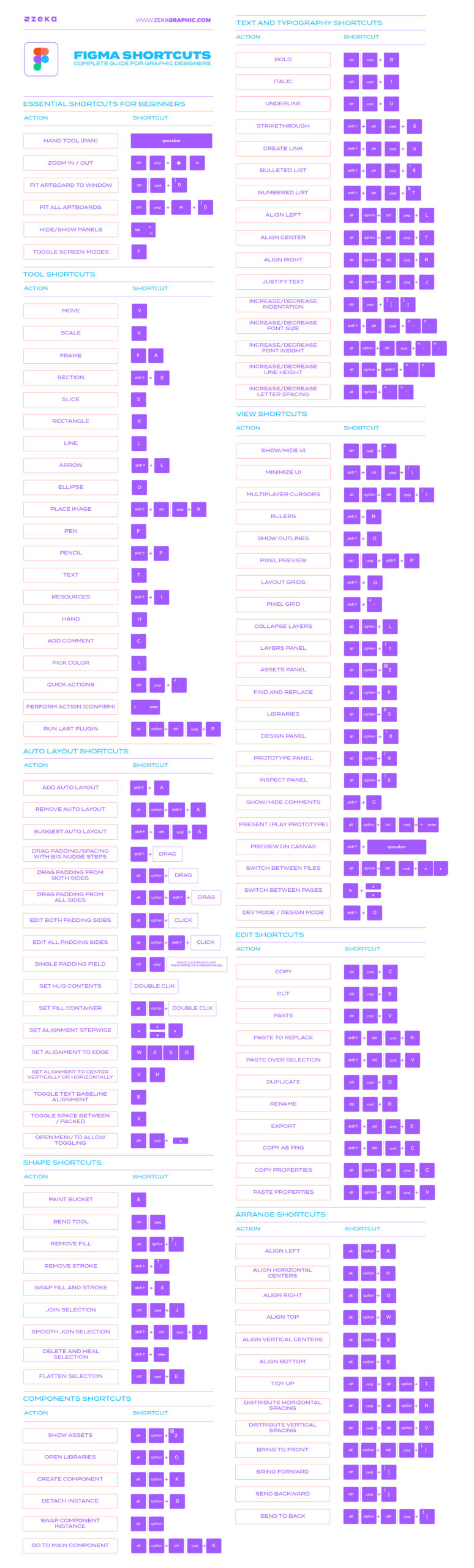
Every designer starts somewhere, and learning the basic Figma keyboard shortcuts early on can make the difference between a smooth or clunky workflow. These essential commands help you move around your canvas, manage layers, and draw shapes quickly — giving you total control over your workspace.
The goal here isn’t just memorization but understanding the logic behind each shortcut. Figma’s system is intuitive: Cmd/Ctrl controls general actions, Shift refines precision, and Alt/Option handles duplication or alignment. With these, you can start building confidence and design speed immediately.
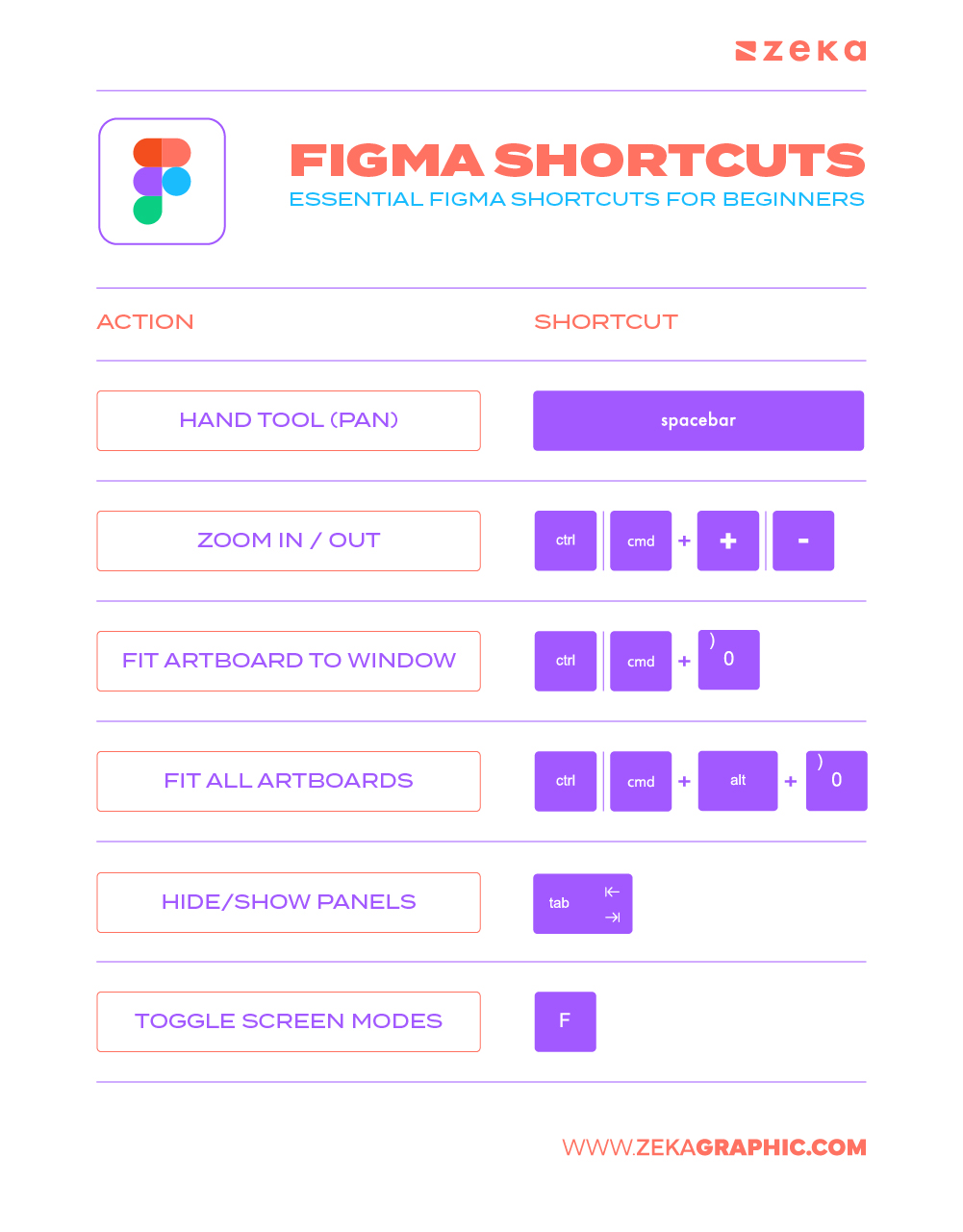
Below are the Figma essential commands every beginner should know:
Action | Shortcut (Windows / Mac) |
Hand Tool (Pan) | Spacebar |
Zoom In / Out | Ctrl/Cmd + + / – |
Fit Artboard to Window | Ctrl/Cmd + 0 |
Fit All Artboards | Ctrl/Cmd + Alt + 0 |
Hide/Show Panels | Tab |
Toggle Screen Modes | F |
These shortcuts are your foundation. Once they become second nature, every click feels intentional — and every second saved multiplies across projects.
Advertisment
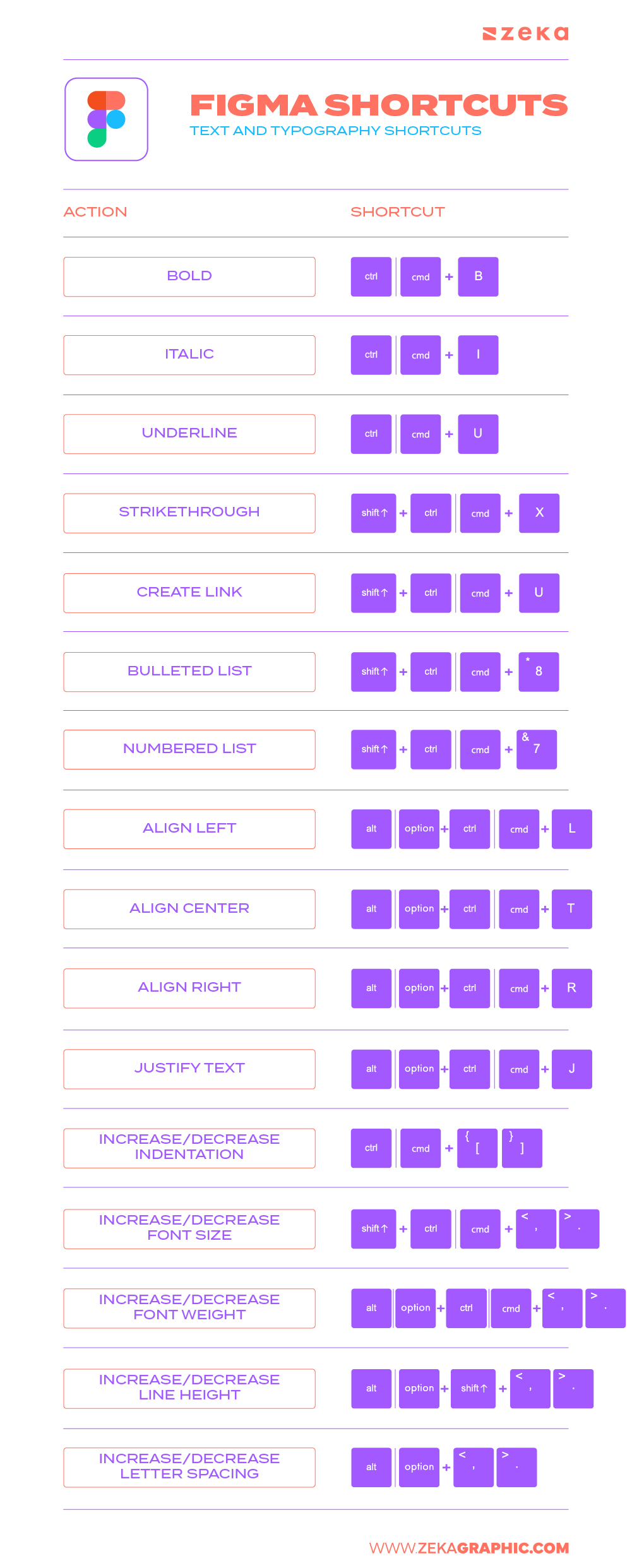
Typography defines hierarchy, mood, and usability — which is why Figma text shortcuts are essential for keeping your type clean and consistent. Instead of opening panels every time you need to tweak alignment or spacing, mastering these text editing shortcuts in Figma lets you stay focused on creative rhythm.
These shortcuts help you adjust font sizes, align paragraphs, and switch between text tools instantly. Whether you’re working on button labels or editorial-style layouts, the right Figma typography tips ensure every detail looks balanced and professional.
Action | Shortcut |
Bold | Cmd/Ctrl + B |
Italic | Cmd/Ctrl + I |
Underline | Cmd/Ctrl + U |
Strikethrough | Shift + Cmd/Ctrl + X |
Create Link | Shift + Cmd/Ctrl + U |
Bulleted List | Shift + Cmd/Ctrl + 8 |
Numbered List | Shift + Cmd/Ctrl + 7 |
Align Left | Option/Alt + Cmd/Ctrl + L |
Align Center | Option/Alt + Cmd/Ctrl + T |
Align Right | Option/Alt + Cmd/Ctrl + R |
Justify Text | Option/Alt + Cmd/Ctrl + J |
Increase Indentation | Cmd/Ctrl + ] |
Decrease Indentation | Cmd/Ctrl + [ |
Increase Font Size | Shift + Cmd/Ctrl + > or Shift + Cmd/Ctrl + . |
Decrease Font Size | Shift + Cmd/Ctrl + < or Shift + Cmd/Ctrl + , |
Increase Font Weight | Option/Alt + Cmd/Ctrl + > or Option/Alt + Cmd/Ctrl + . |
Decrease Font Weight | Option/Alt + Cmd/Ctrl + < or Option/Alt + Cmd/Ctrl + , |
Increase Line Height | Option/Alt + Shift + > |
Decrease Line Height | Option/Alt + Shift + < |
Increase Letter Spacing | Option/Alt + > or Option/Alt + . |
Decrease Letter Spacing | Option/Alt + < or Option/Alt + , |
A consistent typographic system not only improves readability but also creates visual rhythm across your entire project. Efficient font management in Figma translates to faster decisions and smoother collaboration — especially in brand and UI work.
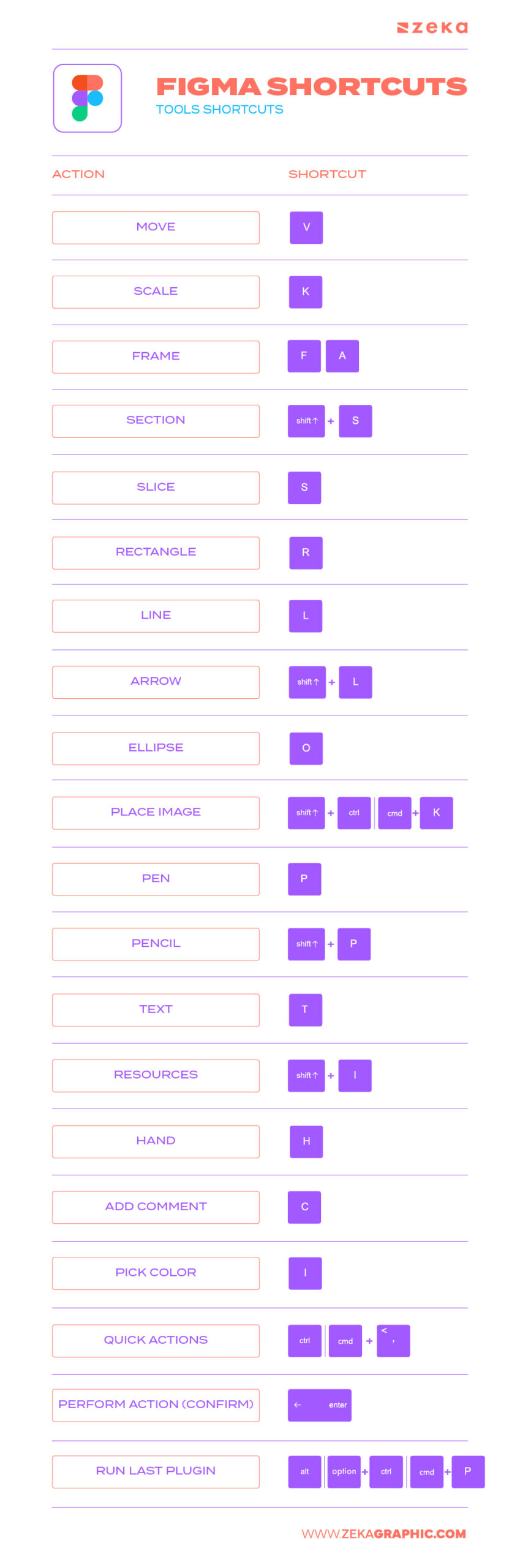
Figma’s tool shortcuts are the foundation of a fast, interruption-free workflow. When you can switch between Move, Frame, Text, or Shape tools without touching your mouse, you stay mentally locked into design mode.
Action | Shortcut |
Move | V |
Scale | K |
Frame | F or A |
Section | Shift + S |
Slice | S |
Rectangle | R |
Line | L |
Arrow | Shift + L |
Ellipse | O |
Place Image | Shift + Cmd/Ctrl + K |
Pen | P |
Pencil | Shift + P |
Text | T |
Resources | Shift + I |
Hand | H |
Add Comment | C |
Pick Color | I or Ctrl + C |
Quick Actions | Cmd/Ctrl + , or Cmd/Ctrl + P |
Perform Action (Confirm) | Return / Enter |
Run Last Plugin | Option/Alt + Cmd/Ctrl + P |
Advertisment
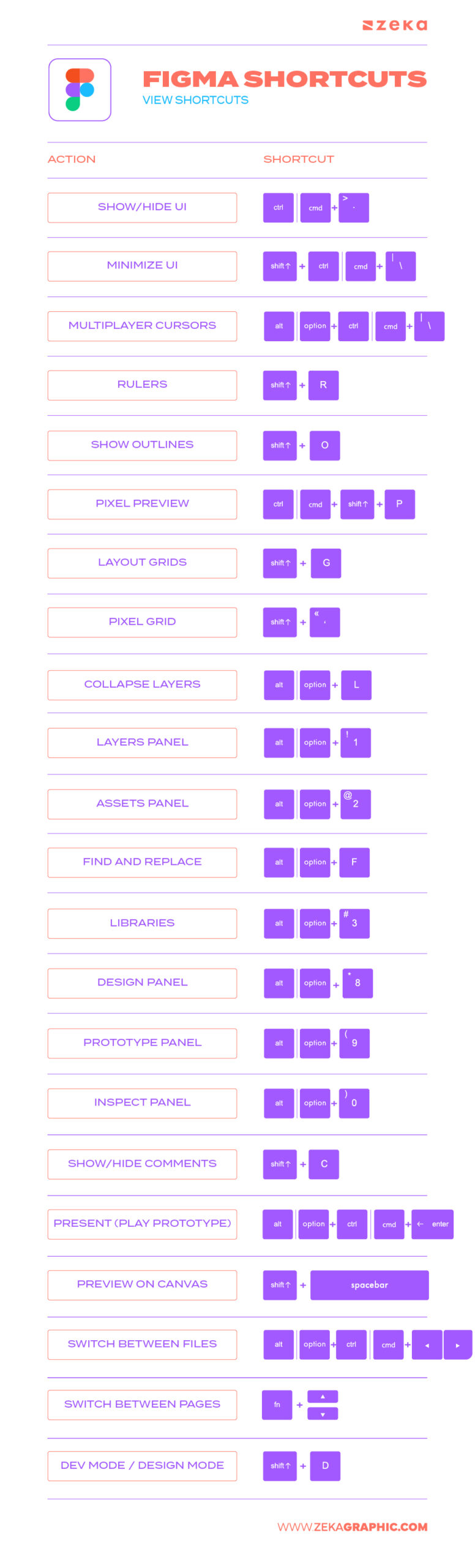
View shortcuts control how much information you see — and when. Being able to instantly toggle UI panels, grids, rulers, outlines, or pixel previews lets you adapt your workspace to the task at hand.
For large files and collaborative projects, view shortcuts are essential for clarity. Switching between panels, collapsing layers, previewing prototypes, or jumping between pages keeps you oriented and reduces visual noise.
Action | Shortcut |
Show/Hide UI | \ or Cmd/Ctrl + . |
Minimize UI | Shift + Cmd/Ctrl + \ |
Multiplayer Cursors | Option/Alt + Cmd/Ctrl + \ |
Rulers | Shift + R |
Show Outlines | Shift + O or Cmd/Ctrl + Y |
Pixel Preview | Cmd/Ctrl + Shift + P |
Layout Grids | Shift + G |
Pixel Grid | Shift + ‘ or Cmd/Ctrl + ‘ |
Collapse Layers | Option/Alt + L |
Layers Panel | Option/Alt + 1 |
Assets Panel | Option/Alt + 2 |
Find and Replace | Cmd/Ctrl + F |
Libraries | Option/Alt + 3 |
Design Panel | Option/Alt + 8 |
Prototype Panel | Option/Alt + 9 |
Inspect Panel | Option/Alt + 0 |
Show/Hide Comments | Shift + C |
Present (Play Prototype) | Option/Alt + Cmd/Ctrl + Enter |
Preview on Canvas | Shift + Space |
Switch Between Files | Option/Alt + Cmd/Ctrl + ← / → |
Switch Between Pages | fn + ↑ / ↓ |
Dev Mode / Design Mode | Shift + D |
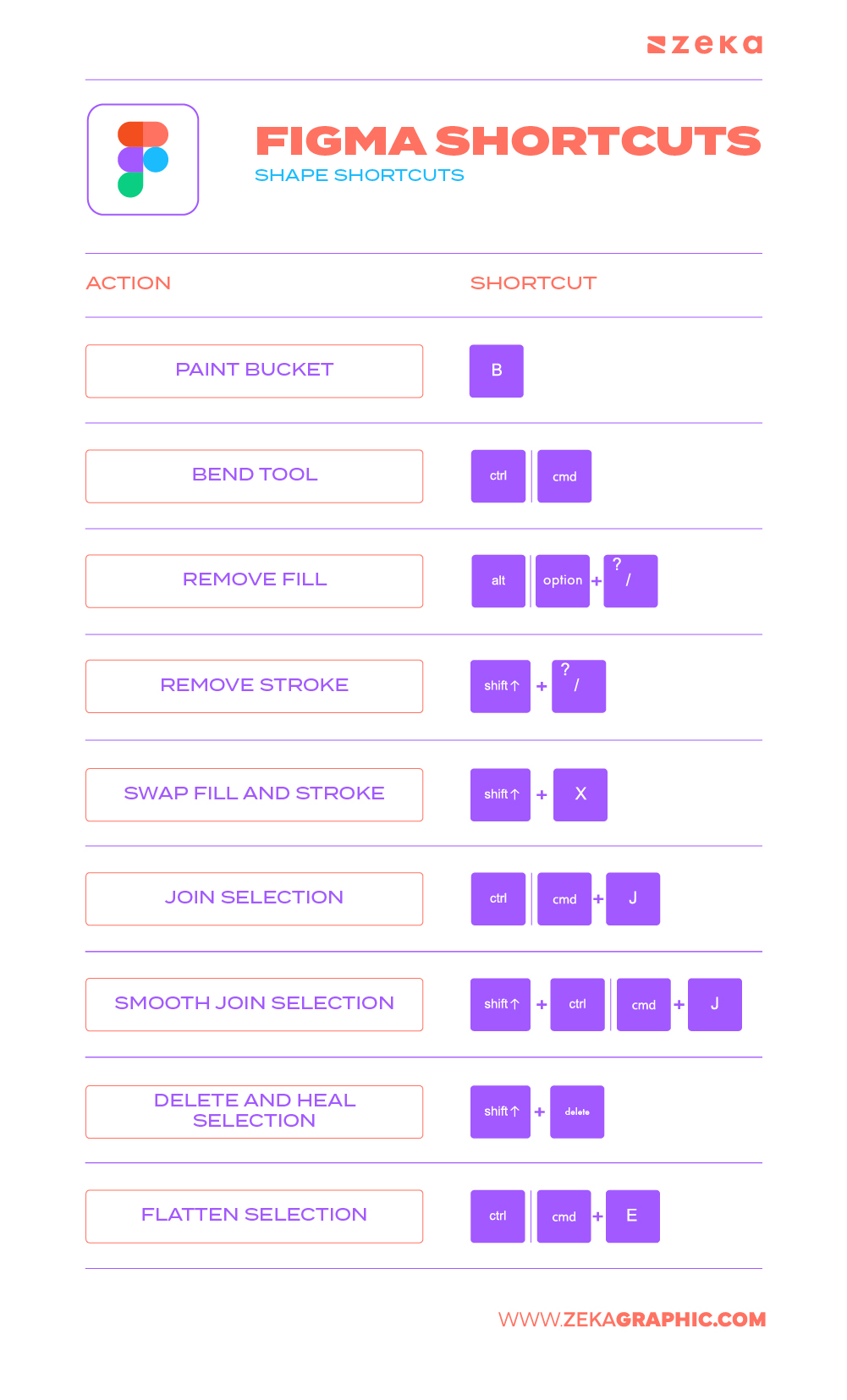
Shape shortcuts unlock precision and flexibility when working with vectors, icons, and UI elements. Instead of relying on menus, you can quickly remove fills, swap strokes, join paths, smooth curves, or flatten selections — all while staying fully focused on form and structure. This level of control is essential for clean UI icons, scalable assets, and polished interface elements.
Action | Shortcut |
Paint Bucket | B |
While editing a shape | |
Bend Tool | Cmd/Ctrl |
Remove Fill | Option/Alt + / |
Remove Stroke | Shift + / or Shift + ‘ |
Swap Fill and Stroke | Shift + X |
Join Selection | Cmd/Ctrl + J (After selecting points) |
Smooth Join Selection | Shift + Cmd/Ctrl + J (After selecting points) |
Delete and Heal Selection | Shift + Delete (After selecting points) |
Flatten Selection | Cmd/Ctrl + E |
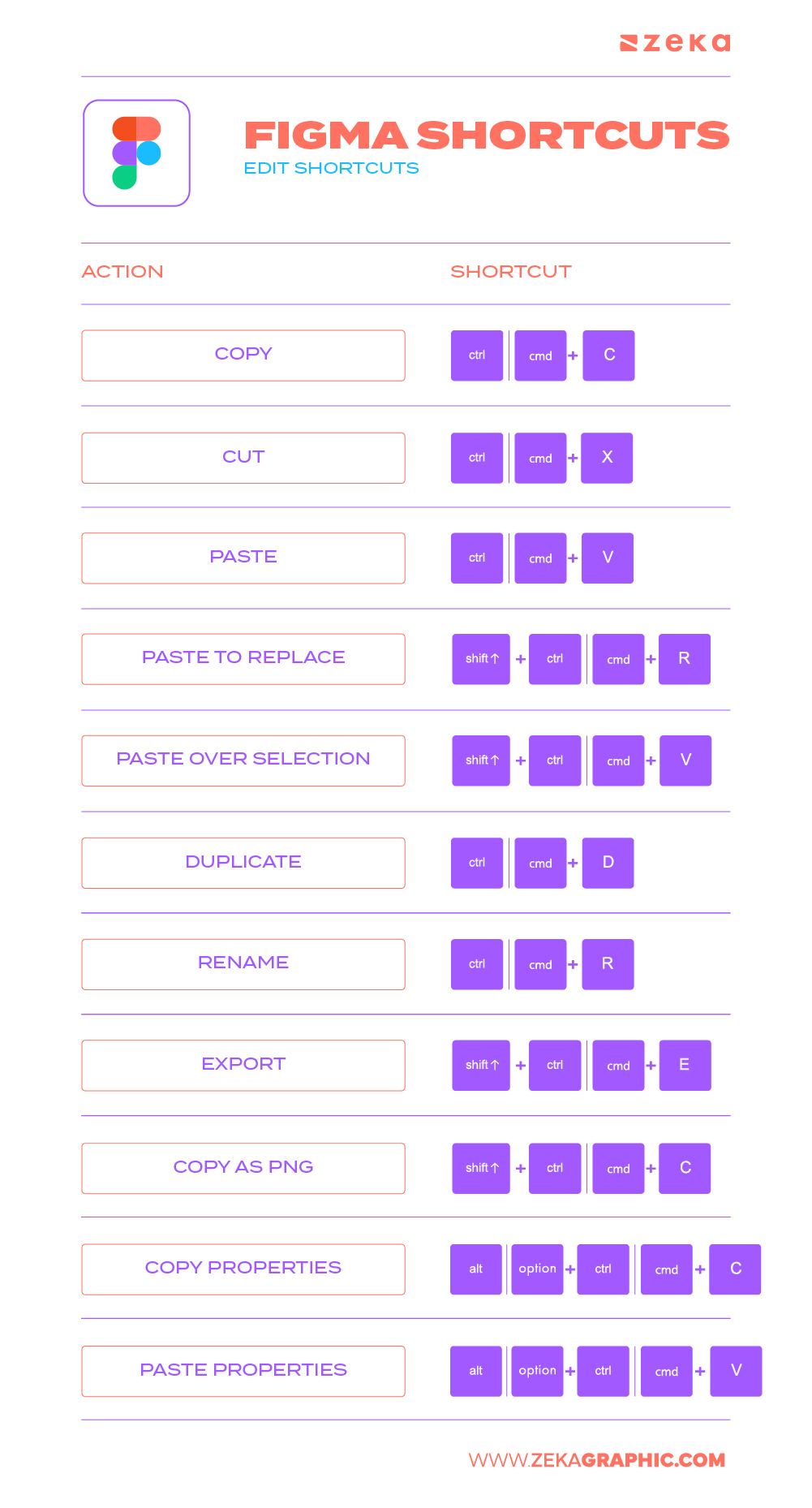
Editing shortcuts are the backbone of speed inside Figma. Copying, duplicating, pasting properties, or replacing selections instantly removes repetitive effort from your workflow. Instead of rebuilding styles or reapplying settings manually, you can transfer design intent with precision and confidence.
Action | Shortcut |
Copy | Cmd/Ctrl + C |
Cut | Cmd/Ctrl + X |
Paste | Cmd/Ctrl + V |
Paste to Replace | Shift + Cmd/Ctrl + R |
Paste Over Selection | Shift + Cmd/Ctrl + V |
Duplicate | Cmd/Ctrl + D |
Rename | Cmd/Ctrl + R |
Export | Shift + Cmd/Ctrl + E |
Copy as PNG | Shift + Cmd/Ctrl + C |
Copy Properties | Option/Alt + Cmd/Ctrl + C |
Paste Properties | Option/Alt + Cmd/Ctrl + V |
Advertisment
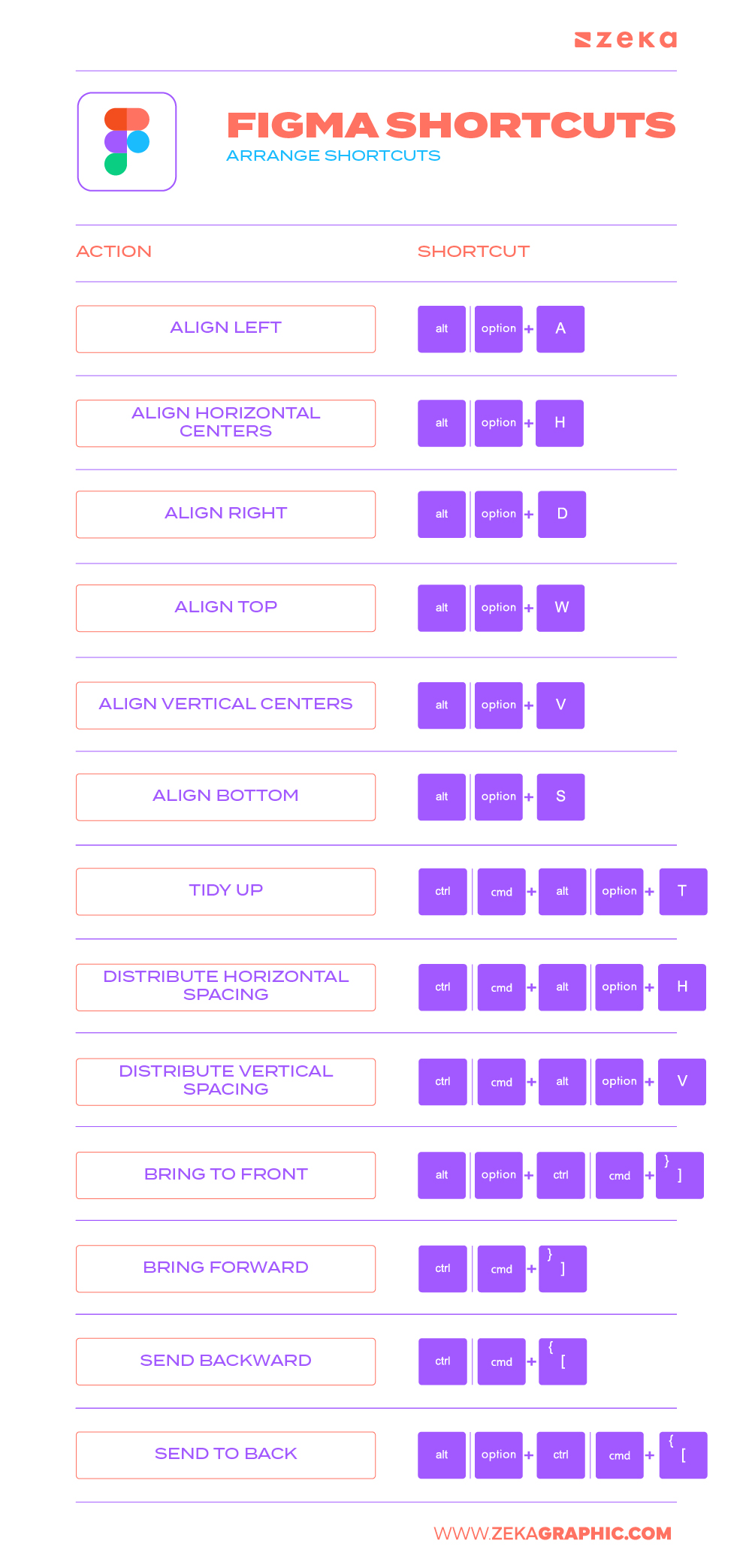
Arrangement shortcuts are what separate clean, professional layouts from messy ones. Perfect alignment, even spacing, and proper stacking order are non-negotiable in modern UI design — and these shortcuts let you achieve that instantly. Instead of eyeballing spacing or nudging endlessly, you can align and distribute elements with mathematical precision.
Action | Shortcut |
Align Left | Option/Alt + A |
Align Horizontal Centers | Option/Alt + H |
Align Right | Option/Alt + D |
Align Top | Option/Alt + W |
Align Vertical Centers | Option/Alt + V |
Align Bottom | Option/Alt + S |
Tidy Up | Ctrl + Option/Alt + T |
Distribute Horizontal Spacing | Ctrl + Option/Alt + H |
Distribute Vertical Spacing | Ctrl + Option/Alt + V |
Bring to Front | Option/Alt + Cmd/Ctrl + ] |
Bring Forward | Cmd/Ctrl + ] |
Send Backward | Cmd/Ctrl + [ |
Send to Back | Option/Alt + Cmd/Ctrl + [ |
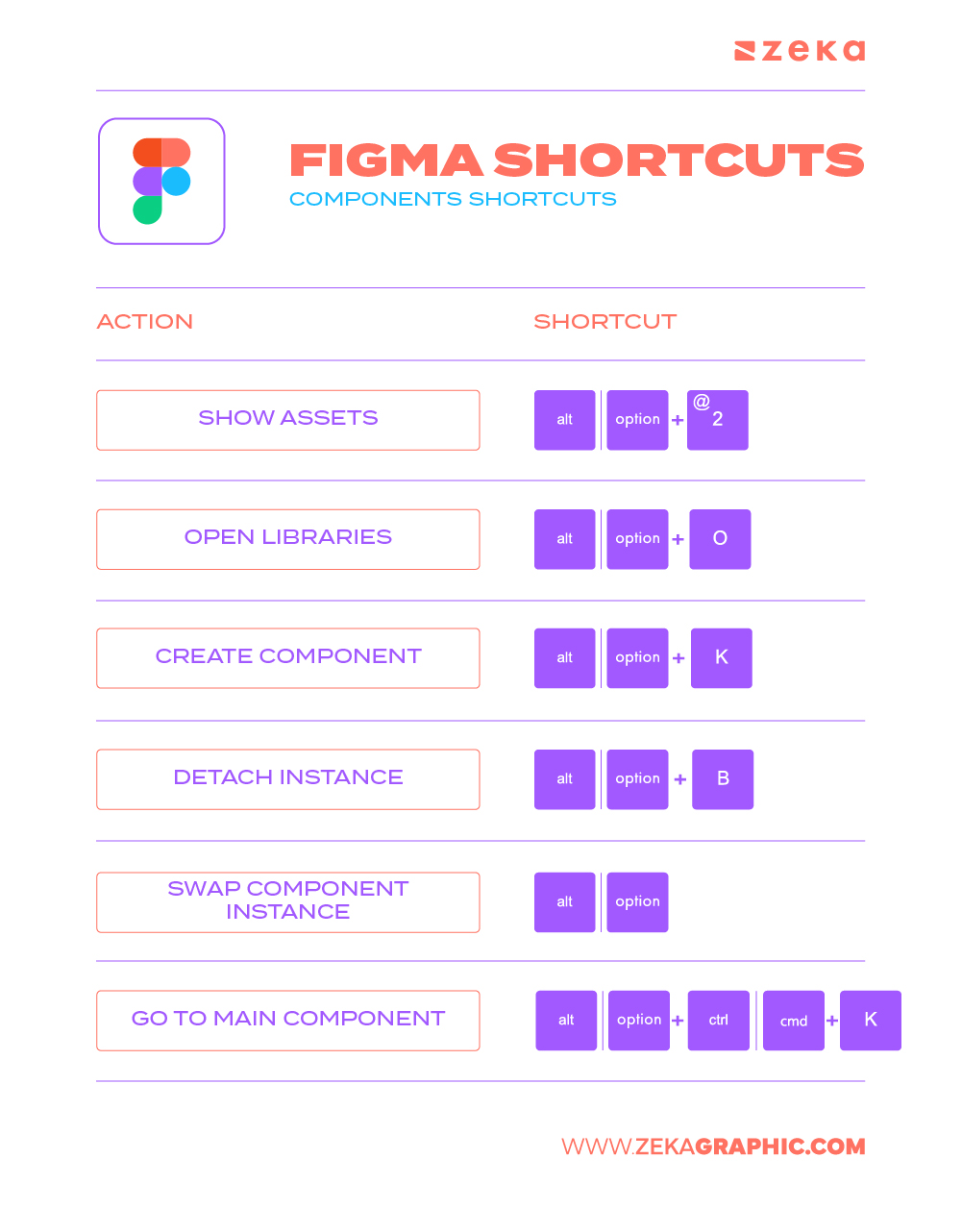
Component shortcuts are critical for building and maintaining scalable design systems. Creating components, detaching instances, swapping variants, or navigating back to main components becomes effortless when done via keyboard. This keeps your system flexible while preserving consistency across large projects.
Action | Shortcut |
Show Assets | Option/Alt + 2 |
Open Libraries | Option/Alt + Cmd/Ctrl + O |
Create Component | Option/Alt + Cmd/Ctrl + K |
Detach Instance | Option/Alt + Cmd/Ctrl + B |
Swap Component Instance | Option/Alt (While inserting a component) |
Go to Main Component | Ctrl + Option/Alt + Cmd/Ctrl + K |
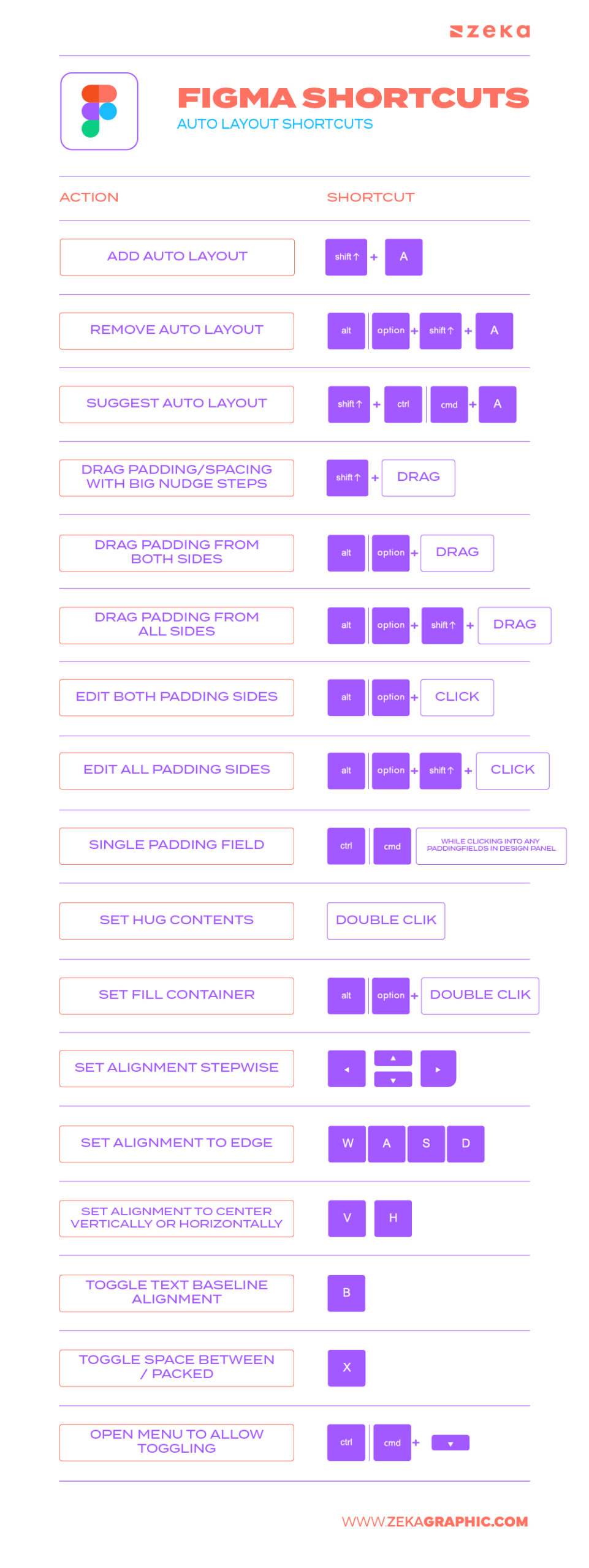
Auto Layout shortcuts transform static designs into responsive systems. Being able to add, remove, or fine-tune layout behavior directly from the keyboard gives you full control over spacing, padding, alignment, and content flow.
Action | Shortcut |
Add Auto Layout | Shift + A |
Remove Auto Layout | Option/Alt + Shift + A |
Suggest Auto Layout | Ctrl + Shift + A |
Drag Padding/Spacing with Big Nudge Steps | Shift + Drag (While dragging handles) |
Drag Padding from Both Sides | Option/Alt + Drag (While dragging handles) |
Drag Padding from All Sides | Option/Alt + Shift + Drag (While dragging handles) |
Edit Both Padding Sides | Option/Alt + Click (Click padding area) |
Edit All Padding Sides | Option/Alt + Shift + Click (Click padding area) |
Single Padding Field | Cmd/Ctrl (While clicking into any padding fields in design panel) |
Set Hug Contents | Double Click Vertical or Horizontal Edge |
Set Fill Container | Option/Alt + Double Click Vertical or Horizontal Edge |
Set Alignment Stepwise | ↓ → ↑ ← (After clicking on alignment box) |
Set Alignment to Edge | W A S D (After clicking on alignment box) |
Set Alignment to Center Vertically or Horizontally | V H (After clicking on alignment box) |
Toggle Text Baseline Alignment | B (After clicking on alignment box) |
Toggle Space Between / Packed | X or Double Click on Alignment Widget (After clicking on alignment box) |
Open Menu to Allow Toggling | Cmd/Ctrl + ↓ (With Width / Height in focus) |
For remote teams, agencies and fast-moving design sprints, collaboration shortcuts in Figma are a game-changer. They turn what used to be tedious — sharing, commenting, reviewing — into lightning-fast actions that keep you in the flow. When feedback, iterations, and approval loops happen in seconds not minutes, the whole project moves smoother.
Key commands include:
Action | Shortcut (Windows / Mac) |
Toggle Comment Mode | C |
Copy Link to Frame | Ctrl/Cmd + L |
Share Project / Invite | Ctrl/Cmd + Shift + E |
Show/Hide UI for Presenting | Ctrl/Cmd + \ |
Next Frame During Review | Page Down / Arrow Down |
Using these Figma feedback tools means you and your team spend less time navigating menus and more time solving design problems. The simpler the interaction, the clearer the
Q: Can I customize Figma shortcuts?
A: Yes — go to Menu → Help & Account → Keyboard Shortcuts to view and customize most keys to your preferred layout.
Q: Do Figma shortcuts work the same on Mac and Windows?
A: The logic is the same; you’ll just swap Cmd (Mac) for Ctrl (Windows) and Alt for Option where applicable.
Q: What shortcuts are best for Auto Layout creation?
A: Most used command: Shift + A to add Auto Layout. Then use Alt + Shift + A to remove it if needed.
Q: How can I learn shortcuts faster?
A: Practice 3–5 per week. Use the cheat sheet and reinforce shortcuts during actual design tasks — repetition drives speed.
Advertisment
Mastering shortcuts in Figma isn’t optional — it’s essential for designers who want to design faster, cleaner, and with more creative freedom. Start small: learn a few commands each week, use the cheat sheet, and gradually build your velocity. Once your fingers know the keys, your mind stays on design — not the tool.
If you found this post useful you might like to read these post about Graphic Design Inspiration.
Advertisment
Written by
If you like this post share it on your social media!





Advertisment
Advertisment